
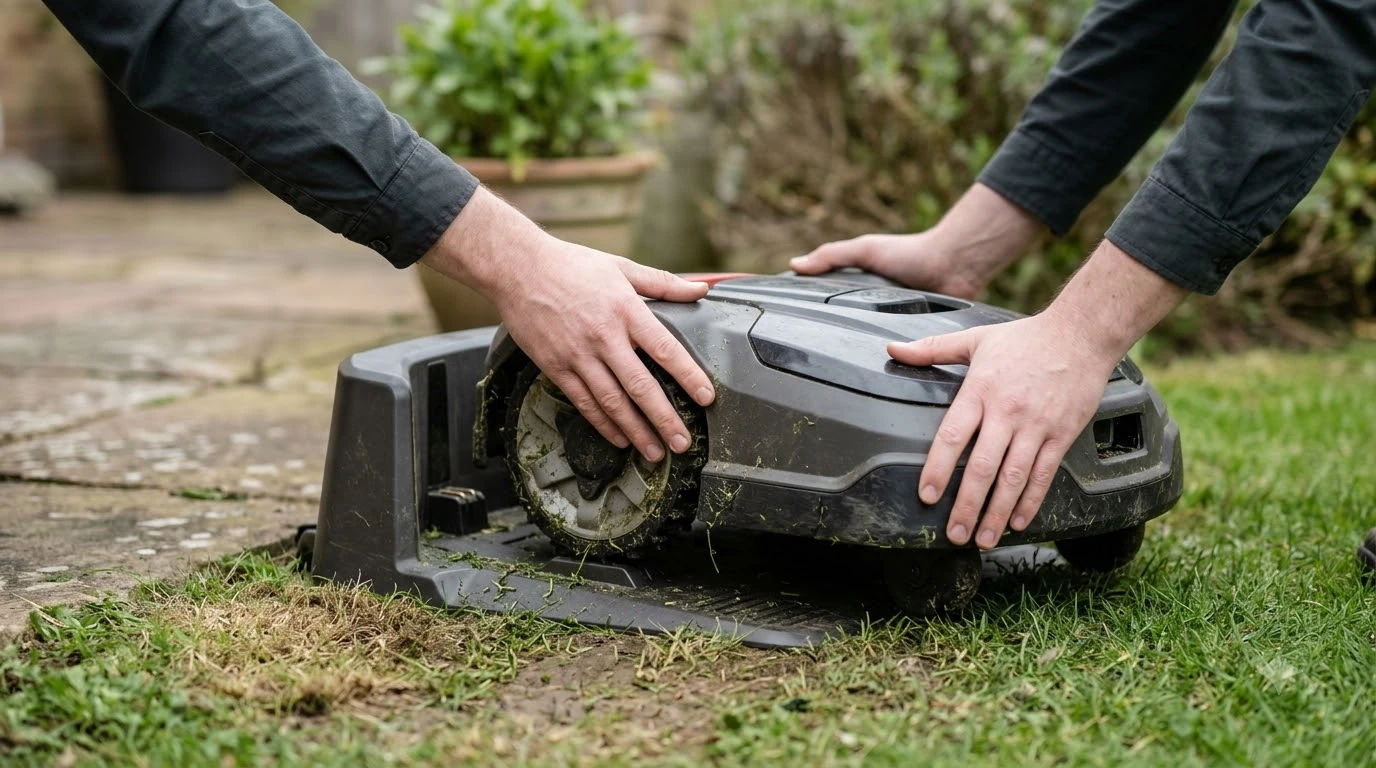

How to set up Ecovacs GOAT O1000 comes down to five steps: set a PIN, pair the mower with the ECOVACS HOME app, place the charging station on flat turf, position the RTK reference station away from walls and trees, then map the lawn in the app. Each step has a distance or condition that decides whether the next one works. Ecovacs publishes these rules across its help pages, product page and installation article, and the sources at the end show which figure comes from which page.
The short answer
- Pairing: keep the phone within about 10 m (32.8 ft) of the mower, on the same 2.4 GHz Wi-Fi network.
- Charging station: set it on flat, open turf with about 40 cm (15.75 in) clear on each side and 2 m (6.56 ft) in front.
- RTK station: keep it at least 2 m (6.56 ft) from walls and large trees, upright, with nothing overhead.
- Mapping: start from the dock with the battery above 50%, and follow the mower within 6 m (19.7 ft) in the app.
How to set up Ecovacs GOAT O1000: what you need first
The setup depends on three things at home: a phone with Bluetooth, a 2.4 GHz Wi-Fi network and an open patch of lawn for the base equipment. According to Ecovacs’ installation article, the first step is to install the ECOVACS HOME app and make sure the router’s 2.4 GHz band is enabled.
Heads up
When this guide was researched, the GOAT O1000 manual link on Ecovacs’ US product page opened a document titled for the GOAT O800 RTK and O1200 RTK. The PIN, pairing, dock and mapping steps below come from that sibling manual and are marked as such. Check the O1000 manual before you follow any distance exactly.
Step 1: Set the PIN code first
Set the PIN before you pair the mower, because the GOAT locks when it is powered on, reset or off the map. The sibling manual shows a flashing lock icon on a new unit until the code is set.
- Power on. Press and hold OK for three seconds on the mower.
- Enter each digit. Use + and – to pick a number, then press OK to lock it in and move on.
- Confirm twice. Enter the same code again. The manual lists 0000 as invalid.
You can change the PIN later in the app. If you enter wrong digits, the process starts over, so check the display before you confirm.
Step 2: Pair the mower with the ECOVACS HOME app
Pairing links the mower to your account in two connections: Bluetooth first, then Wi-Fi. The sibling manual asks you to turn on Bluetooth on the phone, scan the QR code on the GOAT or select it manually in the app, and then follow the prompts for both connections. An icon on the mower’s panel lights up when the link succeeds.
Keep the phone within the effective distance of 10 m, about 32.8 ft. Ecovacs’ installation article gives the same figure for scanning the QR code on the GOAT body. Both the phone and the mower must sit on the same 2.4 GHz network, and the router’s 2.4 GHz band must be enabled, so a 5 GHz-only setup does not meet the manual’s requirement.
One account can bind a GOAT at a time. If the mower is tied to another account, unbind it in the app first. The manual says unbinding does not erase working data such as schedules.
Step 3: Place the charging station on open, flat turf
The charging station needs flat ground with no slope, rocks or shadow, and clear room on each side. The sibling manual asks for no fences or plants within 40 cm (15.75 in) on either side and 2 m (6.56 ft) in front. Ecovacs’ installation article gives the same clearances for the O1000 RTK: 15.75 inches per side and 6.56 feet in front.
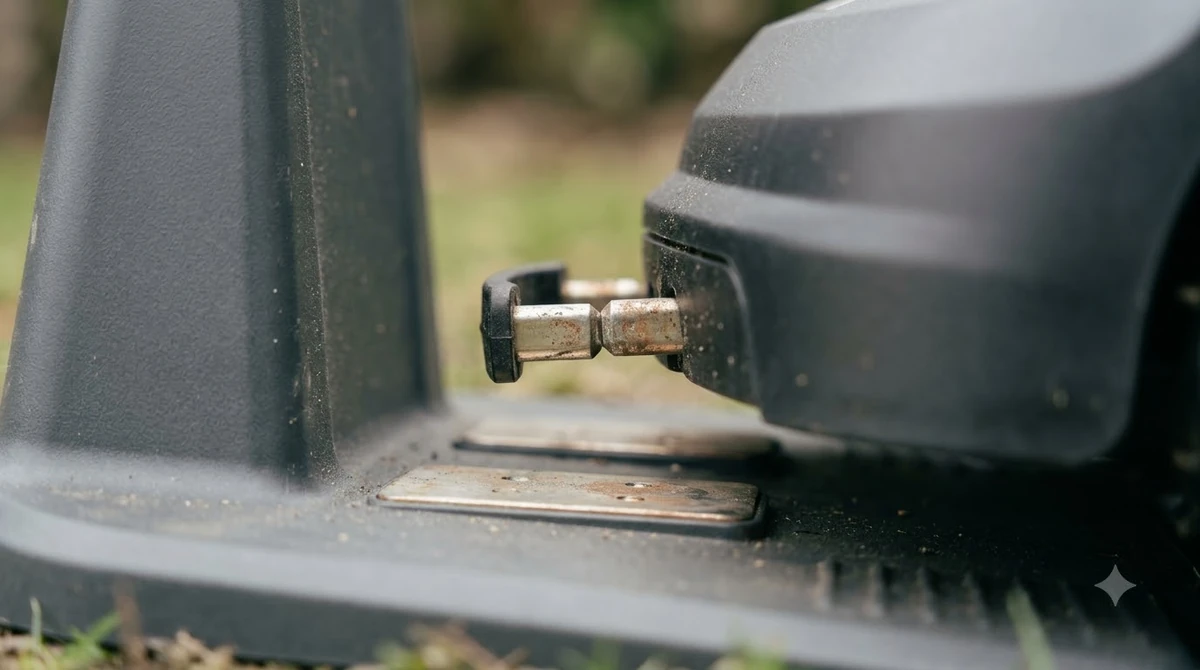
Two more rules apply. The power adapter should sit about 30 cm (11.8 in) above the ground to keep water away from it, and the grass around the dock must stay short. The manual says no longer than 6 cm (2.36 in), while the installation article says under 3.9 in. Until the O1000 manual confirms a figure, use the lower number.
Step 4: Position the RTK reference station
The RTK reference station is the part of the setup most likely to fail if it sits in the wrong place. Ecovacs’ help page says not to install it against a wall, because buildings block the positioning signal. The recommended distance is more than 2 m (6.56 ft) from walls and large trees, and nothing should shade it from above.
- Upright, not tilted. The station must stand vertically on firm ground.
- Not on soft soil. Soft ground lets the pole tilt and reduces accuracy.
- Check the indicator. After one minute of power, a steady light means a good signal. A flashing light means you should move the station.
The manual’s mounting steps are a pole, a signal head, a triangular peg and a fixing fork peg pushed into the ground. The RTK cable connects to the short port on the charging station, while the longer port takes the power adapter. Secure the cables with the clips and pegs in the kit, as the manual describes.
Step 5: Map the lawn in the app
Mapping sets the boundary the mower learns, and it works best when the mower starts from the dock with enough charge. The sibling manual asks for a battery above 50% and says the first attempt must begin where the GOAT docks properly at the charging station.
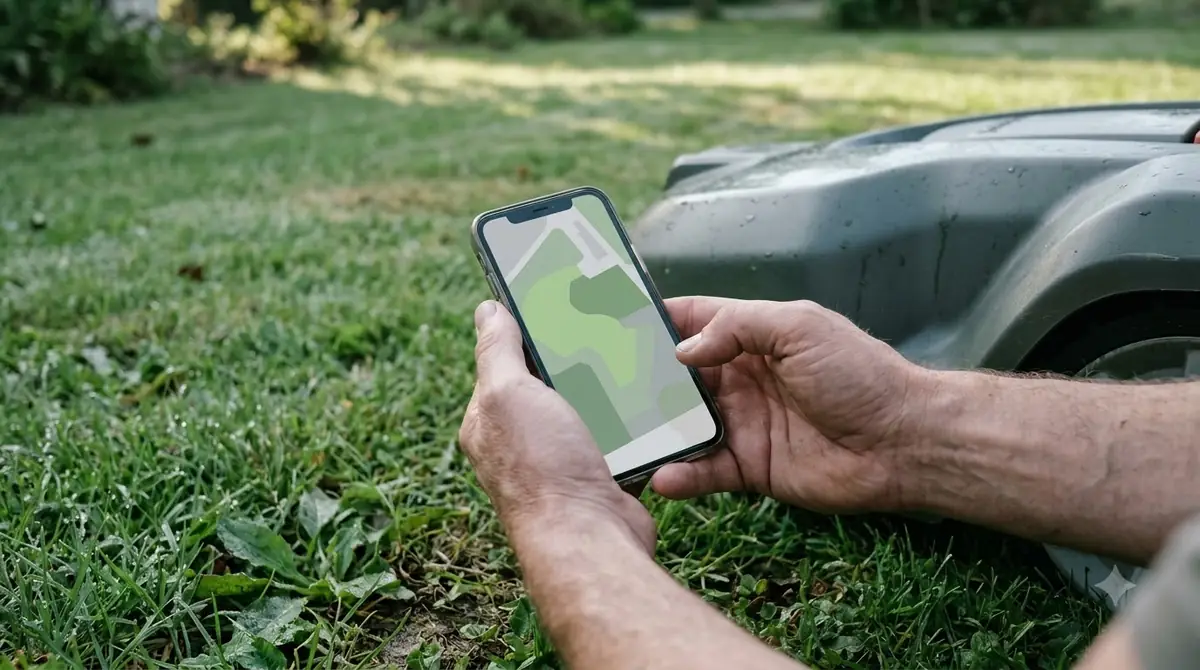
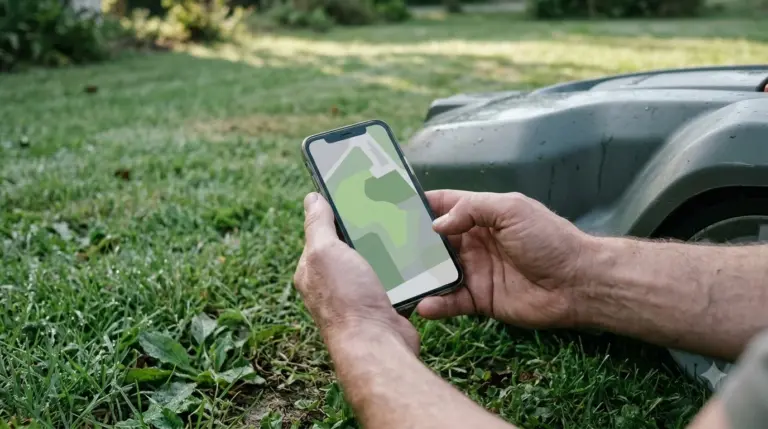
During mapping, the phone must stay within 6 m (19.69 ft) of the mower for a steady Bluetooth link, so keep the phone with you and follow the mower through the lawn. The app guides the loop, and you should close it back at the starting point.
| Mapping setting | Figure in Ecovacs sources |
|---|---|
| Battery before mapping | Above 50% |
| Follow distance in the app | Within 6 m (19.69 ft) |
| Lawn edge height difference | Keep 10 cm (3.94 in) from the edge if the drop is more than 3 cm (1.18 in) |
| Narrow passage | Minimum width greater than 0.75 m (2.46 ft) |
| Turning angle while mapping | Greater than 90 degrees |
Where a road or path splits the lawn, a height under 3 cm (1.18 in) can be bridged by a path created in the app. A higher step needs a ramp as high as the road and wider than 1.2 m (3.94 ft), placed before mapping.
Set no-go zones and keep the boundary off steep ground
No-go zones protect what the mower should avoid. The sibling manual notes that the mower reacts to solid obstacles such as stones or trees, but still advises no-entry zones for flower beds, trampolines and vegetable plots.
The manual also says to block raised tree roots, exposed wire, pools and any slope over 45%, and to keep the mower 30 cm (11.8 in) from a pond or cliff. Ecovacs’ installation article gives 9.8 inches for hazards like these, so keep the larger distance until the O1000 manual is checked. The same manual says not to create a virtual boundary on a slope above 17%.
Charge the mower and run a first check
Charge the GOAT fully before the first mow. The sibling manual says the battery icon flashes while the mower charges, and the dock light flashes blue while charging and turns solid blue when full, with the screen reading 100.
Ecovacs’ installation article says you can set up to two schedules, for example one for shaded areas and one for sunny areas. Our reading is to start with a short first run, so you can watch how the mower handles the lawn before you leave it alone.
Common setup problems and what to check
Most setup failures trace back to distance, signal or ground conditions, and each has a check you can make without a service call.
| Symptom | Likely cause | What to check |
|---|---|---|
| Pairing fails | Phone too far or on the wrong network | Stay within 10 m and use the 2.4 GHz network |
| RTK indicator flashes | Station too close to a wall or tree | Move it at least 2 m away, upright and on firm ground |
| Mower stays locked | PIN not set or entered wrong | Re-enter the code, then check the PIN FAQ on Ecovacs’ support site |
| Mapping drifts or stops | Low battery, narrow passage or high edge drop | Charge above 50%, check the 0.75 m and 3 cm limits |
Frequently asked questions
Can I install the RTK station against a wall?
Ecovacs advises against it, because buildings block the positioning signal. Keep the station more than 2 m (6.56 ft) away from walls and large trees, upright and clear of anything overhead.
Do I need to set a PIN before pairing?
The sibling manual lists PIN setup as the first step, because the mower stays locked until the code is entered. The code 0000 is invalid, you enter the PIN twice to confirm it, and you can change it later in the app.
How much grass height is safe around the charging station?
Ecovacs’ sources do not agree. The sibling manual says no longer than 6 cm (2.36 in), and the installation article says under 3.9 in. Keep the grass short around the dock and use the lower figure until the O1000 manual confirms one.
How long does it take to set up Ecovacs GOAT O1000?
Ecovacs’ product pages quote two figures, five minutes and fifteen minutes, and neither explains the difference. The pages give no mapping time, so plan for the longer figure plus a full charge.
Sources
- Ecovacs US help, RTK station wall FAQ (Ecovacs): RTK placement rules, 2 m distance, upright position and one-minute indicator check.
- Ecovacs US, how to install a robot lawn mower (Ecovacs): app order, Bluetooth range, O1000 RTK dock clearance, schedules and first charge.
- Ecovacs US, GOAT O1000 RTK product page (Ecovacs): setup time figures and manual link.
- Ecovacs GOAT O800 RTK and O1200 RTK instruction manual (Ecovacs, sibling model): PIN, pairing, dock, RTK station and mapping steps, pages 15 to 24.
 Up next7 min readLearnHow long does the Ecovacs GOAT O1000 battery last?Updated Nov 11, 2026
 6 min readLearnHow to Update Ecovacs GOAT O1000 FirmwareUpdated Nov 12, 2026
 6 min readLearnEcovacs GOAT Factory Reset: Step-by-Step GuideUpdated Nov 13, 2026
 9 min readLearnHow to Set Up the Dreame A1 Pro Robot Mower Step by StepUpdated Nov 10, 2026
 8 min readLearnHow to Set Up Anthbot M5: Step-by-Step GuideUpdated Nov 10, 2026
 9 min readLearnHow to Set Up Segway Navimow i110N: Easy Step-by-Step GuideUpdated Nov 10, 2026