
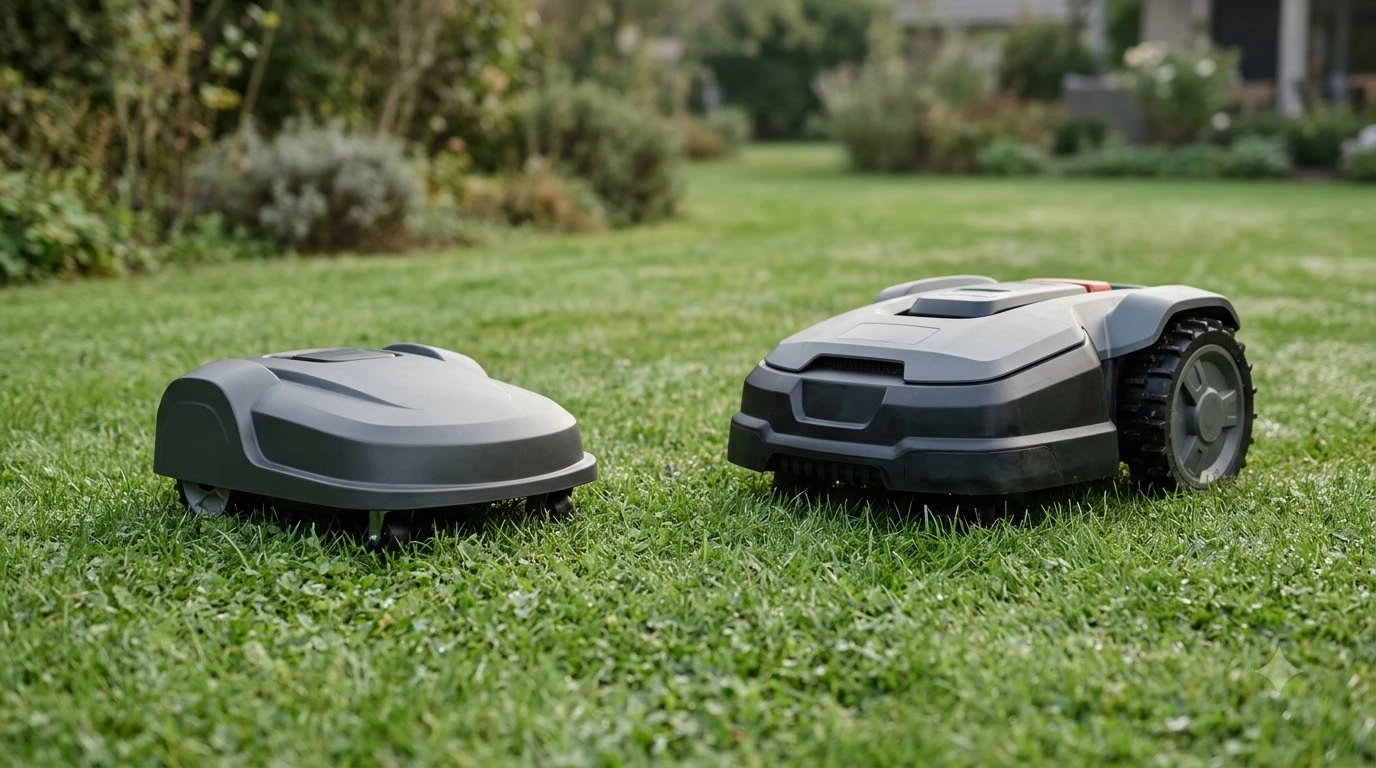

Learning how to update Dreame A1 Pro firmware starts with one fact: updates arrive over the air, so you usually need no cable or computer. Dreame says it releases firmware and app updates on an ongoing basis, and owners can either wait for the update notice in the app or turn on Auto-Update. As of November 2026, that is the update path we could confirm from Dreame’s own material.
The short answer
- Delivery: Dreame sends firmware and app updates over the air, according to the A1 Pro owner manual.
- What you do: watch for the update notice in the Dreamehome app, or turn on Auto-Update if the app offers it.
- Before you install: keep the mower charged and parked, the precaution other robot mower brands list.
- If it fails: restart the mower, reconnect, check the version, and retry. If the same error returns, our reading is to contact Dreame support.
Does the Dreame A1 Pro update itself?
Yes, if Auto-Update is on. Knowing how to update Dreame A1 Pro firmware on autopilot is the simplest route, and the first-time pairing steps are in our Dreame A1 Pro setup guide. The A1 Pro user manual says Dreame continuously releases over-the-air updates for firmware and app improvements, and asks owners to watch for update notifications or enable the Auto-Update function. The manual excerpt we could read does not say how often the mower checks for a new version, so the timing is unknown.
Our reading: the two options are not exclusive. A notice is a prompt to act now, while Auto-Update removes the need to remember. Owners who leave Auto-Update off should check the app on a regular schedule.
How to update Dreame A1 Pro firmware: check the version first
The version check is the first thing to confirm before and after any update. The A1 Pro manual does not name a firmware screen, but the Settings list it prints for the Dreamehome app ends with Reset the Robot and About. Our reading is that About is the likeliest place to find version details, though the manual does not confirm it, so match the label against your own app. Write down the version number before an update so you can confirm the install took.
This is the practical core of how to update Dreame A1 Pro firmware: you can only prove an install worked by comparing the number before and after.
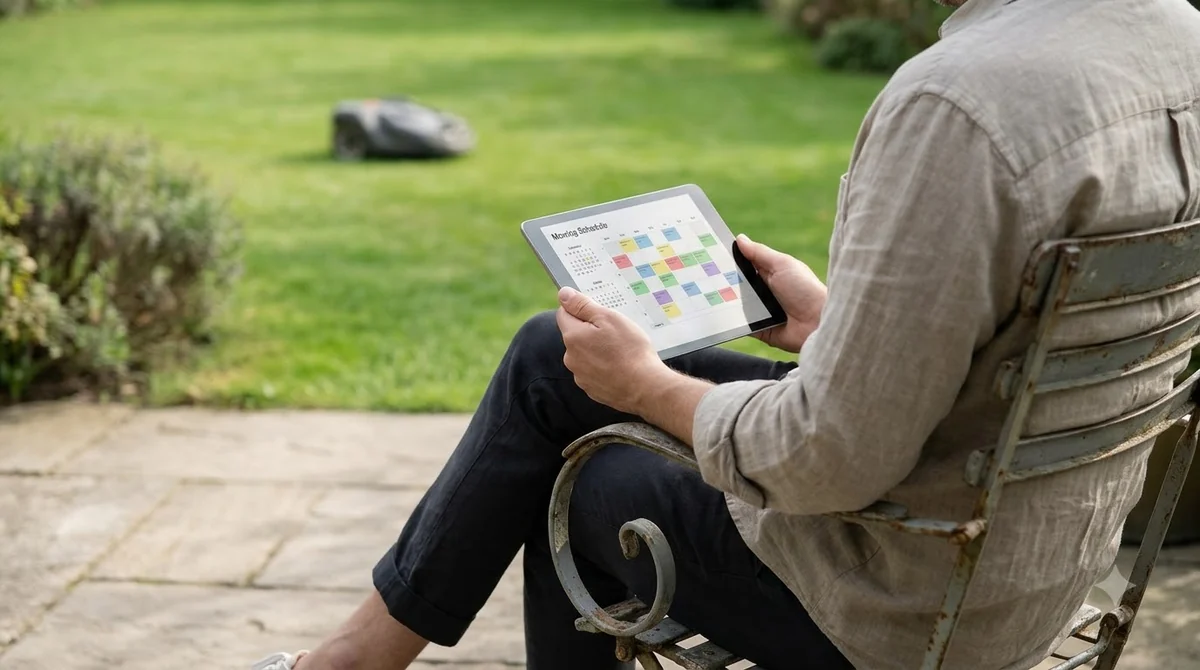
What to have ready before an update
Before you start the steps for how to update Dreame A1 Pro firmware, set up the connection. The manual does not list install conditions for updates, but it does say to use a 2.4 GHz single-band or 2.4/5 GHz dual-band Wi-Fi network, to keep your phone within 10 m of the mower during Bluetooth pairing, and that good Wi-Fi strength at the charging station improves the link between the mower and the app. Husqvarna’s reference steps add that the mower should be charged and parked before an install. The app prompt for your model is the final word.
- Battery charged, and the mower parked on or near its dock.
- The charging station in good Wi-Fi coverage, on a 2.4 GHz or 2.4/5 GHz network, so the connection stays stable during the whole install.
- Low-power charging mode switched off: the manual says it turns off the display and network, so our reading is that an update cannot reach the mower while it is on.
- Nobody sending the mower out to mow while the update runs.
How long an update pauses mowing
Husqvarna says its mower stays parked while a firmware download runs, typically 15 to 30 minutes, and that an automatic install of a critical update also pauses mowing for about 15 to 30 minutes while the app disconnects briefly and then reconnects. We could not find a comparable figure for the A1 Pro in a page we could read, so the pause length for your mower is not confirmed. Plan around it by keeping the mower off its schedule while the install runs.
Our reading: because the duration is unconfirmed for this model, check the update status in the app rather than assuming the install has finished.
Why some updates matter for slopes and batteries
Mammotion, another brand, says firmware updates address slope navigation, battery usage and known issues, and recommends an update before the first mow of spring. That is one reason owners ask how to update Dreame A1 Pro firmware before the season starts. Dreame has not made the same claim in the material we could read, so we cannot confirm that its release notes cover the same items for the A1 Pro.
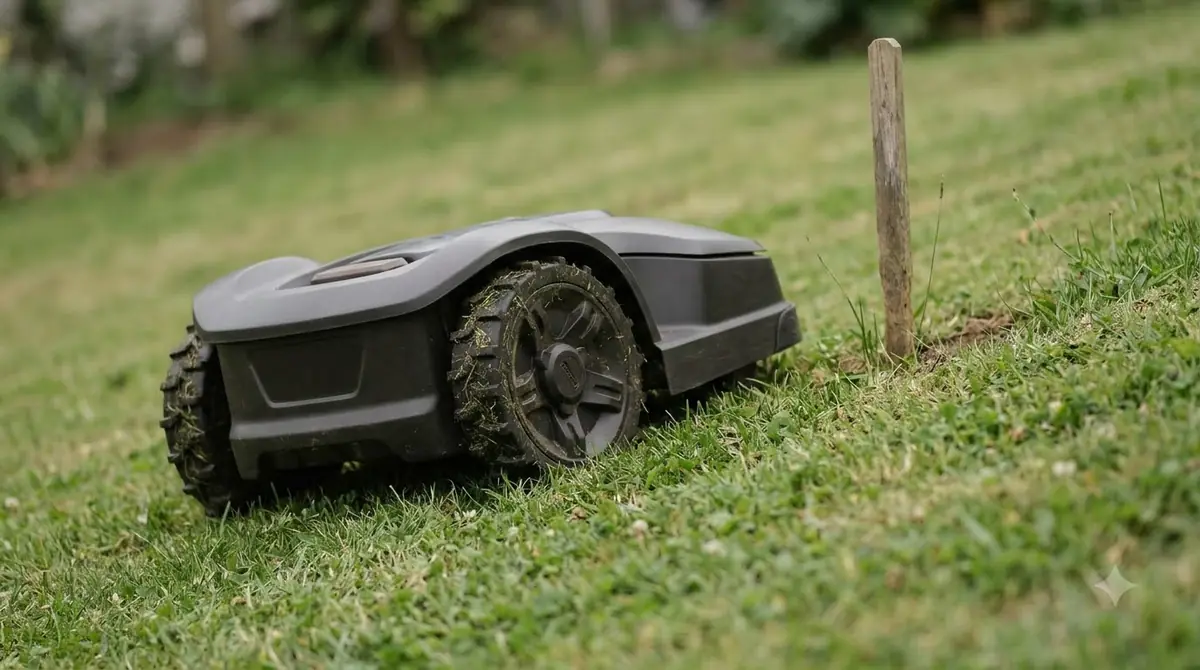
Our reading: if your lawn has steep sections, read the update notes in the app before you assume the mower handles them differently after an update. Battery questions are covered separately in how long the Dreame A1 Pro battery lasts.
What to do when an update fails
If your attempt at how to update Dreame A1 Pro firmware fails, start with Husqvarna’s documented recovery for a failed install: restart the mower, reconnect it, check the version, and retry. Dreame has a troubleshooting article on slow or failed firmware updates for its Roboticmower A1 line, but the page blocked our read, so its steps are not reflected here and should be checked directly with Dreame. Our reading: if the same failure returns after a retry, contact Dreame support rather than repeating the attempt.
Security habits beyond updates
Updates matter, but they are not the whole routine. CISA calls regular updates “one of the most effective steps” a user can take, and advises changing default passwords and disabling services you do not use. A May 2026 Malwarebytes report on the Yarbo robot mower line described remote tunnels being disabled and root passwords being reset after a researcher found shared hardcoded credentials, which shows that a vendor fix and the owner’s own habits both matter.
Our reading: treat the app account password and any remote access settings as part of the same routine as installing updates. For a general walkthrough that applies across brands, see how to update robot mower firmware, and for the model itself, the Dreame A1 Pro review.
Frequently asked questions about how to update Dreame A1 Pro firmware
Does the Dreame A1 Pro need a USB cable for firmware updates?
The manual excerpt we read describes over-the-air updates. We did not find a cable-based update procedure for the A1 Pro in the pages we could read.
Should I turn on Auto-Update?
Our reading is yes for most owners, because it removes the need to remember to check. Confirm the option appears in your app’s settings, since the menu name is not confirmed in our sources.
Can I stop an update once it has started?
We could not confirm this from the pages we read. Avoid interrupting an install, and check with Dreame support before trying to cancel one.
Will an update change my boundary or mowing schedule?
We could not confirm this from the material we read. After any update, check your map, boundary and schedule before the next mowing run.
Sources
- Dreame Roboticmower A1 Pro user manual (Dreame): over-the-air updates, Auto-Update, Wi-Fi band, Bluetooth range and the app Settings list.
- Husqvarna support: how to update your Automower firmware (Husqvarna): install conditions, the 15 to 30 minute pause, and failed-install recovery.
- CISA Tip ST15-002 (US Cybersecurity and Infrastructure Security Agency): regular updates, default passwords and unneeded services.
- Mammotion blog on AWD robot lawn mower maintenance (brand blog): reasons to update, including slopes and batteries.
- Malwarebytes on Yarbo robot mower flaws (security publisher): the 2026 vendor response, with disabled tunnels, reset root passwords and promised credential changes.
 Up next7 min readLearnHow Long Does the Dreame A1 Pro Battery Last?Updated Nov 12, 2026
 9 min readLearnHow to Set Up the Dreame A1 Pro Robot Mower Step by StepUpdated Nov 10, 2026
 6 min readLearnDreame A1 Manual: Where to Find the Right VersionUpdated Nov 13, 2026
 7 min readLearnDreame A1 App: Fixing Connection and Offline ProblemsUpdated Nov 13, 2026
 6 min readLearnHow to Update Ecovacs GOAT O1000 FirmwareUpdated Nov 12, 2026
 7 min readLearnHow to Update Anthbot M5 Firmware: Step-by-Step GuideUpdated Nov 12, 2026