
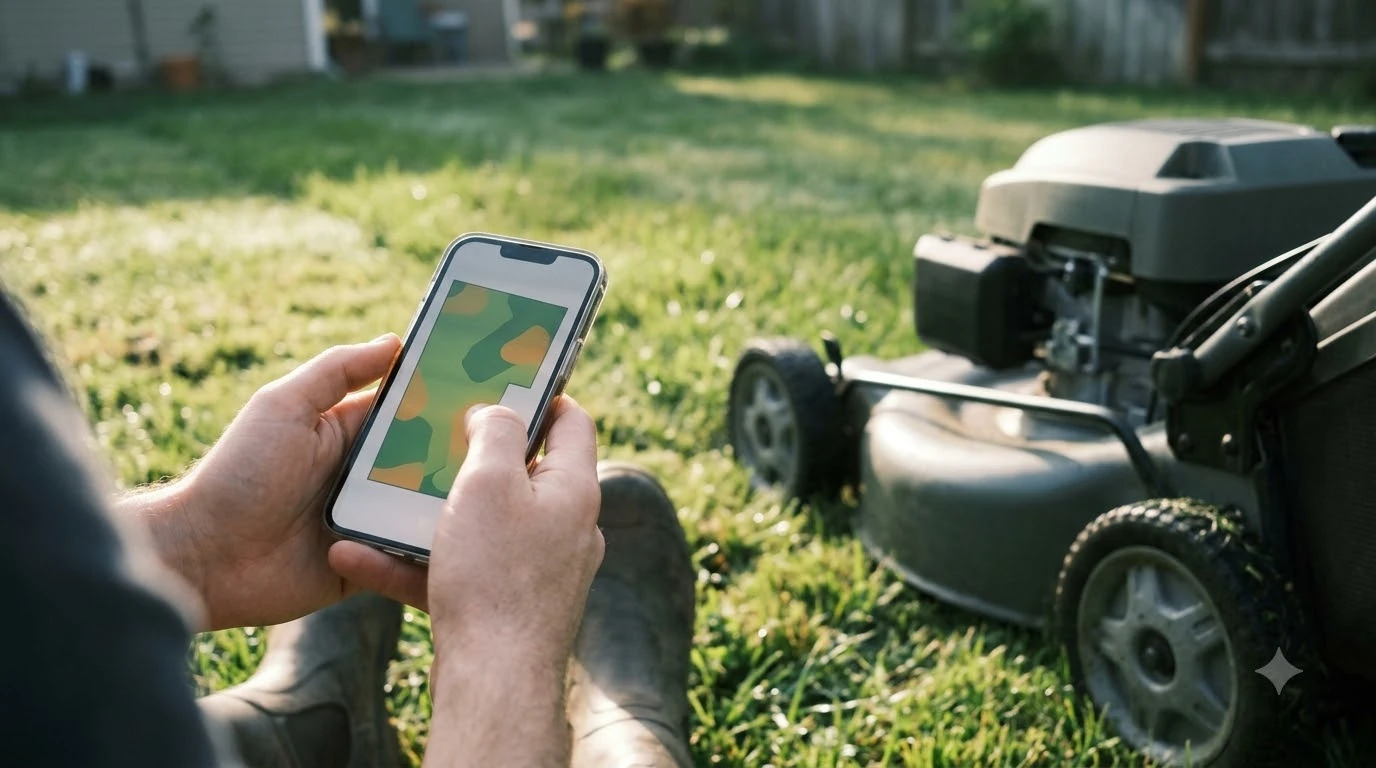

Most Dreame A1 app problems come from a short list of causes: the mower is out of Wi-Fi or Bluetooth range, it is off or restarting, its wheels are not on flat ground, or the phone is on a different network. Work through those first before you reset anything. The A2 uses a similar app setup, so many of the same checks apply if you own that model.
The short answer
- Check the basics first: the mower must be on, not restarting, with its wheels on the ground.
- Stay in range: move the phone closer to the mower, since Bluetooth and Wi-Fi both fade with distance.
- Match the network: the phone and the mower need to be on the same Wi-Fi network, and the mower uses 2.4 GHz.
- Re-pair if needed: start pairing mode on the mower, then add it again in the app.
- Update the app and firmware: old versions are a common cause of odd connection errors, and the app version should be checked before you start.
Why the Dreame A1 app says the mower is not connected
The message “not connected to the app” is generic, so it helps to split the causes. The mower’s manual lists a small set of them, and each one has a different fix. Some are simple range problems. Others are network problems that only show up when the router or the phone has changed. For the bigger picture behind this topic, begin with our mower app not connected checklist and then come back here. See our offline mower app fixes for further detail on a connected question.
Start by looking at the mower itself. If its panel is dark, or it is in the middle of a restart, the app cannot reach it. If it sits at an angle or with one wheel off the ground, it may also refuse to connect. Put it back on flat ground, wait for it to settle, and then try the app again.
Bluetooth and Wi-Fi range
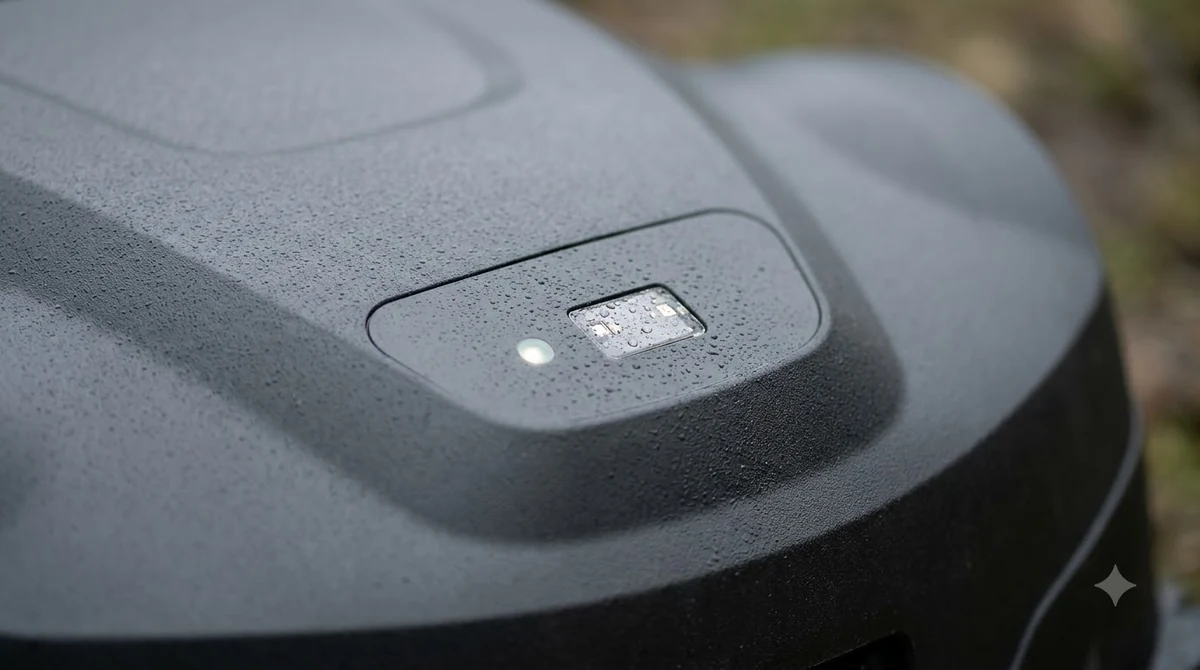
The A1 uses Bluetooth for the first setup and for close-range control, and it uses Wi-Fi for normal remote access. Both signals weaken with distance and with walls, fences, and metal sheds in between. If the app cannot find the mower, the simplest test is to walk to the mower with the phone and open the app there. See our using a robot mower from a phone for further detail on a connected question.
Once the app connects at close range, keep the phone within a few metres while you do any manual or remote control. Dreame’s guidance for the A1 Pro says Bluetooth can drop during manual mowing if the phone is not following the mower closely, and the app then tries to reconnect on its own, which can take a while. Be patient before you assume the link is dead.
Wi-Fi band and router problems
The mower needs a 2.4 GHz network. A router that runs only 5 GHz will not work, and a combined 2.4 and 5 GHz network is fine, as long as the 2.4 GHz side is on. Check your router’s settings if the mower never appears during Wi-Fi setup. For a closely related angle, see our Mammotion app connection checklist as well.
The phone must be on the same network as the mower during setup. If you have changed routers, or moved the mower to a part of the house with a weaker signal, the stored network can go stale. In that case, open the device page in the app, use the network management option, and add the new network. If that fails, remove the mower from the app and set it up again from the start.
Heads up
Do not set up the mower in the Dreame Home app and a second app at the same time. Two apps competing for the same device is a common source of “offline” messages, so pick one and stick with it.
Re-pairing the A1 in the app
When the mower will not link, re-pairing usually clears it. The sequence starts over Bluetooth, so bring the phone close to the mower and keep Bluetooth on in the phone’s settings. If this point matters for your setup, read our Sunseeker S4 app connection guide for more detail on it.
- Open the app and remove the stale device. If the mower still appears as offline, delete it from the device list so the old pairing does not interfere.
- Start pairing on the mower. Press and hold the knob on the control panel for about 3 seconds to enter Bluetooth pairing mode.
- Add the mower in the app. Scan the QR code under the top protective cover, use the network configuration option, or pick the model manually.
- Enter the PIN you set earlier. The mower asks for it to confirm the pairing.
- Enter the Wi-Fi name and password, then confirm. The app connects the mower automatically once the details are accepted.
The mower’s Wi-Fi icon should stay lit when setup works, and the app should show the mower’s icon. If either one is missing, go back and repeat the sequence with the phone closer to the mower.
Checks that solve most offline messages
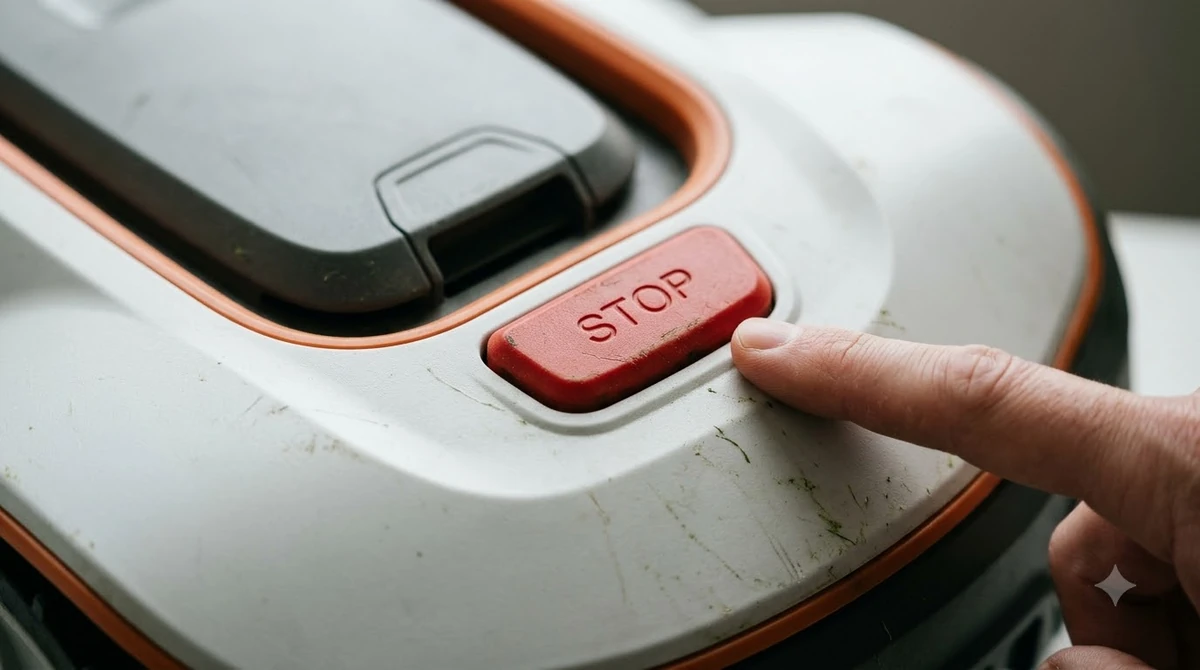
When the app shows the mower as offline after it has worked before, the cause is usually a change somewhere in the chain. Walk through these checks in order, because most fixes take under ten minutes.
- Power: confirm the mower is on and not restarting. A restart can take a short while before it reconnects.
- Network: confirm the router is online and the 2.4 GHz band is active.
- Phone: check that Bluetooth and Wi-Fi are on, and that the phone is not in airplane mode.
- App version: update the Dreame app to the latest version. The fix can depend on the app build, so note the version you are running before you contact support.
- Firmware: check in the app that the mower’s firmware is current, and note any failed update message.
When the app itself is the problem
Sometimes the mower is fine and the app is the issue. A stuck login, a cache problem, or a blocked permission can all look like a mower fault. Sign out of the app, close it completely, and sign back in. Then check that the app has permission to use Bluetooth, location, and local network access on the phone.
If none of the checks above works, contact Dreame’s customer support with the model name, the app version, the Wi-Fi band, and a note of what the app displays. That information shortens the back-and-forth and points to the right fix faster.
Related reads: Also worth reading is our Dreame A1 Pro firmware update guide, which covers a connected question.
Frequently asked questions
Why does my Dreame A1 app say the mower is not connected?
The usual causes are range, a mower that is off or restarting, wheels that are not on flat ground, or a phone on a different network. Move the phone closer, check the mower’s power and position, and confirm the phone and mower share the same Wi-Fi network.
Does the Dreame A1 work on a 5 GHz Wi-Fi network?
The mower needs a 2.4 GHz network. A combined 2.4 and 5 GHz network works, but a 5 GHz-only network does not. Check your router’s band settings if setup fails.
How do I pair the Dreame A1 with the app again?
Remove the stale device from the app, press and hold the knob on the control panel for about 3 seconds to enter pairing mode, add the mower again, enter the PIN, and then enter the Wi-Fi details.
Is the Dreame A2 app the same as the A1 app?
The A2 uses a similar setup flow, so the range, Wi-Fi band, and re-pairing checks apply to both. Model-specific steps can differ, so check the manual for the model you own before following a step exactly.
Sources
- Roboticmower A1 Pro Failed to Connect Bluetooth (Dreame support): Bluetooth drop during manual mowing, distance guidance, and automatic reconnection.
- Dreame Roboticmower A1 user manual, troubleshooting: causes of “not connected to the app” and the suggested fixes.
 Up next7 min readLearnSunseeker S4 App: Fixing Offline and Pairing ProblemsUpdated Nov 13, 2026
 7 min readLearneufy E15 App: Fixing Offline, 4G, and Lifted AlertsUpdated Nov 13, 2026
 6 min readLearnDreame A1 Manual: Where to Find the Right VersionUpdated Nov 13, 2026
 7 min readLearnHow to Update Dreame A1 Pro Firmware: Over-the-Air Updates ExplainedUpdated Nov 12, 2026
 7 min readLearnHow Long Does the Dreame A1 Pro Battery Last?Updated Nov 12, 2026
 9 min readLearnHow to Set Up the Dreame A1 Pro Robot Mower Step by StepUpdated Nov 10, 2026