
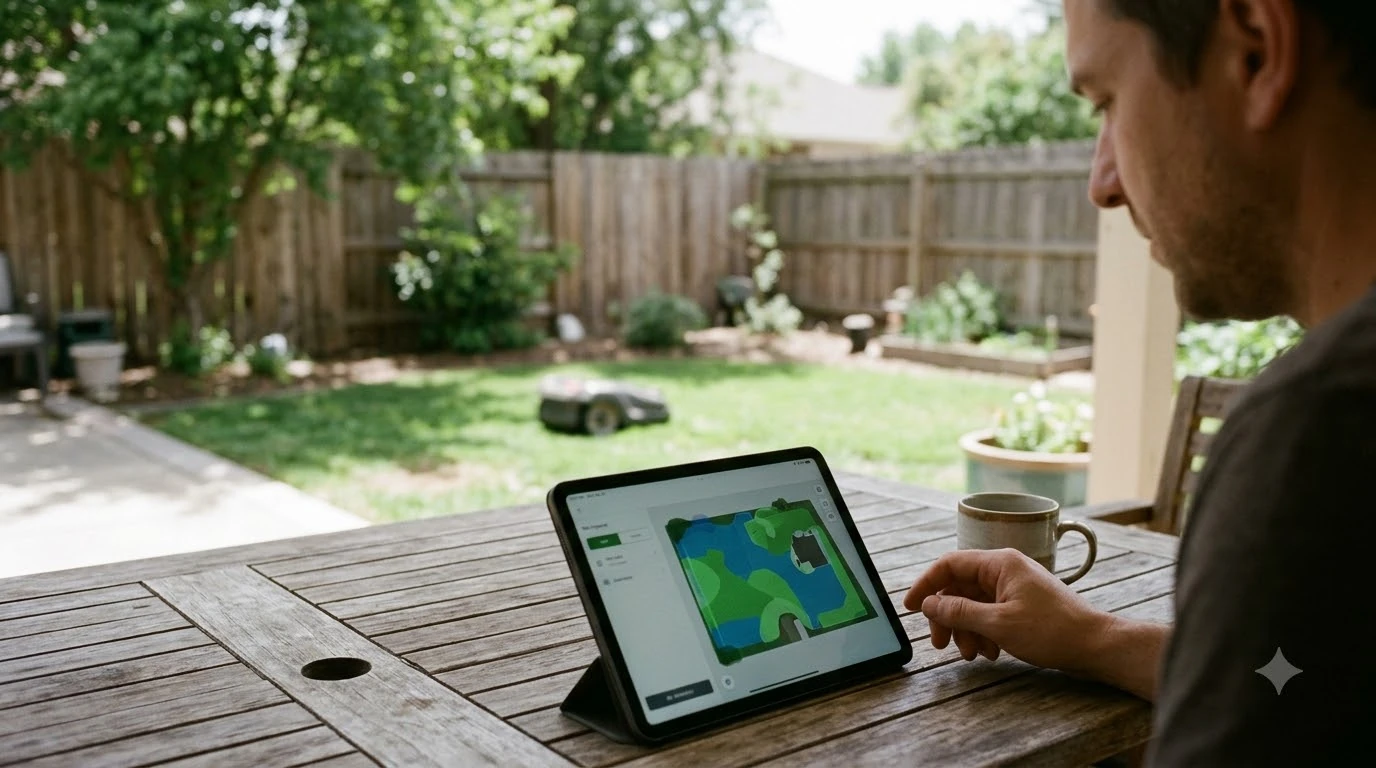

Robot mower app not connecting usually means the phone has lost its Bluetooth link to the mower, or the mower has no working Wi-Fi network saved. Husqvarna’s support pages list the same causes and fix order for Automower models, and they name the 2.4 GHz band and router distance as the most common blockers as of November 2026. Check those points before you change any other setting.
The short answer
- Bluetooth first. Your phone must stay connected to the mower over Bluetooth, which Husqvarna says holds within 30 m (98.4 ft).
- Use 2.4 GHz. Automower does not support 5 GHz or 6 GHz networks, so the router must broadcast 2.4 GHz.
- Check the saved network. In the app, confirm a Wi-Fi network is listed under More, Settings, Automower Connect, Wi-Fi.
- Restart and update. Restart the mower, phone and app, then update the app and the mower firmware.
Robot mower app not connecting: why it shows disconnected
When the app shows the mower as disconnected, one of four conditions is usually true. Husqvarna’s Wi-Fi troubleshooting page lists them as the most common causes of a connection problem.
- No network saved: no Wi-Fi network has been added in the Automower Connect app.
- Router power loss: the router is off or has lost power.
- No internet: the router is online locally but not connected to the internet.
- Weak signal: the signal is weak, or the mower is out of range of the router.
Bluetooth is a separate link, and Husqvarna’s Wi-Fi setup page lists pairing the mower with your phone over Bluetooth under “before you start.” If the phone drops its Bluetooth connection, the app can lose the mower even when Wi-Fi is working. Husqvarna says Bluetooth stays connected within 30 m (98.4 ft), so a phone far across the yard may be out of range.
Fix order when the app cannot reach the mower
Start with the quick restarts, then check the network settings before you touch the router. The sequence below follows Husqvarna’s “mower shows as disconnected from Wi-Fi” steps.
- Restart the mower. Power cycle it and wait for it to reconnect.
- Restart the phone and the app. A stale app session can keep showing an old status.
- Update the app. Make sure you run the latest version of the Automower Connect app, and read how to update robot mower firmware for the mower side.
- Check Bluetooth. Keep Bluetooth on and keep the phone connected to the mower.
- Confirm the network is saved. Go to More, Settings, Automower Connect, Wi-Fi. If no network is listed, connect the mower to Wi-Fi.
- Check the router and internet. Make sure the router has power and that other devices can reach the internet.
If a robot mower app not connecting problem continues after these steps, the signal is the next suspect. Changing the router first makes it harder to tell which change fixed the problem. For a full walkthrough, see how to connect a robot mower to Wi-Fi.
The network does not appear in the app
If your Wi-Fi network does not show up in the app, Husqvarna’s US setup page gives six steps to try in order. They are restarting the mower, restarting the app, updating the app, updating the mower firmware, moving the mower closer to the router, and confirming that 2.4 GHz is enabled on the router.
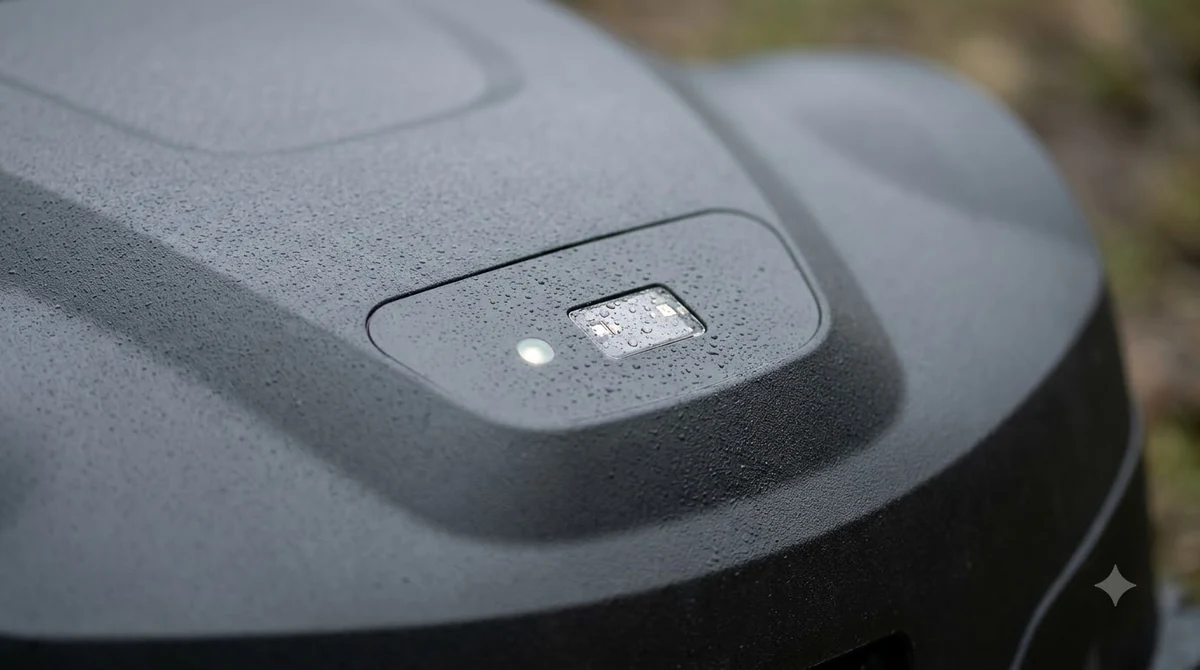
For a robot mower app not connecting on Wi-Fi, the 2.4 GHz step matters most. Husqvarna says most modern routers broadcast both bands, but some need 2.4 GHz switched on separately in the router settings. Check the router admin page before you assume the mower is at fault. Our reading is that a router with only a 5 GHz network will never show a working connection for the mower.
Router distance, walls and extenders
Signal distance is the second most common cause of a robot mower app not connecting, and Husqvarna’s advice on placement is direct. Put the router as close as possible to the lawn, or near windows that face the work area.
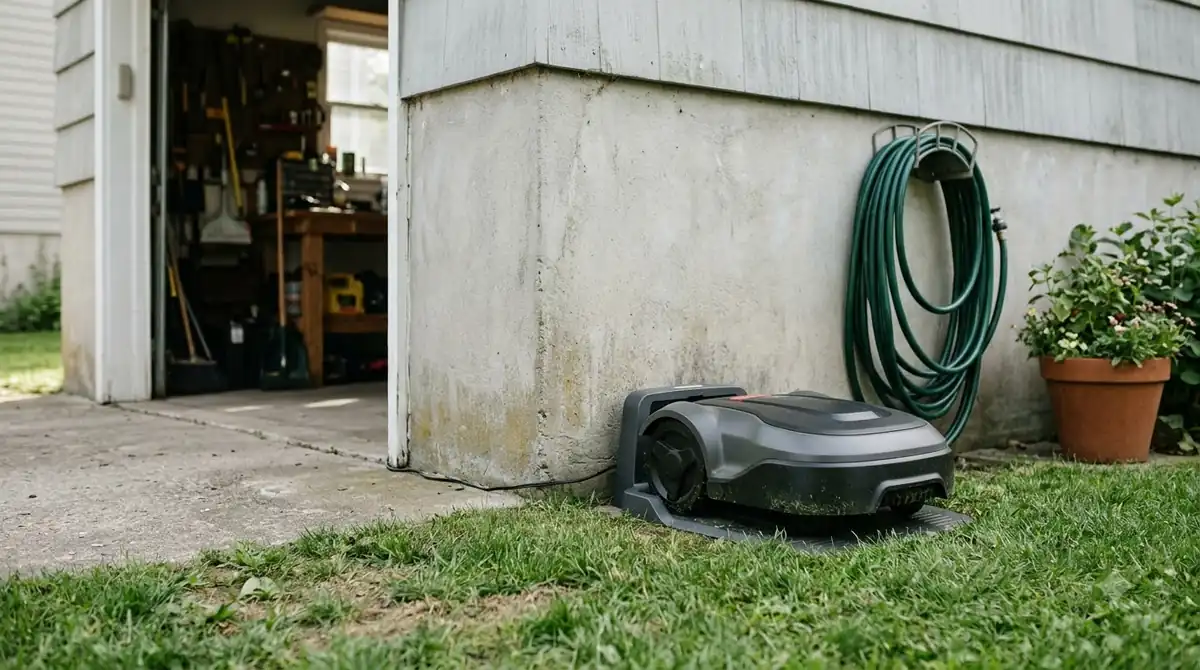
- Walls and metal: avoid thick walls, metal objects and other electronics that can block the signal.
- Extenders: an extender or mesh unit must support 2.4 GHz, so check the spec before you buy (see Wi-Fi extenders for a robot lawn mower app).
- Outdoor placement: use an outdoor-rated extender for any unit that sits outside.
An extender cannot fix a network the mower cannot see. For a robot mower app not connecting after a router move, check the band first, then add range.
The charging station is a common weak point. Husqvarna says Wi-Fi-only models need a strong Wi-Fi signal at the charging station, because updates cannot be installed without a Wi-Fi connection. A dock beside a router can still have little signal at the far corner of the lawn, so test the signal where the mower spends most of its time.
Check the signal strength in the app
You can read the Wi-Fi signal level in the app without leaving the settings screen. Husqvarna gives the path below, and it needs the mower’s PIN.
- Open the settings. Go to More, then Settings, then Automower Connect.
- Enter the PIN. Type the mower PIN when the app asks for it.
- Read the Wi-Fi signal. Check the signal level under Wi-Fi, then compare it with the charging station and the far corner of the lawn.
When a mower with Wi-Fi only loses signal
Some models depend on Wi-Fi for remote access, and that changes what a connection failure means. Husqvarna says a Wi-Fi-only EPOS mower stops mowing and searches for a signal if the connection is not recovered, and it loses remote access until the signal returns.
Husqvarna ties this behavior to EPOS installations that run through Husqvarna Cloud, which need continuous Wi-Fi coverage across the work area to receive satellite correction data. If your app shows errors during a mow, check the model type before you assume a fault, and see whether robot mowers need Wi-Fi or cellular.
Husqvarna also lists Wi-Fi + mobile models that can use both networks, so check which group your model belongs to. If the charger sits in a dead spot, a yard with no Wi-Fi in the back needs a different plan.
When to call support
Call Husqvarna support if the robot mower app not connecting problem remains after you have restarted the mower, updated the app and firmware, and confirmed the 2.4 GHz network. Have the mower model, the router model and the error text ready. These steps come from Husqvarna Automower pages, so other brands may use different menus and limits.
Frequently asked questions
Why does my robot mower app keep saying the mower is disconnected?
The usual causes are a dropped Bluetooth link, no Wi-Fi network saved in the app, a router that has lost power or internet, or weak signal. Husqvarna lists these four causes and recommends restarting the mower, phone and app first.
Does my router need 2.4 GHz for the mower?
Yes for Husqvarna Automower models, which do not support 5 GHz or 6 GHz networks. Most modern routers broadcast both bands, but some need 2.4 GHz turned on separately in the router settings.
How far can the phone be from the mower for Bluetooth?
Husqvarna says Bluetooth stays connected within 30 m (98.4 ft). Keep the phone within that distance during setup and when you check the app.
Do I need to update the app or the mower firmware?
Husqvarna’s steps include updating the Automower Connect app and checking that the mower runs the latest firmware. Both are part of the fix order when the network does not appear.
Sources
- Husqvarna Wi-Fi connection problems (Husqvarna): causes, fix steps, 2.4 GHz rule, Bluetooth distance and router placement.
- Husqvarna connecting Automower to Wi-Fi (Husqvarna): network not appearing steps, 2.4 GHz activation and the Wi-Fi-only EPOS behavior.
 Up next8 min readLearnMammotion LUBA RTK No Fix? Check These Four Things FirstUpdated Nov 10, 2026
 6 min readLearnNavimow App Not Connecting: Fixes That WorkUpdated Nov 13, 2026
 6 min readLearnWorx Landroid App Not Connecting: Fixes That WorkUpdated Nov 13, 2026
 6 min readLearnMammotion App Not Connecting: Luba Fixes That WorkUpdated Nov 13, 2026
 8 min readLearnHusqvarna Automower Not Charging: What to Check FirstUpdated Nov 13, 2026
 7 min readLearnRobot Mower Blade Motor Error: What It Means and What to Check FirstUpdated Nov 12, 2026