
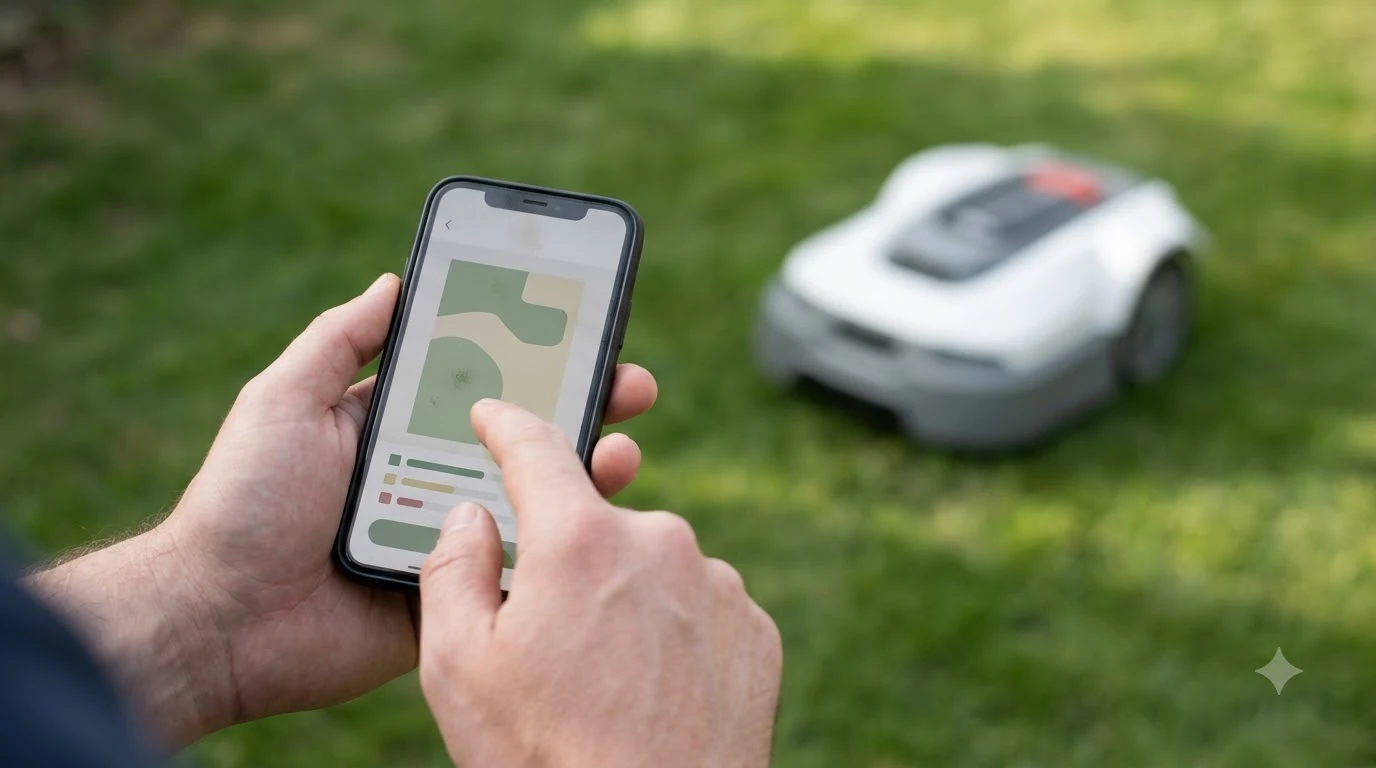

Most Navimow app problems come down to three things: the mower is off or offline, the Wi-Fi band or password does not match what the mower accepts, or the network mode needs switching to 4G. Segway’s support articles for the Navimow H1 describe these steps, and they are the first things to check before you contact support. The steps are written per model, so confirm the article matches your mower.
The short answer
- “Mower Disconnected”: confirm the mower is powered on and on a strong network, then try the 4G network mode in the app.
- Wi-Fi will not connect: the H1 article says the mower needs a 2.4 GHz network, not 5 GHz, and a password of no more than 32 characters.
- Keep the phone close: connect from the same spot where the mower sits, and check that your phone is on the same network.
- If nothing works: email Segway’s US support address with the serial number, screenshots and a video of the problem.
Why the Navimow app says “Mower Disconnected”
The “Mower Disconnected” message means the app cannot reach the mower over the network it is set to use. The Segway support article for the Navimow H1 lists the same first checks: confirm the mower is switched on when the problem happens, confirm it sits on a strong Wi-Fi network, and try a different network to see whether the fault is in the first one. If you want the wider context first, start with our robot mower app disconnection overview before returning to this page. For a closely related angle, see our reasons a mower app says offline as well.
If the Wi-Fi signal at the mower is weak, the app can drop the connection even when your phone works fine indoors. Walk the mower’s location with your phone and check the signal there, not only near the router.
Switching the network mode to 4G
For the H1, Segway’s article says to open the app and go to Settings, then MOWER, then My Device, then Network, and set the mode to “Only 4G” when the Wi-Fi link is unreliable. This is the step that many owners miss, because the mower stays connected through its cellular module instead of the home router. See our eufy E15 app connection guide for further detail on a connected question.
Menu names can change between app versions and between models, so if your screen reads differently, look for the network setting under your device page and check the app’s current version first. We did not confirm the menu path for every Navimow model.
Before you change any setting, write down what you see: the app version, the mower’s firmware version, the network name the mower is on, and the exact message on screen. Our reading is that a short note like this saves time, because support will ask for the same details, and it lets you compare the result after each step. Change one thing at a time, so you know which step fixed the problem.
Wi-Fi setup problems and the 2.4 GHz rule
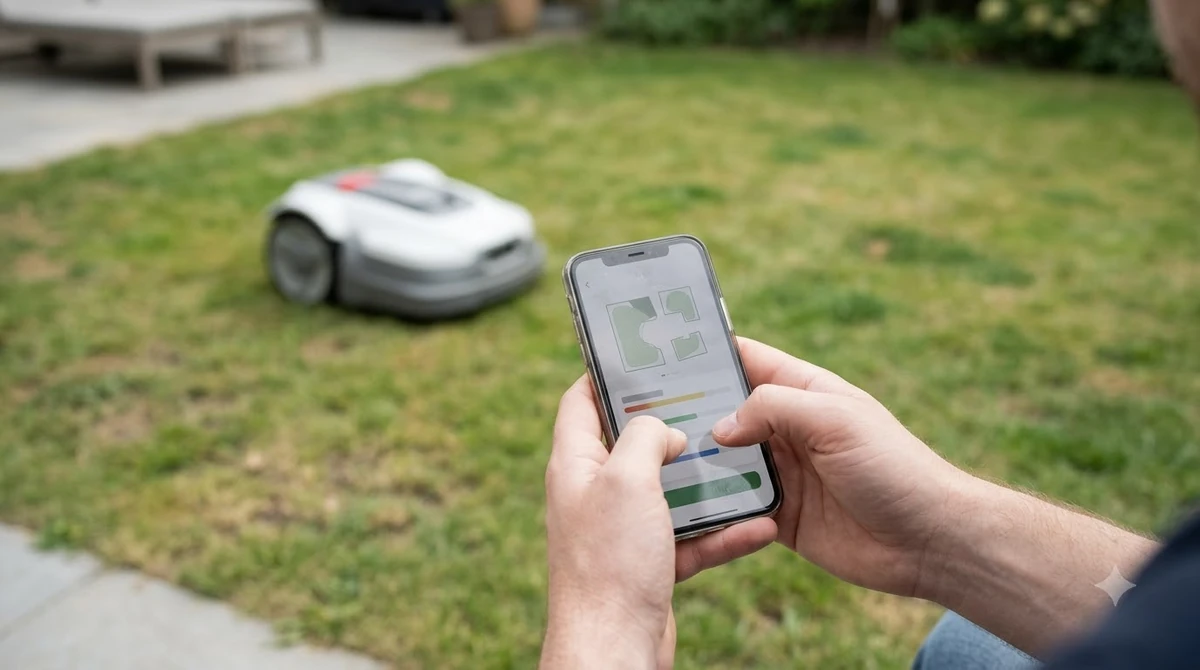
When the mower cannot join a Wi-Fi network, the most common cause is the band. Segway’s H1 Wi-Fi article states that the mower cannot connect to a 5 GHz network, so check that your router broadcasts a 2.4 GHz network the mower can see. Many modern routers combine both bands under one name, so you may need to split them or use a 2.4 GHz only network name for setup. If this point matters for your setup, read our mower Wi-Fi dropout troubleshooting for more detail on it. You can find more background and practical detail on this point in our Ecovacs GOAT app connection checklist.
The same article says the network name should avoid special characters and the password should be no longer than 32 characters. If a password is longer, change it on the router before you retry the mower setup.
Heads up
Changing the Wi-Fi name or password means the mower must be added to the network again. Note the new details before you start, and keep the phone on the same network as the mower’s location.
Restart, retry and gather what support needs
A restart often clears a temporary connection fault, so restart the mower and then the app before retrying. The H1 Wi-Fi article also suggests trying a different phone, since a phone-specific network glitch can look like a mower fault. Beyond this topic, you can also read our Navimow i110N firmware update guide for an adjacent part of owning a robot mower.
- Power cycle. Switch the mower off and on, then open the app again.
- Check the network. Confirm the band (2.4 GHz), the name and the password length.
- Move or clear. Remove anything blocking the signal near the mower, or move it closer to the router if the setup allows.
- Try a second phone to rule out a problem with your app install.
When to contact Segway support
If the steps above fail, Segway’s H1 articles ask you to email the US support address with the mower’s serial number, the time of each connection attempt, a screenshot of the app home screen or your phone’s Wi-Fi settings, and a short video of the connection process. Keep the mower powered on while you wait for a reply, and note the date and time of the fault. These details let support check the logs for that specific attempt.
Segway’s support page for each model is the authority on steps. For the Navimow X4 and i2 AWD, the help centre has separate Wi-Fi articles, and the X430 is covered by the same support section. We did not read those model articles in full, so check them before following any step that differs from the H1 guide.
Frequently asked questions
Why does my Navimow app say the mower is disconnected?
The app cannot reach the mower over its current network. Check the mower is powered on, confirm a strong Wi-Fi signal where the mower sits, and try the “Only 4G” network mode in the app.
Can a Navimow connect to a 5 GHz Wi-Fi network?
Segway’s H1 Wi-Fi article says it cannot. Use a 2.4 GHz network for setup, and check the band on your router.
How do I switch a Navimow to 4G in the app?
For the H1, go to Settings, then MOWER, then My Device, then Network, and set the mode to “Only 4G.” Menu names may differ by model and app version.
What should I send Navimow support if the app still will not connect?
Send the serial number, the times of your connection attempts, screenshots of the app or Wi-Fi settings, a video of the connection process, and your phone model.
Sources
- Segway Navimow support, H1: app displays “Mower Disconnected” (manufacturer): used for the first checks, the 4G network mode path and the support details.
- Segway Navimow support, H1: cannot connect to a Wi-Fi network (manufacturer): used for the 2.4 GHz rule, the 32-character password limit and the list of details for support.
 Up next6 min readLearnWorx Landroid App Not Connecting: Fixes That WorkUpdated Nov 13, 2026
 6 min readLearnMammotion App Not Connecting: Luba Fixes That WorkUpdated Nov 13, 2026
 7 min readLearnRobot Mower App Not Connecting? Check These Causes FirstUpdated Nov 12, 2026
 8 min readLearnSegway Navimow Vision Fence Not Working: Causes and FixesUpdated Nov 11, 2026
 7 min readLearnLymow won t connect to wifi: fixes that workUpdated Nov 13, 2026
 9 min readLearnRobot Mower Mapping Failed: Causes and Fixes That WorkUpdated Nov 11, 2026