
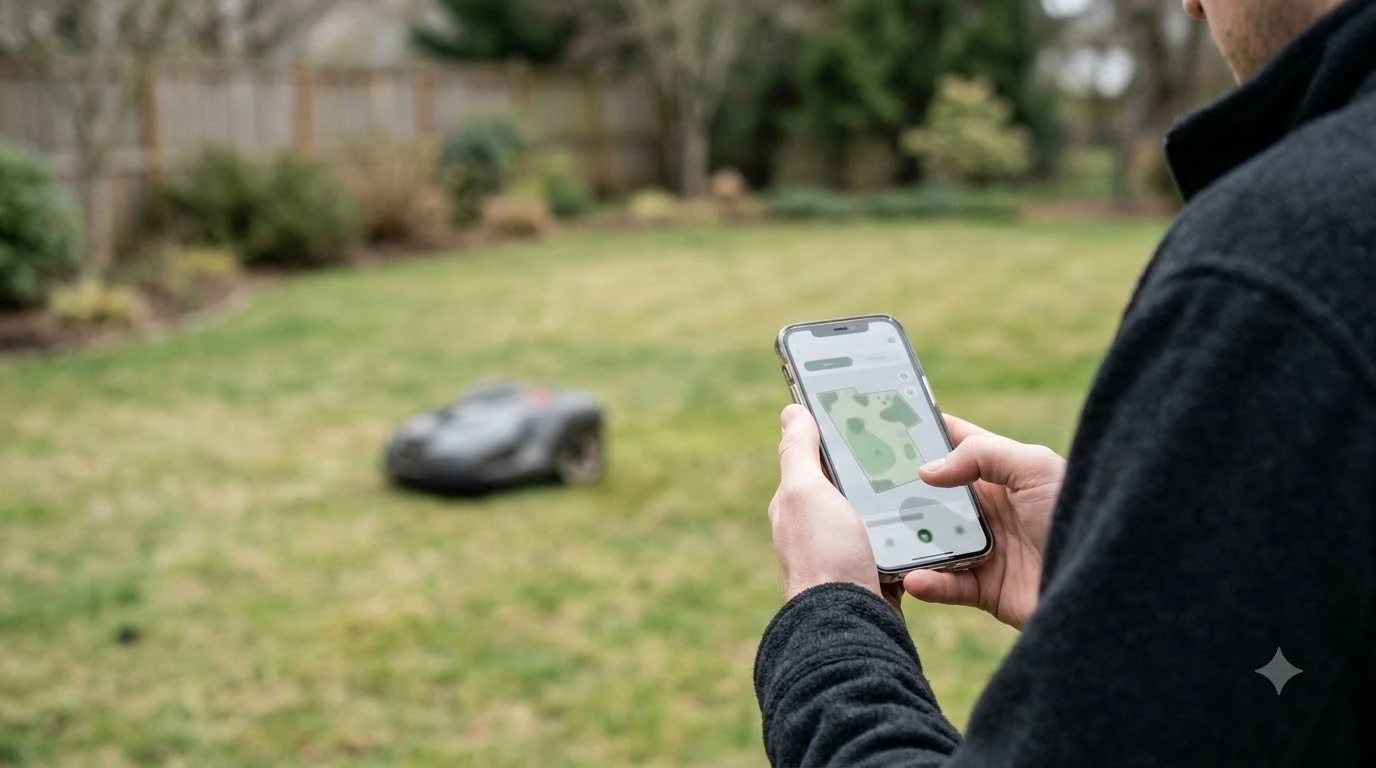

Most Ecovacs GOAT app problems come from four causes: the phone cannot reach the mower over Bluetooth or Wi-Fi, the firmware is out of date, the RTK reference station reports an error, or the map was made before the station was placed correctly. Start with the simplest check, which is the connection, then work through firmware and positioning. Menu names and steps change between app versions and regions, so check the app version and the maker’s support page for your region before you follow any step.
The short answer
- Cannot connect: stay within Bluetooth range for first pairing, and make sure the phone and the mower are on the network the app expects.
- Upgrade is slow or fails: the firmware upgrade needs a Wi-Fi connection and enough battery charge, so fix those first.
- RTK station reports abnormal: try a power cycle, then the in-app repair steps, then contact customer care.
- Map looks wrong or the app shows a positioning error: check the station placement and map again after any move.
- Before any fix: note the app version, mower model, and firmware version, since support answers depend on them.
Ecovacs GOAT app connection: check this before anything else
Many app complaints are really connection complaints. The Ecovacs installation guide for its US customers describes the app setup order and the Bluetooth range used during first pairing. Stay close to the mower when you pair it for the first time, and do not start the setup from a room where the walls or distance block the signal. Readers who want a broader overview can read our general mower app connection fixes first and then continue with this page. If this point matters for your setup, read our mower app showing offline explained for more detail on it.
After pairing, the app needs a steady connection to send commands such as start, stop, and schedule changes. If the mower is out of range or on a network the app cannot reach, commands can fail or show old status. Check that the phone is on the Wi-Fi network you set up, that the mower has power, and that you are not using a guest or isolated network that blocks devices from talking to each other.
Firmware upgrades that are slow or fail
A firmware upgrade that stalls or fails is one of the most common app problems after a new mower is set up. Ecovacs support for its GOAT O1000 LiDAR Pro notes that an upgrade needs a Wi-Fi connection, and the answer to a slow or failed upgrade starts there. The Ecovacs Australian help page on the same upgrade adds two more checks: the mower’s charge level and the app and Wi-Fi requirements. See our Navimow app problems and fixes for further detail on a connected question. Beyond this topic, you can also read our Ecovacs GOAT O1000 firmware update guide for an adjacent part of owning a robot mower.
Our reading is that a safe order is simple. Charge the mower fully, keep it on a stable Wi-Fi connection near the dock, and start the upgrade only when the phone and mower are close together. If the upgrade fails, do not repeat it many times in a row. Wait a few minutes, check the app version, and then try once more.
Heads up
Keep the phone and the mower on the same network during a firmware upgrade. Switching networks or moving far from the mower mid-upgrade is a common reason for an upgrade that stops partway through.
RTK station and positioning errors in the app
The GOAT O1000 RTK relies on a reference station, and the app shows a warning when that station or the mower’s positioning reports an abnormal state. The Ecovacs help center describes a case where the reference station looks normal but the GOAT still reports an abnormal status. Its suggested first step is a power cycle, followed by the in-app repair steps, and then escalation to customer care if the message stays. For a closely related angle, see our Dreame mower app error fixes as well.
Positioning problems often start with the station, not the app. The RTK station works as a fixed reference, and the RTKdata accuracy guide warns that moving the base after mapping shifts every boundary on the map. Our reading is that after any move, the safest step is to re-map rather than edit the old boundary by hand.
- Restart the mower and the station. A power cycle clears many temporary status errors.
- Check the status in the app. Note the exact message before you change anything.
- Run the in-app repair steps. Follow the prompts for your model and app version.
- Re-map if the station moved. A moved station needs a new map, not a patch.
- Contact customer care. If the error returns, send the app version, model, and the exact message.
Map problems that show up in the app
A map that looks wrong is usually a placement or mapping issue. Check the outline on the screen before the first mow. If a section is missing, the cause is often a gap in the boundary, a blocked signal near trees or buildings, or a station that was placed too close to a structure. The LiDAR vs RTK guide from Ecovacs explains that RTK signal is weaker under dense trees and near buildings, which matches what many owners report when a map shows gaps.
Redraw a bad edge in the app when the problem is one spot. Rebuild the whole map when the problem covers the lawn, and do it after the station is in its final position. Keep a photo of the station placement so you can compare the setup if the map changes.
Frequently asked questions
Why will the Ecovacs GOAT app not connect to my mower?
The most common causes are distance during first pairing, a Wi-Fi network the app cannot reach, or a mower that is not powered on. Check each one, then restart the app and try again from a closer spot.
Why does the firmware upgrade fail in the app?
The upgrade needs a stable Wi-Fi connection and enough battery charge. Ecovacs support pages list these as the first checks for slow or failed upgrades, so fix those before trying again.
What should I do if the app says the RTK station is abnormal?
Start with a power cycle of the mower and the station, then follow the in-app repair steps. If the message stays, contact customer care with the app version, mower model, and the exact message.
Do I need to map again after an app or firmware update?
An update alone does not usually require a new map. Re-map if the station moved, if the lawn changed, or if the map shows a wrong boundary after the update. Check the map on screen before the next mow.
Sources
- Ecovacs help center: RTK reference station normal but GOAT reports abnormal (Ecovacs): power cycle, in-app repair steps, and customer care escalation.
- Ecovacs help center: Is the firmware upgrade slow or failed? (Ecovacs): the Wi-Fi requirement and the fix for slow or failed upgrades.
- Ecovacs US, how to install a robot lawn mower (Ecovacs): app setup order and Bluetooth range.
 Up next9 min readLearnRobot Mower Cutting Unevenly: 4 Causes and How to Fix ThemUpdated Nov 11, 2026
 7 min readLearnEcovacs GOAT A3000 Manual: Where to Find the Right PDFUpdated Nov 13, 2026
 6 min readLearnEcovacs GOAT Factory Reset: Step-by-Step GuideUpdated Nov 13, 2026
 6 min readLearnHow to Update Ecovacs GOAT O1000 FirmwareUpdated Nov 12, 2026
 7 min readLearnHow long does the Ecovacs GOAT O1000 battery last?Updated Nov 11, 2026
 9 min readLearnEcovacs GOAT RTK Signal Lost: What to Check FirstUpdated Nov 11, 2026