
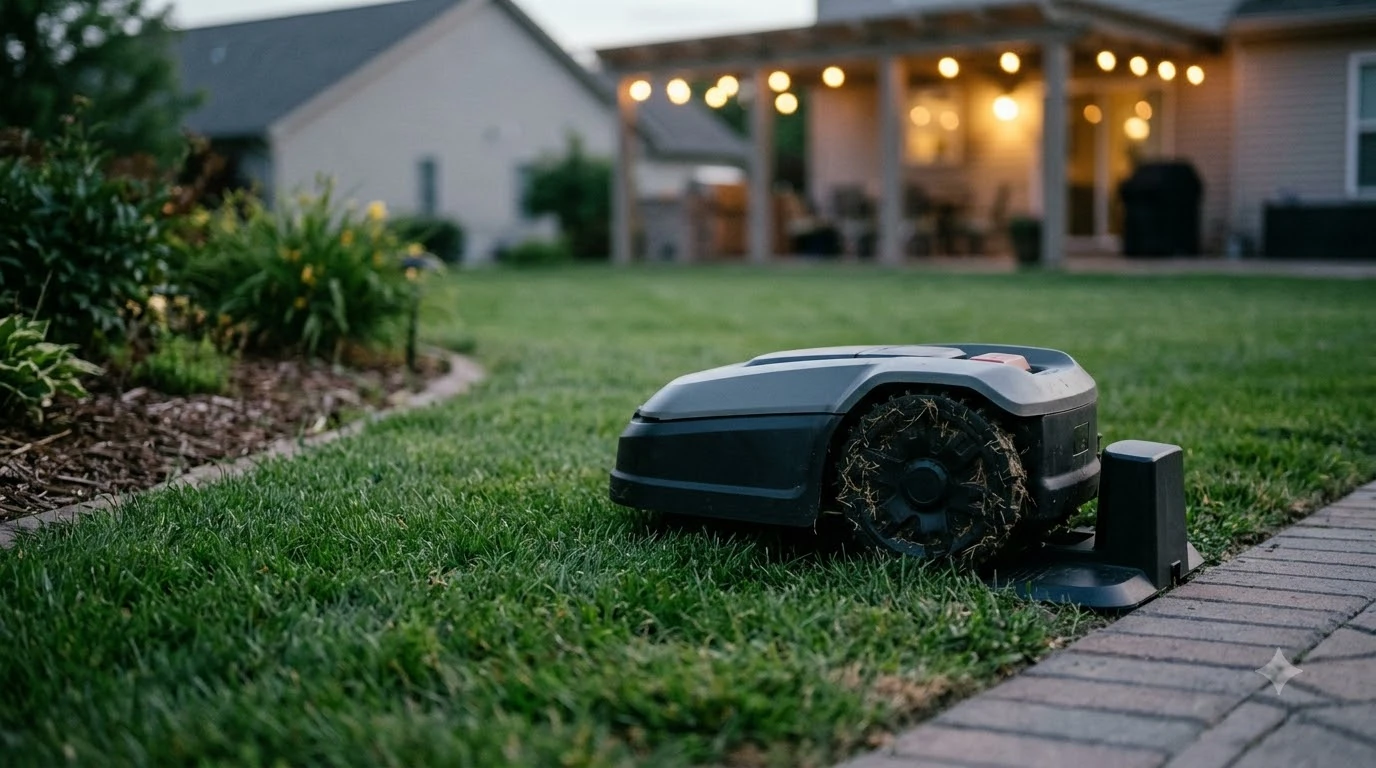

A robot mower wifi keeps disconnecting when the mower loses its 2.4 GHz link to the router. Husqvarna’s support pages list four causes: no Wi-Fi network added in the app, a router power failure, a router that has lost its internet connection, and weak signal or a mower out of range. Most of these sit on the router side, so the checks start there rather than with the mower. The cause also decides whether the mower keeps cutting while the app shows it offline.
The short answer
- Check the band: Husqvarna Wi-Fi mowers support 2.4 GHz only, not 5 GHz or 6 GHz.
- Check the router: a power failure or a lost internet link drops the mower even when the signal is strong.
- Check the distance: weak signal at the mower’s location is a listed cause, so move the router or add a 2.4 GHz extender or mesh node.
- Restart in order: mower, phone, then the app, and confirm the Wi-Fi network is still added.
Why a robot mower wifi keeps disconnecting
When a robot mower wifi keeps disconnecting, the first question is whether cutting has stopped too. A drop usually means the app has lost contact with the mower, not that the blades stopped. Husqvarna describes the Wi-Fi link as the route for remote app control, and on some installations it is also needed for mowing. Knowing which of the two your mower depends on changes how urgent the problem is. Our sources are Husqvarna’s own support pages, so the model details are for Automower mowers, and other brands should be checked against their manuals. The next sections cover the causes, the band rule, placement and restarts, then what a drop does to cutting.
The four causes and the first check for each
Husqvarna’s troubleshooting page lists four reasons a mower shows as disconnected from Wi-Fi. Each one has a different first check, so match the symptom before changing anything.
| Cause on the Husqvarna page | First check |
|---|---|
| No Wi-Fi network added in the Automower Connect app | Open the Wi-Fi setting in the app and confirm your network is listed and selected |
| Router power failure | Confirm the router and any extender have power and show their normal lights |
| Wi-Fi network disconnected from the internet | Check that another device on the same network can load a web page |
| Weak signal or mower out of range | Check the signal where the mower charges and where it cuts, then move the router or add an extender |
The router power failure cause is the easiest to confirm, because a router that has been unplugged or reset shows it at once. Husqvarna lists it alongside the internet cause, so a single failed check does not rule out the other one. In our reading, the first cause is easy to miss after a router rename or a new phone, so it is worth checking before any hardware change. The Husqvarna Wi-Fi troubleshooting page lists these four causes as the starting point.
Check the 2.4 GHz band before anything else
Husqvarna Wi-Fi mowers support only the 2.4 GHz band, so a network that broadcasts only 5 GHz or 6 GHz will never hold the mower online. The Husqvarna setup article states it directly: “Frequency band: 2.4 GHz only. 5 GHz networks are not supported.” The same support page says most modern routers broadcast both bands, but some need 2.4 GHz switched on in the router settings.
The band check is the first thing to run when a robot mower wifi keeps disconnecting on a network you have just set up. If you are unsure which band your mower uses, log in to the router and confirm 2.4 GHz is enabled. Then pick that network in the app. In our reading, a shared network name for both bands makes the band harder to confirm, so check the band in the router menu rather than the network name alone. The Husqvarna Wi-Fi setup article gives the same band rule.
Heads up
The Husqvarna steps treat Bluetooth and Wi-Fi as separate checks. A phone that reaches the mower over Bluetooth still needs a working Wi-Fi network, so a Bluetooth connection does not prove the band is right.
Router placement, walls and extenders
Husqvarna advises placing the router as close as possible to the lawn, or near windows that face the work area. The same guidance warns against thick walls, metal objects and other electronics that can block the signal.
- Put the router near a window facing the work area.
- Keep it away from thick walls, metal objects and other electronics.
- Use an extender or mesh system that supports 2.4 GHz (see whether you need a Wi-Fi extender for your robot mower).
- For areas outside, choose an outdoor-rated extender, which Husqvarna recommends.
Signal distance is the usual reason a robot mower wifi keeps disconnecting at one end of the lawn but not the other. Measure the signal at the charging station and at the far corner you mow most, then compare the two. The Husqvarna troubleshooting page also points to the app under More, then Settings, then Automower Connect, then Wi-Fi to confirm a network has been added. Menu names can change between app versions, so confirm the path on yours.
The restart order that clears most drops
Husqvarna’s fix list starts with restarts and app updates before any hardware change, so run those first (our guide on how to connect a robot mower to Wi-Fi covers the first setup). The steps below follow the order on the Husqvarna troubleshooting page, trimmed to the ones that matter most for a drop.
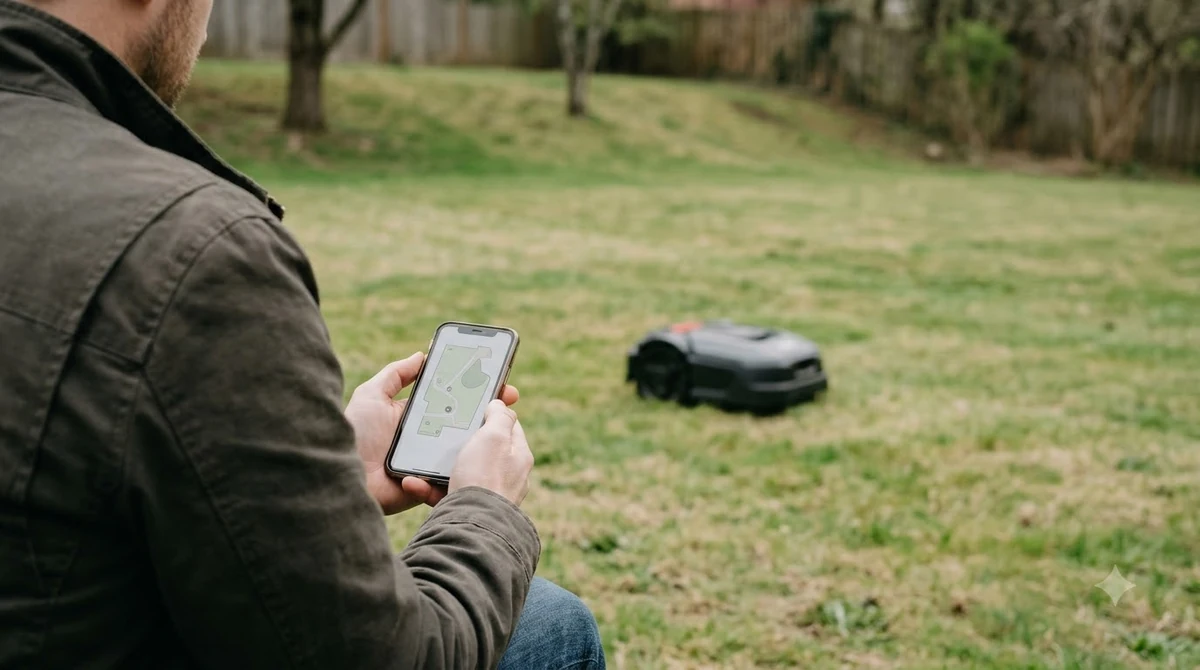
- Restart the mower. Power it down and back on before anything else.
- Restart your phone. A stuck phone connection can look like a mower fault.
- Restart the Automower Connect app. Then install the latest version of the app.
- Confirm the router and internet work. Check that another device on the network reaches the internet.
- Turn on Bluetooth and confirm the phone is connected to the mower over Bluetooth.
- Confirm a Wi-Fi network is added under the app’s Wi-Fi setting, and reconnect it if it is missing.
- Improve the signal if it is weak, then confirm the network uses 2.4 GHz.
Restarts cost nothing and can clear a stuck app session. Run them in this order, and test the mower again after each step, so you know which change helped when a robot mower wifi keeps disconnecting. In our reading, a drop that returns within minutes of a successful restart points to placement or the router rather than the app.
What a drop does to mowing depends on the model
On Wi-Fi-only Automower models in an EPOS setup, a lost signal stops the mower, while boundary-wire and reference-station installs keep mowing without Wi-Fi. The Husqvarna setup article describes the Wi-Fi-only EPOS case as stopping, searching for a signal, and showing an error if the connection is not recovered. Remote access through the app is lost in that case as well.
| Setup | What happens when Wi-Fi drops, per Husqvarna |
|---|---|
| Wi-Fi-only, EPOS via Husqvarna Cloud | Stops mowing, searches for signal, shows an error; needs continuous Wi-Fi across the work area |
| Wi-Fi with mobile connection | Can switch to the mobile network if Wi-Fi is unavailable |
| Boundary wire or reference station | Keeps mowing; Wi-Fi is only needed for remote app control |
This is the part of the answer that changes the urgency. If a robot mower wifi keeps disconnecting on a Wi-Fi-only EPOS model, the mower may stop mid-lawn, so the drop affects the cut. On a boundary-wire install the same drop only affects remote control. For a comparison of connection types, see robot mower Wi-Fi, Bluetooth and 4G and cellular vs Wi-Fi robot mowers.
AI vision models behave differently. The same Husqvarna page says they switch to camera-guided navigation and keep going for up to 50 metres before stopping, if the Wi-Fi signal is not recovered.
When to contact support or a dealer
If the restart order and router checks do not fix the drop, contact Husqvarna support or your dealer. The Husqvarna UK page says a dealer can install an Automower Connect kit to add mobile connectivity. In our reading, drops that repeat at the same spot on the lawn point to signal distance, and a mobile kit or a moved router is the realistic fix. If the back lawn has no signal at all, read whether a robot mower can work in a yard with no Wi-Fi in the back.
Frequently asked questions
Why does my robot mower wifi keep dropping when my phone shows full bars?
Phone bars do not show whether the network uses the 2.4 GHz band the mower needs, or whether the router has lost its internet link. Check the band in the router settings and confirm another device can reach the internet before anything else.
Does a Wi-Fi drop stop the mower from cutting grass?
It depends on the model, and a robot mower wifi keeps disconnecting problem does not always stop the cut. Wi-Fi-only Automower models in an EPOS setup stop mowing and show an error when the signal is not recovered. Boundary-wire and reference-station installs keep mowing without Wi-Fi, which only enables remote app control.
Can a Wi-Fi extender fix a robot mower that keeps disconnecting?
It can help if the extender supports 2.4 GHz, because Husqvarna says any extender or mesh system must support that band. Outdoor-rated extenders are recommended for outdoor areas, and placement still matters more than the device itself.
Should I replace the router first when the mower keeps dropping?
No. Run the restart order and the router checks first, then placement and the 2.4 GHz setting. Replacing the router is a last step. In our reading, most listed causes can be found without buying new hardware.
Sources
- Wi-Fi connection problems with Automower (Husqvarna support): the four causes, fix steps, router placement and extender guidance.
- How to connect your Automower to Wi-Fi (Husqvarna support): the 2.4 GHz only rule and what Wi-Fi-only models do when the signal is lost.
 Up next8 min readLearnRobot Mower Keeps Getting Stuck on Edges? Causes and FixesUpdated Nov 11, 2026
 9 min readLearnRobot Mower Lifted Error Keeps Appearing: Causes and FixesUpdated Nov 11, 2026
 7 min readLearnLymow won t connect to wifi: fixes that workUpdated Nov 13, 2026
 8 min readLearnWorx Landroid Won t Connect to Wifi: Step-by-Step FixesUpdated Nov 13, 2026
 8 min readLearnWhat Do Robot Mower Error Codes Mean? Causes and First FixesUpdated Nov 12, 2026
 8 min readLearnRobot Mower Not Returning to Base: 3 Causes and FixesUpdated Nov 11, 2026