
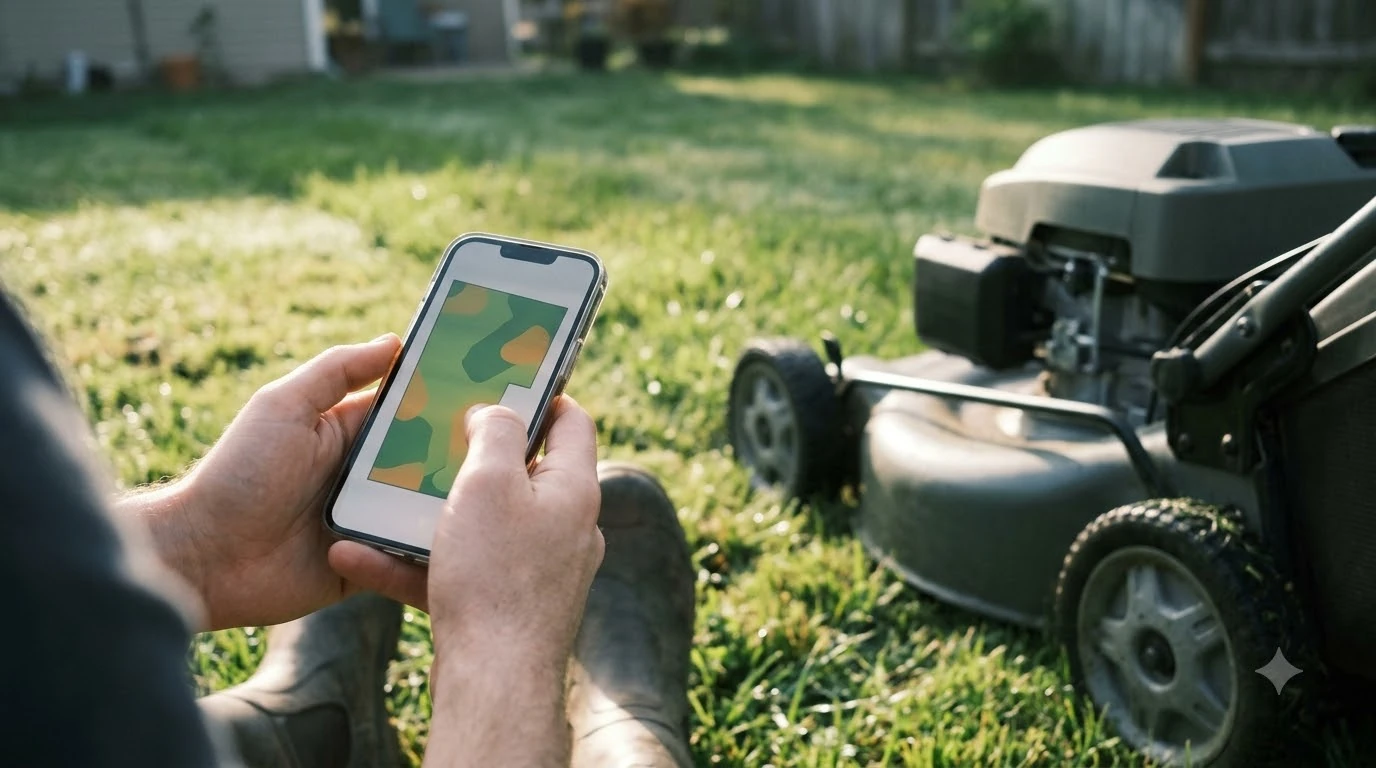

A Navimow factory reset is not described in the Navimow i1 support pages we read, so this guide does not give reset steps. The i1 pages list a video tutorial, FAQ, user manual, and contact options, but the visible text did not include a reset, restore, or reinitialize procedure. Before you try any reset on a Navimow mower, check the model’s user manual, confirm the app version, and ask Segway Navimow support for the method that applies to your unit.
The short answer
- Reset steps: not confirmed in the pages we read. Do not follow a reset sequence from a forum or another brand’s manual.
- Where to check first: the model’s user manual and FAQ on the Navimow support pages.
- Before any reset: note your schedule, boundary, and any settings you have made in the app.
- Who to ask: Segway Navimow support, with the model name, serial number, and app version.
Why a reset is rarely the first step
Most Navimow problems that owners describe as needing a reset are connection, firmware, or positioning issues. A reset clears settings, and it does not repair a weak signal, a missing update, or a blocked app permission. Start with the simpler checks in the app, then decide whether a reset is still needed.
Our reading is that a reset makes sense only after the model’s own troubleshooting pages have been checked. The Navimow support pages we read point to the user manual and FAQ for this kind of work, so use those documents as the first reference before you act on any reset advice.
What the Navimow i1 support pages show
The i1 product support section links to a video tutorial, an FAQ, a user manual, and a contact option. The site also has a support center, a service request form, and a track service link. Those pages are the places to look for the model-specific reset procedure, if the manufacturer publishes one for your unit. A fence fault is sometimes the real problem, and Navimow vision fence problems explains what to check before resetting.
The same page describes Network RTK, which the page says removes the need for a local antenna. It includes a postcode tool to check coverage, and an email form for areas without coverage. If your mower is positioning poorly, check RTK coverage before you reset anything, because weak positioning is often a coverage problem and not a fault that a reset would fix.
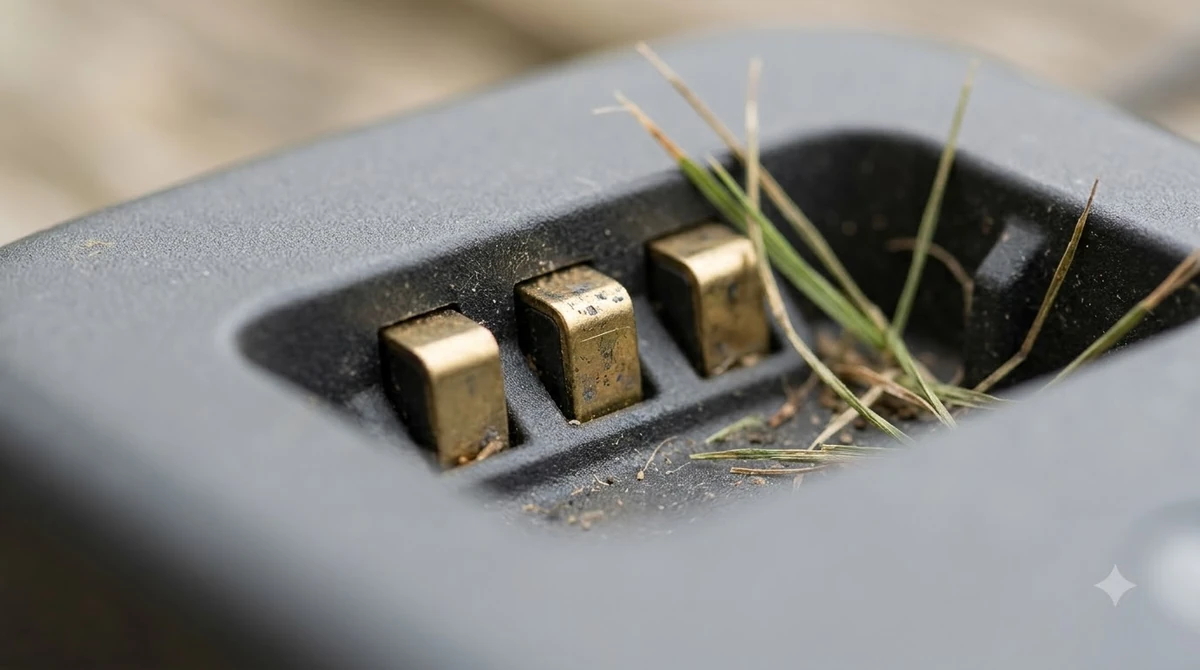
Check the model, the app version, and the firmware
Navimow sells several series, including the H1, i1, i2, and X3 lines, and each has its own support page. A reset sequence for one line may not match another, so confirm the exact model name on the mower and on the box before you read any reset instructions. The support pages we checked are organized by series, which is a sign that instructions are not shared across lines. Version and pairing faults are covered in Navimow in-app connection fixes, including how to check the installed app release.
Check the firmware version in the app before you change anything. If an update is pending or has failed, the update troubleshooting steps should come first. A reset during a failed update can leave the mower in a worse state, so do not start one until you know the update status.
What to record before you reset
A reset usually clears the settings that you have built up in the app. Write down the items you would need to rebuild, including the cutting schedule, the boundary and no-go zones, the cutting height, and the network settings. Take screenshots of the app screens if that is easier than writing them down.
Also record the serial number, the model name, the app version, and the date the problem started. Support teams ask for these details first, and a clear record can save a round trip.
Lawn size and slope before you rebuild the setup
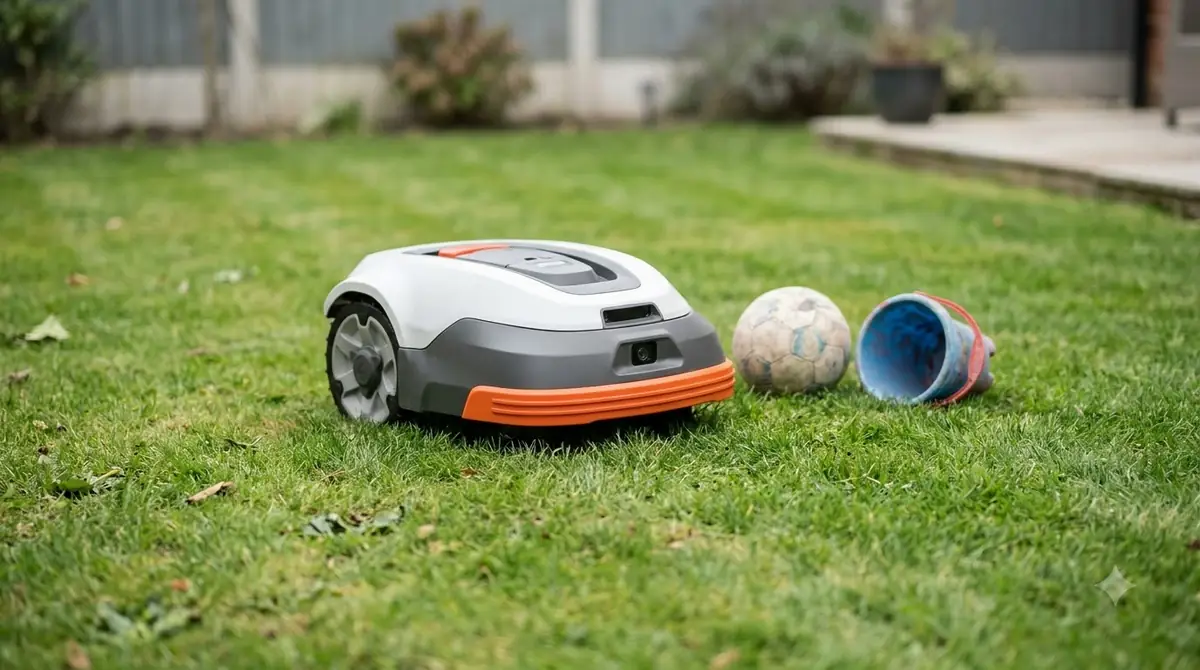
If a reset is needed, you will reset the boundary and schedule, so this is a good time to check that the mower fits the lawn. The Navimow pages include lawn size and slope calculators and a mowing area per charge comparison, which help confirm that the model suits the yard. Use the calculators with your own measurements, because estimates from a product page may not match a yard with many obstacles. After the reset the setup is rebuilt, so see Navimow i110N setup steps for the sequence and what to record first.
Keep the charging station in a flat, sheltered spot, and check that the path to it is clear before you restart the setup. A poor station position is a common cause of repeated problems after a reset.
When to contact Navimow support
Contact support if the mower still fails after the app checks and the manual steps, or if the manual does not list a reset for your model. Give the support team the model, the serial number, the app version, the firmware version, and a short description of the fault. If you are asked to reset the mower, ask for the written steps for your exact model before you start. If a reset does not solve the fault, Segway Navimow customer service lists how to reach the maker and what to have ready.
Keep the support case number and every instruction you receive. If a reset is later needed for a warranty claim, the record shows what was tried first.
Related reads: For a model the support pages cover, read the Navimow i105N review for its main features and known limits.
Frequently asked questions
Is there a factory reset for Navimow mowers?
The Navimow i1 support pages we read do not describe a reset procedure. Check the user manual for your model, and ask Navimow support whether a reset is available for your unit.
Will a reset erase my map and schedule?
We could not confirm what a reset erases on Navimow mowers from the pages we read. Save your schedule, boundary, and settings before you start, so you can rebuild them if they are cleared.
What should I check before I try a reset?
Check the app version, the firmware status, the RTK coverage for your address, and the model’s FAQ. Many issues that look like a fault are connection or coverage problems.
Can I use the reset steps from another robot mower brand?
No. Reset sequences differ between brands and between models. Use only the steps published for your exact Navimow model.
Sources
- Navimow i1 series support (Segway Navimow): used for the list of i1 support topics, including the video tutorial, FAQ, and user manual links.
- Navimow i1 series support (UK) (Segway Navimow): used for the product support links, the Network RTK description, and the lawn size and slope calculators.
 Up next6 min readLearnSegway Navimow Customer Service: How to Reach SupportUpdated Nov 13, 2026
 6 min readLearnMammotion Factory Reset: Luba Steps, What Is Erased, and What to CheckUpdated Nov 13, 2026
 7 min readLearnLymow Factory Reset: Steps, Backup and What to Try FirstUpdated Nov 13, 2026
 7 min readLearnWorx Landroid Factory Reset: What You Can DoUpdated Nov 13, 2026
 6 min readLearnEcovacs GOAT Factory Reset: Step-by-Step GuideUpdated Nov 13, 2026
 7 min readLearnHusqvarna Automower Factory Reset: Steps for Newer and Older ModelsUpdated Nov 13, 2026