
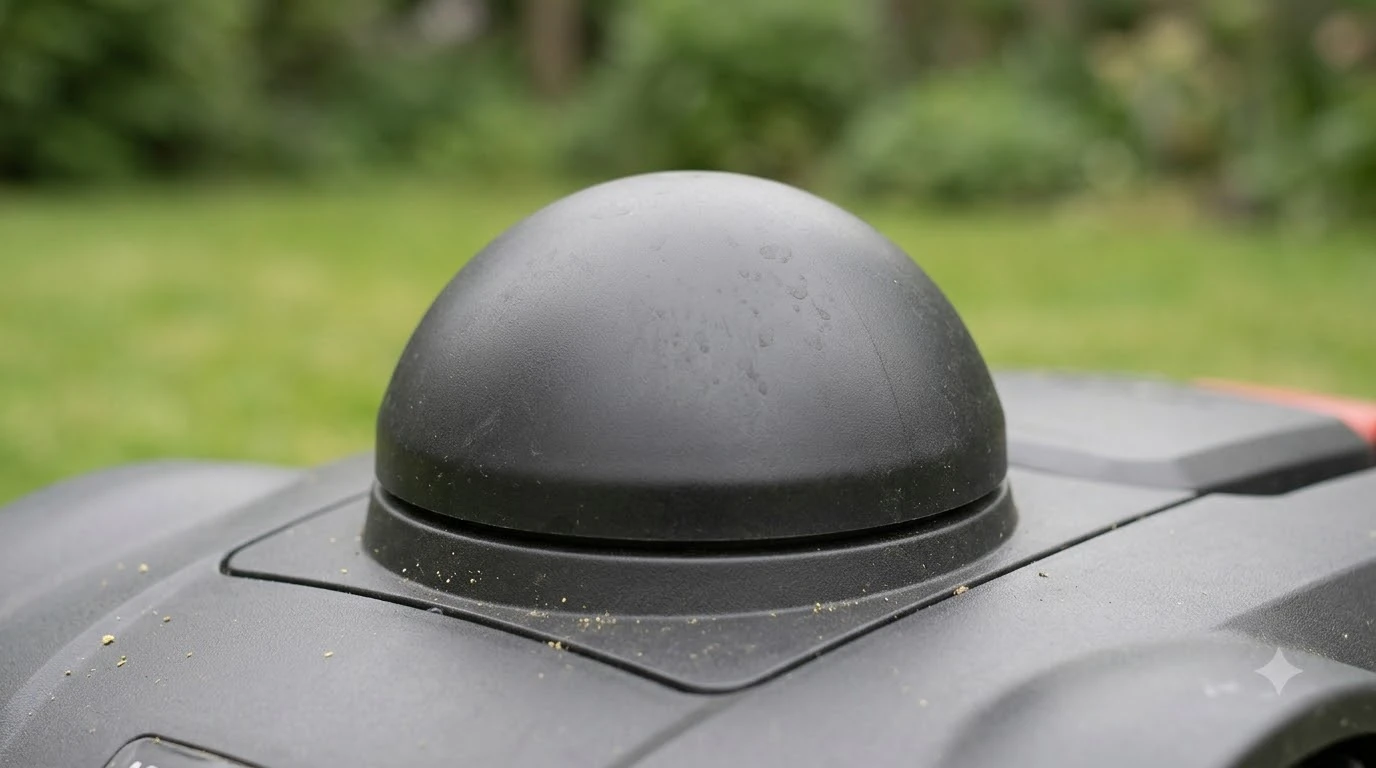

If your worx landroid won t connect to wifi, check the network name and password first, then the dock’s signal strength: Worx’s own troubleshooting starts with the correct Wi-Fi network and a correctly typed password, and for unstable links it points to a charging station that sits too far from the router. This guide walks through those checks in order, then covers the firmware route and the hotspot test that tells you whether the home network is the problem.
The short answer
- Network and password: confirm the mower is joining the right Wi-Fi network and that the password is entered exactly.
- Dock signal: keep the charging station within range of a stable Wi-Fi signal, since Worx lists distance as a cause of unstable connections.
- Firmware: try an over-the-air update through the app. If that fails, Worx describes a manual USB update using firmware from your Worx account.
- Hotspot test: connect the mower to a second phone’s hotspot. If it connects there, the home network or router settings are the likely cause.
- Still stuck: use Worx’s help center and report the problem through its support flow.
Why a worx landroid won t connect to wifi at all
Most connection failures come from one of four places: the wrong network or password, a dock that sits too far from the router, a router setting that blocks the mower, or an app that is signed in to a different account. Each one looks like the same symptom in the app, which is why it helps to check them in a fixed order rather than trying everything at once. For the bigger picture behind this topic, begin with our robot mower app not connecting basics and then come back here.
Worx’s Landroid Vision support pages describe the network and password as the first thing to confirm, and the wiki entry for unstable connections names the charging station’s distance from the Wi-Fi source as the cause. Start with those two checks before you touch the router.
Step 1: Confirm the network and password
This is the quickest check and the most common cause. Make sure the phone and the mower are both looking at the same home network, and that the password you entered matches your router exactly. Capital letters, similar-looking characters, and a copied space at the end of a password are common causes of a silent failure. When you are ready for the next step, read our Worx Landroid app issue fixes for more detail.
- Check the network name. If the router has more than one network, select the one you use for the mower and remove any old entries.
- Re-enter the password. Type it again rather than pasting, and check the character case.
- Reconnect the mower. If you changed networks recently, reconnect the Landroid Vision to the new network from the app.
Step 2: Move the charging station into range
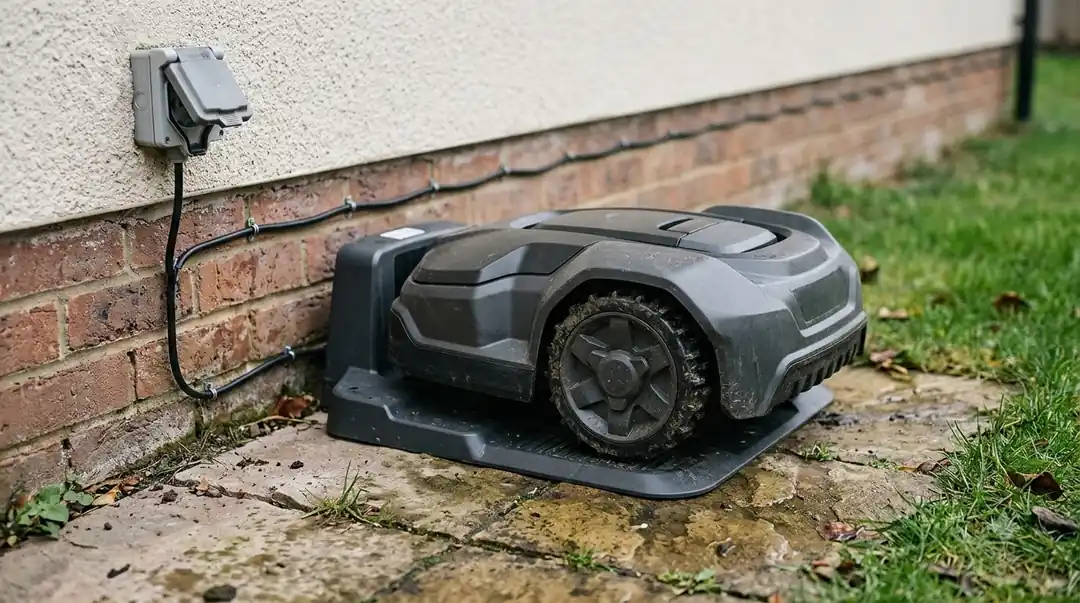
Worx’s wiki says the charging station being too far from the Wi-Fi source makes the connection unstable. The practical fix is to dock the mower and check the signal where the charging station sits, not where you stand with the phone. A signal that is strong in the living room can be weak at the far end of the garden. See our Lymow Wi-Fi connection troubleshooting for further detail on a connected question.
If the signal is marginal, moving the router, adding a range extender, or placing the dock closer to the access point are the usual options. Each one changes how the mower stays online, so test the connection again after each change and avoid moving several things at once.
Step 3: Check the router settings
Some routers run two bands under one name, and a mower may struggle to pick the right one. Many owners switch the mower to the 2.4 GHz band, or give it a separate network name for that band, and find that setup goes through more reliably. Also check that the router is not blocking new devices through parental controls or a strict firewall, since either can stop the mower from completing its join. If this point matters for your setup, read our what an offline mower app means for more detail on it.
If you can, log in to the router and see whether the mower appears in the device list while it is trying to connect. A device that shows up and then drops off usually points to signal or security settings, not to the app.
Step 4: Run the hotspot test
The hotspot test is the fastest way to split the problem in two. Turn on a second phone’s mobile hotspot, connect the mower to that hotspot, and see whether it joins and stays online. Worx’s error guidance uses this same test to separate a home network problem from a mower problem.
- It connects on the hotspot: the problem is in the home network, router, or its security settings. Work through steps 1 to 3 again.
- It fails on the hotspot too: the problem is more likely the mower, its firmware, or the app account. Move on to the firmware steps.
Heads up
A hotspot connection can use a lot of mobile data during updates. Check your plan first, and switch back to your home network once the mower is online.
Step 5: Update the firmware
When the mower does connect but drops off, Worx recommends updating the firmware. Try the over-the-air update through the app first. If the app update fails, Worx’s help material describes logging in to your Worx account, downloading the firmware file, and installing it manually by USB. Keep the mower on the charging station during the update and do not interrupt it. You can find more background and practical detail on this point in our robot mower Wi-Fi keeps disconnecting fixes. A neighbouring subject worth a look for the same yard is our Worx Landroid Vision firmware update steps.
When to contact Worx support
If none of these steps brings the mower online, stop repeating them and contact support. Worx’s help pages lead to a product selector and a contact page when a problem is still there, so you can report the fault without starting from the beginning. Have the model, the app version, the router band, and the step where the connection failed ready before you write.
Note the results of each step too. A clear record that the hotspot test failed, for example, tells support that the mower itself needs attention rather than the home network.
Check connectivity before you buy a Landroid
A mower that relies on Wi-Fi is only as good as its signal, so check the placement before you buy. Measure the distance from the router to the spot where the charging station will sit, and look at whether the model offers a way to keep the connection through the app if the signal is weak. A short test with a phone in the same spot is a useful early check.
Frequently asked questions
Why won’t my Worx Landroid connect to Wi-Fi?
The most common causes are the wrong network or password, a charging station too far from the router, a router setting that blocks the mower, or an app signed in to a different account. Check those in that order before changing anything else.
What does the hotspot test tell me?
It separates the home network from the mower. If the mower connects to a second phone’s hotspot, the problem is most likely the home network or router settings. If it fails on the hotspot as well, the mower, its firmware, or the app account is the more likely cause.
How do I update Landroid firmware if the app update fails?
Worx’s help material describes logging in to your Worx account, downloading the firmware file, and installing it manually by USB. Keep the mower on the charging station during the update and do not interrupt it.
Does the charging station location affect the connection?
Yes. Worx’s wiki says a charging station too far from the Wi-Fi source makes the connection unstable. Test the signal where the dock sits, and move the router or the dock closer if the signal is weak.
Sources
- Unable to connect the Landroid Vision to Wi-Fi Network (Worx North America support): confirm the correct network and password, and the route to further help if the problem persists.
- E25 or Unstable WiFi Connection (Worx wiki): charging station distance from the Wi-Fi source, over-the-air firmware update, and the manual USB route.
 Up next7 min readLearnLymow won t connect to wifi: fixes that workUpdated Nov 13, 2026
 7 min readLearnHow to Set Up Worx Landroid Vision, Step by StepUpdated Nov 10, 2026
 6 min readLearnWorx Landroid App Not Connecting: Fixes That WorkUpdated Nov 13, 2026
 9 min readLearnWorx Landroid No Wire Signal: Causes and FixesUpdated Nov 11, 2026
 9 min readLearnHow to Connect a Robot Mower to WifiUpdated Nov 11, 2026
 7 min readLearnWorx Landroid Factory Reset: What You Can DoUpdated Nov 13, 2026