
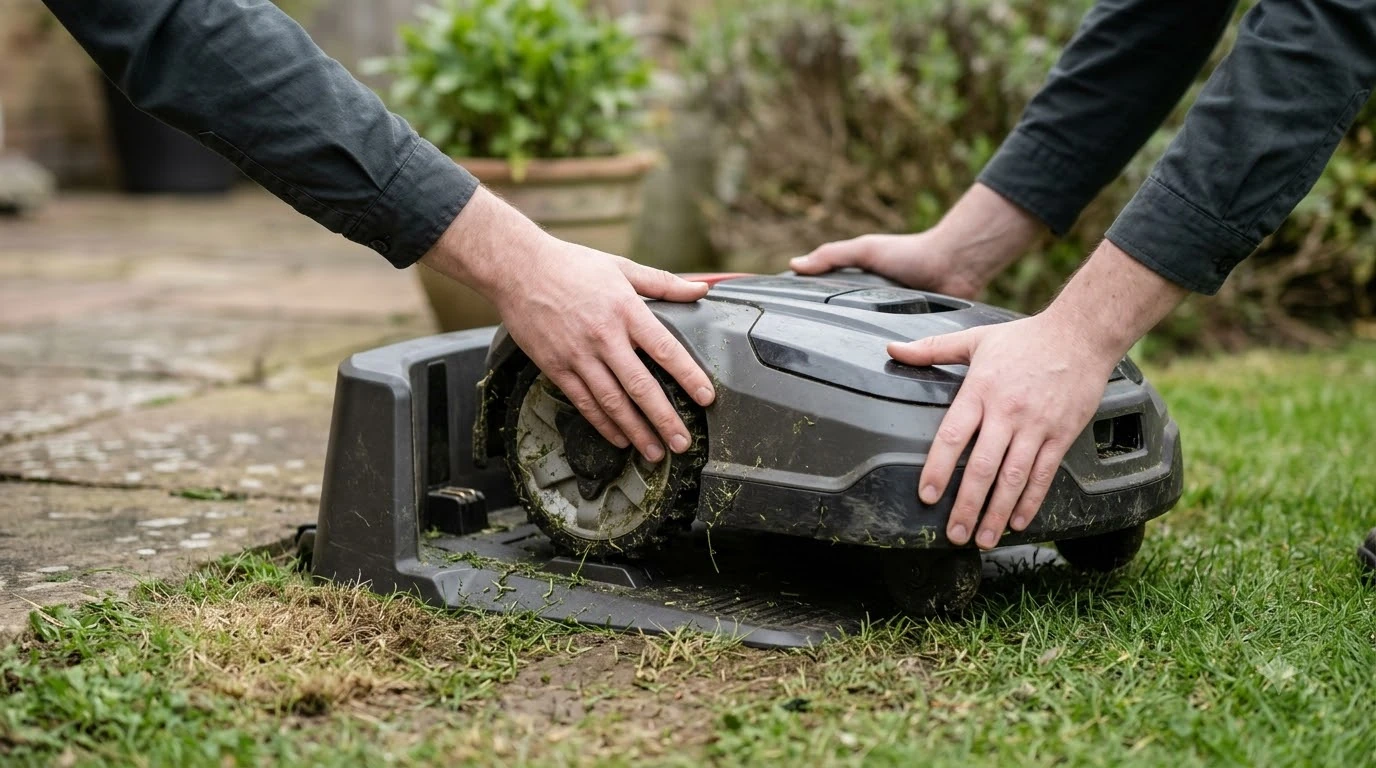

How to reset a robot mower: restart it first, then run a factory reset only if the problem remains. A restart turns the mower off and on without deleting any settings. A factory reset erases user settings such as schedules and map objects, so write down your zones and times before you start. The steps below follow Husqvarna Automower support guides, read as of 2026-11-10.
The short answer
- Clear the error: remove the obstacle or stand the mower upright before you restart it.
- Restart: turn the mower off, then on again. No settings are deleted.
- Factory reset: in the Automower Connect app, go to More > Settings > General and choose Reset to factory settings.
- If the reset fails: charge the mower on its station for at least 30 minutes, restart it, and try again.
How to reset a robot mower: restart first
A restart is the first thing to try when you learn how to reset a robot mower, because it deletes nothing. Husqvarna recommends it before any reset.
Before you restart, and before any reset, make sure the cause of the error is gone. Some errors can be cleared from the app when it shows a “Reset Error” option, then the mower is restarted from the app. Others cannot be cleared remotely for safety reasons, such as an obstacle collision, a tilt, or someone pressing STOP. For those, remove the cause first, for example by clearing obstacles or placing the mower upright, then clear the error at the mower with your PIN.
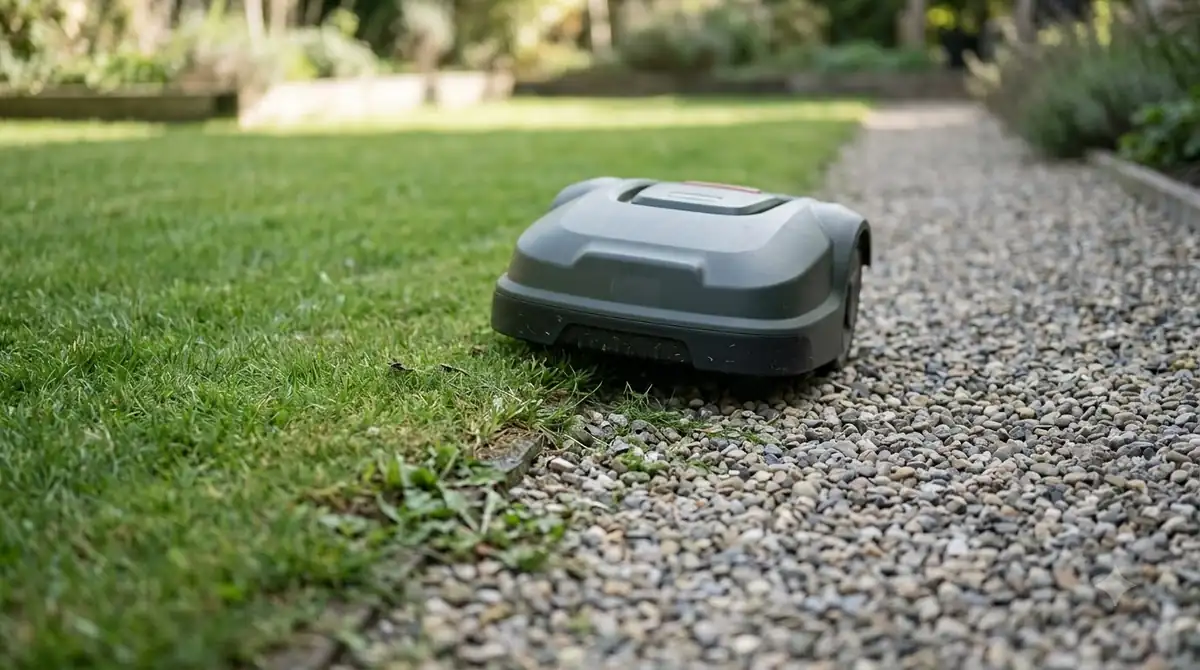
The exact button sequence depends on the model, so check your manual for the step that applies. Husqvarna lists three patterns for how to reset a robot mower by restart:
- Jog-wheel models (NERA). Turn the jog wheel to “Power off,” then press it. To restart, press the jog wheel for 3 seconds.
- Keypad models (Aspire R4, R6V, 308V and 312V). Press the ON/OFF button for 3 seconds to turn the mower off. Press it for 1 second to restart.
- Older keypad models (for example, 420). Set the back or bottom ON/OFF switch to “O” to turn off, and to “|” to turn on.
After the restart, check the app for error messages before you send a new start command. If the mower still shows an error, move to the factory reset below.
What a factory reset erases and keeps
A factory reset returns the mower to its factory settings, which is the second step in how to reset a robot mower. It is not a full wipe like a phone reset. Husqvarna says the user settings are deleted, while some core settings stay in place.
| Deleted by a factory reset | Kept after a factory reset |
|---|---|
| User settings, such as schedules | Security level and PIN code |
| Map objects | Loop signal |
| Messages, date and time | |
| Language and country |
The practical rule for how to reset a robot mower: plan to rebuild your schedule and map objects after a reset. You will not need to re-enter your PIN or language, because those stay in place.
How to factory reset in the app
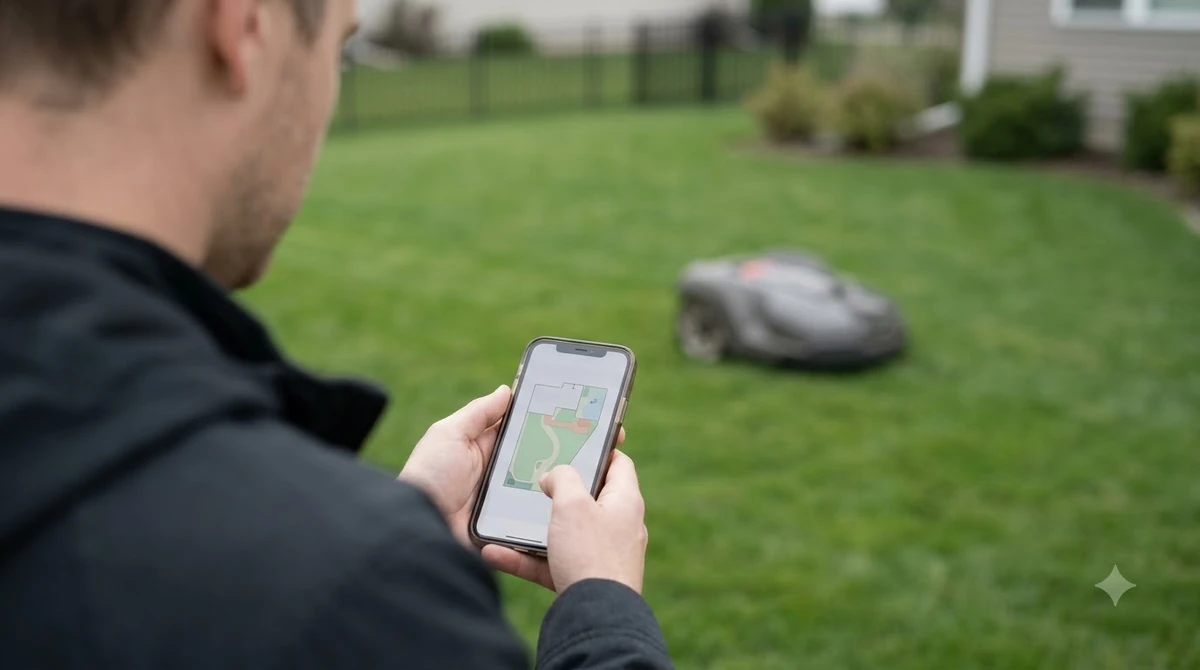
On app-connected models, the reset is started from the app, and this is the quickest way to reset a robot mower with a phone. It removes your schedule and map objects, so do it only after a restart has failed.
- Open the mower. Select your mower in the Automower Connect app.
- Go to settings. Tap More, then Settings, then General.
- Reset. Tap “Reset to factory settings” and confirm.
Husqvarna lists this path for how to reset a robot mower on the NERA and Aspire R4, R6V, 308V and 312V models. On older keypad models, the menu is Menu > Settings > General, then “Reset all user settings,” and you confirm with “Proceed with reset of all user settings.”
If the reset fails
When a reset fails or nothing happens, Husqvarna’s first fix is to charge the mower, then try again. The charging step is part of how to reset a robot mower that will not respond.
- Charge. Place the mower on the charging station for at least 30 minutes. If it will not dock, see how robot mower docking works.
- Restart. Turn the mower off and on using the steps above.
- Retry the reset. Run the factory reset again from the app.
- Sign out and back in. If it still fails, sign out of the app, sign back in, and retry.
If the mower will not take a charge at all, see fixing a robot mower that will not charge before you reset anything. If a restart and a factory reset still do not fix the problem, contact a dealer. Husqvarna also points to its Product Assistant for issues the troubleshooting steps do not cover. For wire-based installations, our guide to finding a break in robot mower wire covers another common cause.
When the mower will not start
Many “will not start” cases are a command or a setting, not a fault. Check these causes before you reset a robot mower. Husqvarna lists them as follows:
- STOP button. The mower shows “Stopped” with a manual action required message, and it must be restarted on site, not remotely.
- Pause command. The mower shows “Paused.” Someone connected to the account may have sent it, so check the app and restart it manually or from the app.
- Smart routine. The mower shows “Parked” with a reason, such as Rain Guard. It resumes automatically when the condition ends. Routines are under More > Smart Home > Smart Routines.
- Satellite search. On wire-free models, the mower may pause while it searches for satellites. No action is needed unless the problem continues.
A mower that is “on the way” but not moving is also normal while it travels to the work area. If it does not move at all, clear the path of obstacles, check for error messages, restart it, and send a new start command. A mower that keeps halting in one place is a different problem, covered in robot mower stuck in the same spot.
Winter storage and the battery
After winter storage, a deeply discharged battery is the most common reason a mower will not start. In that case, how to reset a robot mower starts with charging, not with a reset. Husqvarna’s advice is to bring the mower indoors if it was stored outside or in an unheated space, and let it reach room temperature before charging.
Leave the mower on the charging station until it is fully charged, which the guide says “may take several hours.” Once charged, restart it and check the app for errors before you send a start command. For the full off-season routine, see how to winterize a robot mower.
Frequently asked questions about how to reset a robot mower
Does a restart delete my schedule?
No. A restart turns the mower off and on again and deletes no settings, so it is the safe first step in how to reset a robot mower. Husqvarna recommends it as the first attempt, before any factory reset.
Will a factory reset erase my PIN?
No. Husqvarna lists the security level and PIN code among the settings a factory reset keeps. The reset deletes user settings such as schedules and map objects.
What should I do before I reset a robot mower?
Write down your schedule and the zones or map objects you have set up, because a factory reset deletes them. Then try a restart first, and reset only if the error remains.
What if the reset does nothing?
Charge the mower on its station for at least 30 minutes, restart it, and try the reset again, since that sequence is how to reset a robot mower when the first attempt fails. If it still fails, sign out of the app, sign back in, and contact the manufacturer or a dealer.
Sources
- How to restart or reset your Automower robotic lawn mower (Husqvarna): restart steps, factory reset path, deleted and kept settings, charging advice.
- Automower won’t start or keeps stopping (Husqvarna): STOP, pause and smart routine states, and the post-winter battery guidance.
 Up next7 min readLearnDoes a Robot Mower Work With a Dog in the Yard?Updated Nov 11, 2026
 8 min readLearnCan a Robot Mower Handle Acorns and Pine Cones?Updated Nov 11, 2026
 8 min readLearnHow to Set Up No-Go Zones on a Robot MowerUpdated Nov 11, 2026
 10 min readLearnWhat to Look for in a Robot Lawn MowerUpdated Nov 11, 2026
 9 min readLearnDo Robot Mowers Collect Data?Updated Nov 11, 2026
 8 min readLearnHow to Get Stripes with a Robot MowerUpdated Nov 11, 2026