

How to update Worx Landroid Vision firmware comes down to two routes: over the air from the Worx app, or a manual update from a USB stick that you download from your Worx Account. Worx’s support pages say the USB route is the fallback when an over-the-air update will not install. Both routes have requirements to check before you start.
The short answer
- App (over the air): dock the mower, charge the battery to at least 50%, and use a 2.4 GHz Wi-Fi network.
- USB stick: download the file from your Worx Account, copy it unzipped and unrenamed to an empty FAT32 stick, then insert the stick through the battery compartment with the mower off.
- Version numbers: the Worx pages we read do not list version numbers, so check the version in the app or your Worx Account.
Before you start
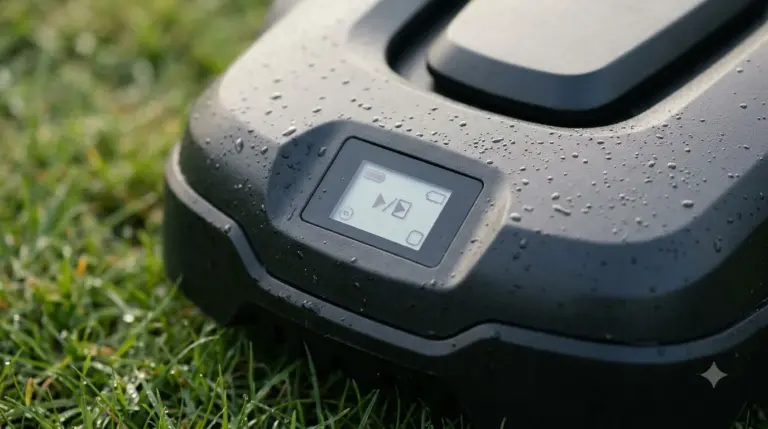
Knowing how to update Worx Landroid Vision firmware starts with four checks: dock, battery, network and account. Worx describes the over-the-air update as something you run with the mower docked. The LCD shows a house icon when the mower is seated correctly in the charging station, and Worx asks you to confirm that icon before you start. If the mower will not seat in the station, see our guide to why a Worx Landroid is not docking. The battery should be at least 50% charged.
The app update needs a 2.4 GHz network. Worx says Landroid Vision does not support 5 GHz networks, so it helps to know how to connect a robot mower to Wi-Fi on the right band. If your router is dual-band, Worx suggests temporarily turning off 5 GHz during setup and disconnecting any 5 GHz Wi-Fi repeaters, then reconnecting them afterward.
The USB route needs a Worx Account. If you have not registered the mower for warranty, the account site prompts you to do that before you can download the firmware file.
How to update Worx Landroid Vision firmware over the air
Send the update from the Firmware Update section of the app while the mower is docked and charged. Worx’s maintenance page describes the app update as a manual send from that section, so check the section yourself if auto-update is off. If you have not finished setting up the Worx Landroid Vision in the app yet, do that first.
- Open the Firmware Update section. The section shows whether an update is available.
- Select the update and send it. Keep the Wi-Fi on 2.4 GHz for this step.
- Keep the mower docked. Leave it in the charging station until the update finishes.
The Worx pages we read do not say how long the update takes, so plan for it to run without you touching the mower.
How to update Worx Landroid Vision firmware with a USB stick
The USB route copies the firmware file to the mower from a FAT32 stick. Log in to the Worx Account web panel, select your Landroid model, and download the latest firmware file. Worx says to copy the file directly to an empty USB stick formatted in FAT32, and not to unzip or rename it.
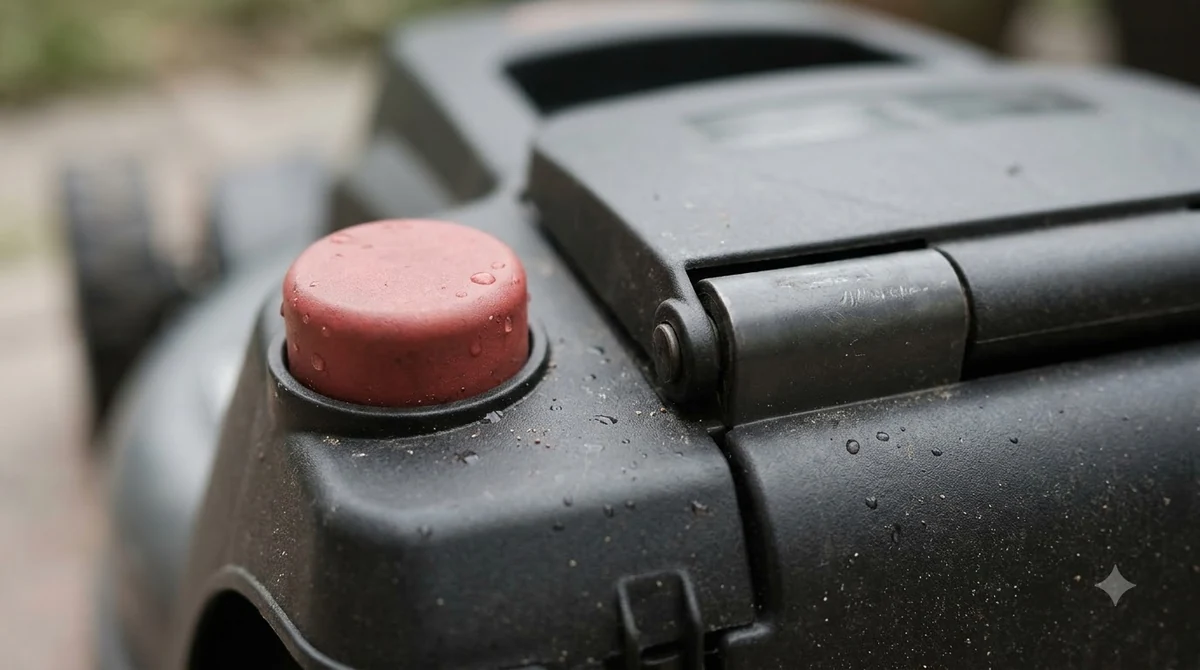
- Find the USB port. Open the battery compartment to locate it.
- Turn the mower off. Worx’s page says only “Turn off the Landroid” and does not name the button.
- Insert the stick and turn the mower on. The mower starts downloading the firmware.
- Remove the stick when prompted. Worx says to remove it without lifting the mower, so keep the mower on the ground.
- Wait for the restart. The update finishes, the mower restarts, and you are asked for your PIN.
Heads up
Worx does not list a battery or charging requirement for the USB route. Our reading is that keeping the mower docked and charged is the safer choice, since the app route requires it.
When the over-the-air update fails
If you are stuck on how to update Worx Landroid Vision firmware after an over-the-air attempt fails, Worx support recommends the USB stick route. Its support page for “Firmware cannot update via Over the Air” gives one solution: try updating the firmware manually with a USB stick, and follow the linked step-by-step guide. The page does not list firmware versions or other causes, so this is the only fix we can confirm from it. For other recurring faults, our summary of Worx Landroid Vision problems and complaints covers what owners report.
Check which firmware version you have
Before you work out how to update Worx Landroid Vision firmware for your unit, use the app or your Worx Account to see the version. The Worx pages we read do not give version numbers, so this article does not name a current version. For a wider look at the model, see our Worx Landroid Vision review. If you are comparing versions, match the number shown in your app or account against the file Worx offers for your model before you download anything.
Why firmware updates matter for security
CISA’s home network security guidance calls regular software updates “one of the most effective steps” you can take to improve the cybersecurity posture of home networks and systems. The same guidance says to adjust factory-default settings and disable unnecessary services. These are general points, not Worx-specific instructions, and we did not find a Worx security notice in the pages we read.
What Worx does not document
The Worx pages we read on how to update Worx Landroid Vision firmware leave several points open: how long an update takes, what the display or LEDs show during the process, which models support the USB route, whether the mower must be charged during a USB update, and what to do if the PIN prompt does not appear or is rejected.
Our suggestion: if the update does not start, check that the mower is on a 2.4 GHz network first, then move to the USB route, and contact Worx support for the PIN or failure steps.
Frequently asked questions
Can I update Landroid Vision firmware without Wi-Fi?
Worx describes the app route over a 2.4 GHz network, and the USB stick route as the fallback. The USB steps on the Worx page do not mention Wi-Fi, so the USB method is how to update Worx Landroid Vision firmware when the network is the problem.
Does the USB update need a charged battery?
The Worx USB page gives no battery or charging requirement. The 50% battery rule is stated for the over-the-air route.
Why won’t my Landroid Vision connect on a 5 GHz network?
Worx says Landroid Vision does not support 5 GHz networks. Worx suggests temporarily turning off 5 GHz on a dual-band router during setup, then reconnecting any 5 GHz repeaters.
What do I do if the PIN prompt does not appear?
The Worx pages we read do not say. Contact Worx support for the next step.
Sources
- Update the firmware LCD (Worx): USB download, FAT32 file rule, USB steps, PIN prompt.
- Update the firmware LED (Worx): app update, dock and house icon, 50% battery, 2.4 GHz and 5 GHz notes, version check.
- Firmware cannot update via Over the Air (Worx support): USB fallback when over-the-air fails.
- Home Network Security (CISA): regular software updates, factory-default settings, unnecessary services.
 Up next8 min readLearnHow Long Does the Worx Landroid Vision Battery Last?Updated Nov 12, 2026
 7 min readLearnHow to Set Up Worx Landroid Vision, Step by StepUpdated Nov 10, 2026
 9 min readLearnWorx Landroid No Wire Signal: Causes and FixesUpdated Nov 11, 2026
 7 min readLearnWorx Landroid Stuck? Fix Docking, Power and Path ProblemsUpdated Nov 13, 2026
 7 min readLearnWorx Landroid Customer Service: Routes, Warranty and Log FilesUpdated Nov 13, 2026
 7 min readLearnWorx Landroid Factory Reset: What You Can DoUpdated Nov 13, 2026