
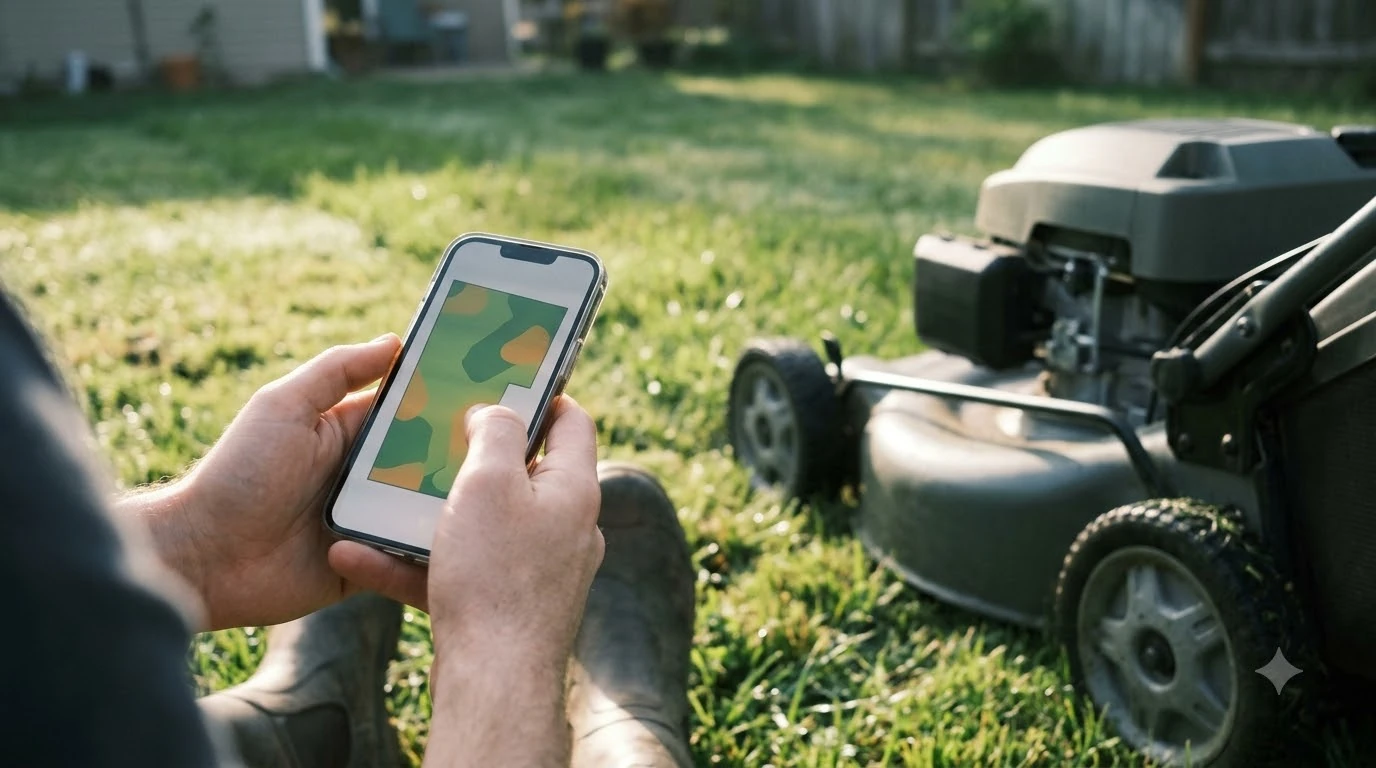

If your lymow won t connect to wifi, start with the network band: the most common fix in community reports is to put the mower on a 2.4 GHz network, with 5 GHz turned off during setup. Then bring the mower close to the router, reboot it, and let it finish its first update. This guide walks through those steps in order and explains what to check if they don’t work.
The short answer
- Band: use a 2.4 GHz network during setup. Turn off 5 GHz on the router for now if it shares one network name with 2.4 GHz.
- Distance: set up with the mower close to the router or access point.
- Reboot: power the mower off, wait a few seconds, and power it on while it is in range.
- Update: install firmware as soon as the mower has any connection, even a short one.
- Last resort: a full power-off with the battery disconnected for 10 to 20 minutes, then a fresh setup.
Why lymow won t connect to wifi at setup
Setup fails at the Wi-Fi step for a handful of repeatable reasons, and most of them come down to the network rather than the mower. The mower needs to join your home network and then reach the internet, so a weak signal, a mixed-band network, or a router that prefers 5 GHz can each stop the process. If you want the wider context first, start with our robot mower app not connecting guide before returning to this page.
- Mixed bands under one name. Many modern routers broadcast 2.4 GHz and 5 GHz under the same network name and steer devices between them. Community reports describe the mower failing to finish setup in that case, and say it works once 5 GHz is disabled during pairing.
- Weak signal at the mower. A dock or lawn corner that gets a faint signal can pass the first step and then fail when the mower tries to stay connected.
- A mower that was already paired. If the device is still listed on another account or in the app, the new pairing can stall. Remove the old entry before retrying.
- Password trouble. Double-check the password, and avoid characters that a device or app may handle badly during entry.
Step-by-step fix for a setup that fails
Work through these steps in order and retry the setup after each one. Stopping at the first step that works saves time, but do not skip the firmware update at the end. For the next step after this section, continue with our Lymow app setup and error guide. See our Worx Landroid Wi-Fi connection fixes for further detail on a connected question.
- Use 2.4 GHz only. Turn off 5 GHz on the router, or give the 2.4 GHz band its own network name, then select that network in the app.
- Move the mower near the router. Set it up within a few meters of the access point so the signal is as strong as possible.
- Reboot the mower in range. Power it off, wait a few seconds, then power it on and let it fully start before reopening the app.
- Clear the phone’s cache. Clear the Wi-Fi and Bluetooth cache and data for the app on your phone, close the app, and restart the phone.
- Let each step finish. Do not tap through the setup screens while a step is still loading.
One user in a Lymow community thread reported that removing the battery for a few minutes while the mower sat near the 2.4 GHz router got a stalled setup moving again. Treat that as one data point, not a guaranteed fix.
Heads up
Some users connect the mower through a phone hotspot to finish setup and install the firmware, then switch back to the home network. This is a workaround reported by owners, not an official Lymow procedure, so check that the hotspot is on 2.4 GHz if your phone offers that choice.
Connection drops after a firmware update
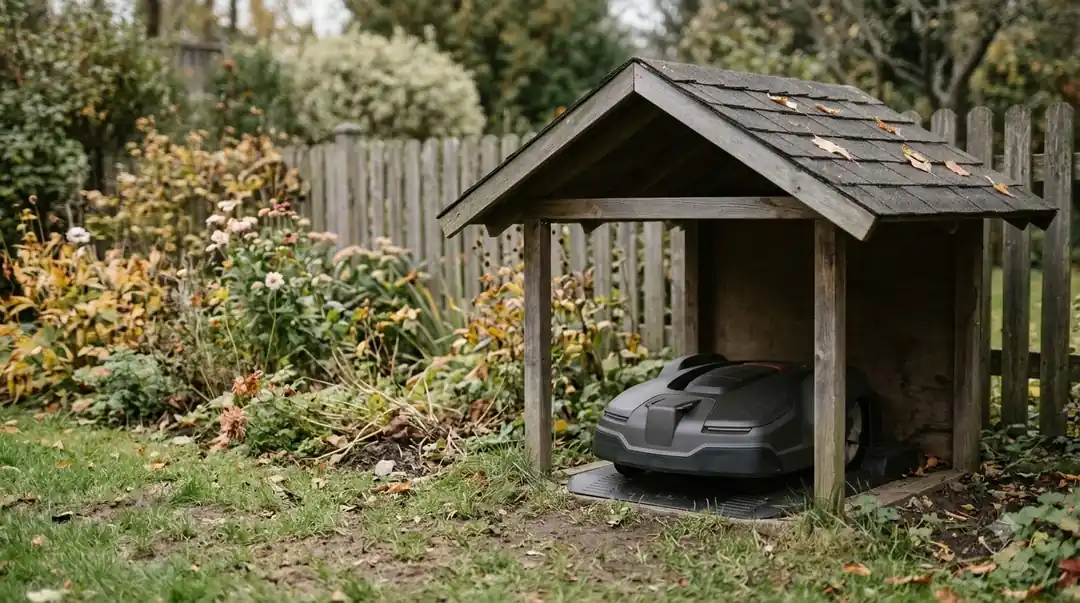
A mower that connected fine before an update may stop showing up in the app afterward. Support pages and community threads describe the same pattern: the app stays on a scanning screen, or Bluetooth works at home but remote access fails. In most of those reports, a simple restart is enough. If this point matters for your setup, read our why a mower Wi-Fi keeps disconnecting for more detail on it. Beyond this topic, you can also read our how to update robot mower firmware for an adjacent part of owning a robot mower.
- Power-cycle the mower. Turn it off for a few seconds, then back on, and wait for it to finish starting.
- Restart the phone. A stale Bluetooth or Wi-Fi state on the phone can keep the app from finding the mower.
- Check Wi-Fi if remote access fails. If the mower responds only when you are at home, it may not have rejoined the network after the update. A reboot near the router is the next step.
- Disconnect the battery last. Some owners disconnect the battery for about ten minutes when basic restarts fail. Lymow’s support view is that this is rarely needed, so try the simpler steps first.
When the mower still won’t connect
If the steps above fail, the problem may be the router, the mower’s radio, or the account. A quick way to separate these is to test with a different network. If the mower connects to a phone hotspot but not to your router, the router settings are the likely cause. If it fails on both networks, the mower may need support. You can find more background and practical detail on this point in our offline mower app status explained.
Before you contact support, note the network band and router model, when the problem started, whether it followed a firmware update, and which step you were on when it failed. That information makes it much faster to get a useful answer. Lymow’s own help center is at the Lymow community help site, where owners post the same troubleshooting questions.
What to check before you buy a Wi-Fi-dependent mower
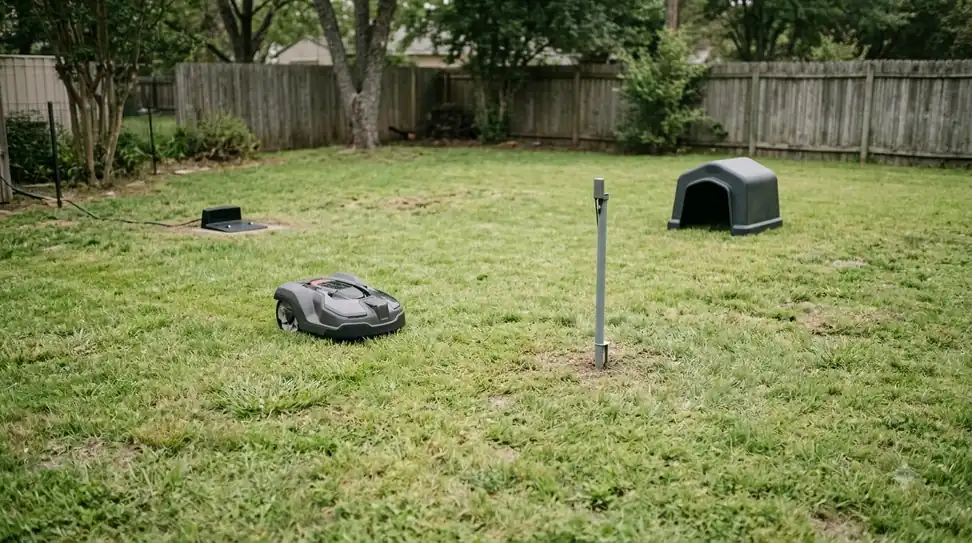
A Wi-Fi connection is what lets you start the mower from your phone, check its status, and install updates, so it matters as much as the cutting hardware. Before you buy, check whether the mower supports your router’s band layout, how far it is from the router at the spot where it will live, and whether a 2.4 GHz network is available. Our reading is that a mower with a strong signal near its charging station will be easier to keep online than one placed at the far corner of a large yard.
Frequently asked questions
Why won’t my Lymow connect to Wi-Fi?
The most common reports involve a router that broadcasts 2.4 GHz and 5 GHz under one network name, a weak signal at the mower’s location, or a device that was still paired to another account. Community threads point to 2.4 GHz only and a close-range reboot as the first fixes to try.
Should I turn off 5 GHz to set up a Lymow?
Many owners say yes, at least during setup. Community reports describe the mower failing when both bands share one name and succeeding once 5 GHz is disabled. You can turn 5 GHz back on after the mower is online and has its firmware installed.
My Lymow stopped connecting after an update. What do I do?
Power-cycle the mower and restart the phone first. If the mower only responds at home, it may not have rejoined Wi-Fi after the update, so reboot it near the router. Disconnecting the battery for about ten minutes is a last resort.
Is a factory reset the right first step?
Not usually. Try the band change, a close-range reboot, and a phone restart first. A factory reset erases the saved setup, so use it only after those steps fail. Check the manual for the exact reset method on your model before you start.
Sources
- Lymow One Plus won’t connect to Wi-Fi during setup (Lymow community help): 2.4 GHz only, close-range reboot, battery reseat, phone hotspot workaround, full power-cycle reset.
- Lymow not connecting after update (Lymow community help): power-cycle, phone restart, rejoining Wi-Fi after an update, battery disconnect as a last resort.
 Up next8 min readLearnWorx Landroid Won t Connect to Wifi: Step-by-Step FixesUpdated Nov 13, 2026
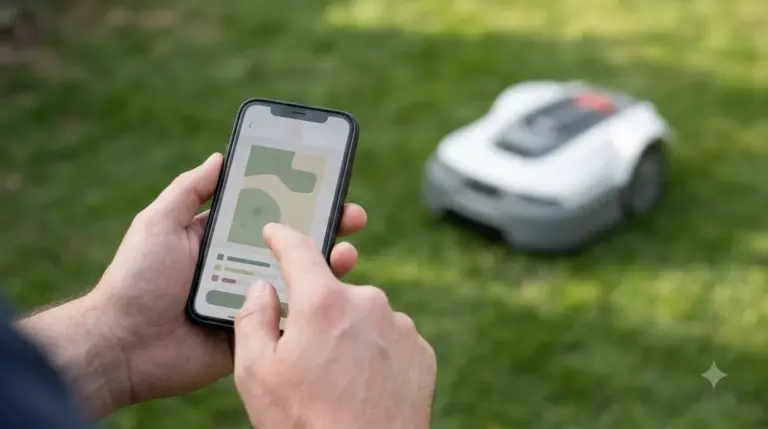 6 min readLearnNavimow App Not Connecting: Fixes That WorkUpdated Nov 13, 2026
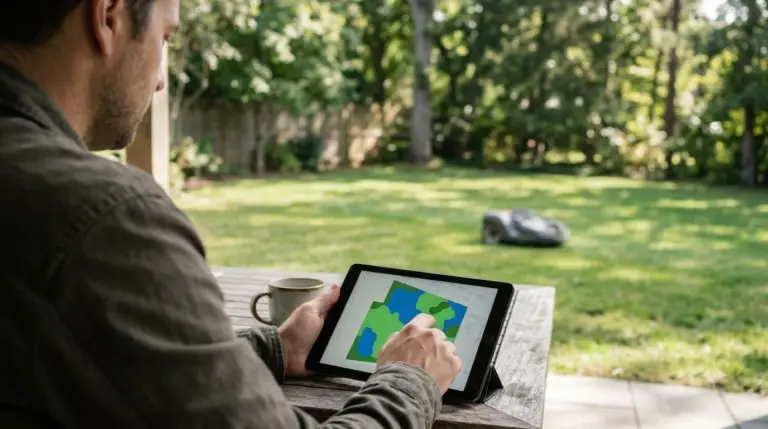 6 min readLearnWorx Landroid App Not Connecting: Fixes That WorkUpdated Nov 13, 2026
 6 min readLearnMammotion App Not Connecting: Luba Fixes That WorkUpdated Nov 13, 2026
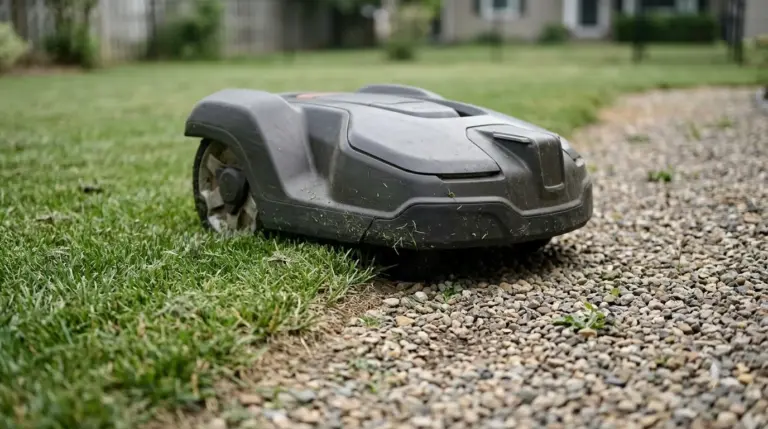 9 min readLearnRobot Mower Mapping Failed: Causes and Fixes That WorkUpdated Nov 11, 2026
 9 min readLearnHow to Connect a Robot Mower to WifiUpdated Nov 11, 2026