
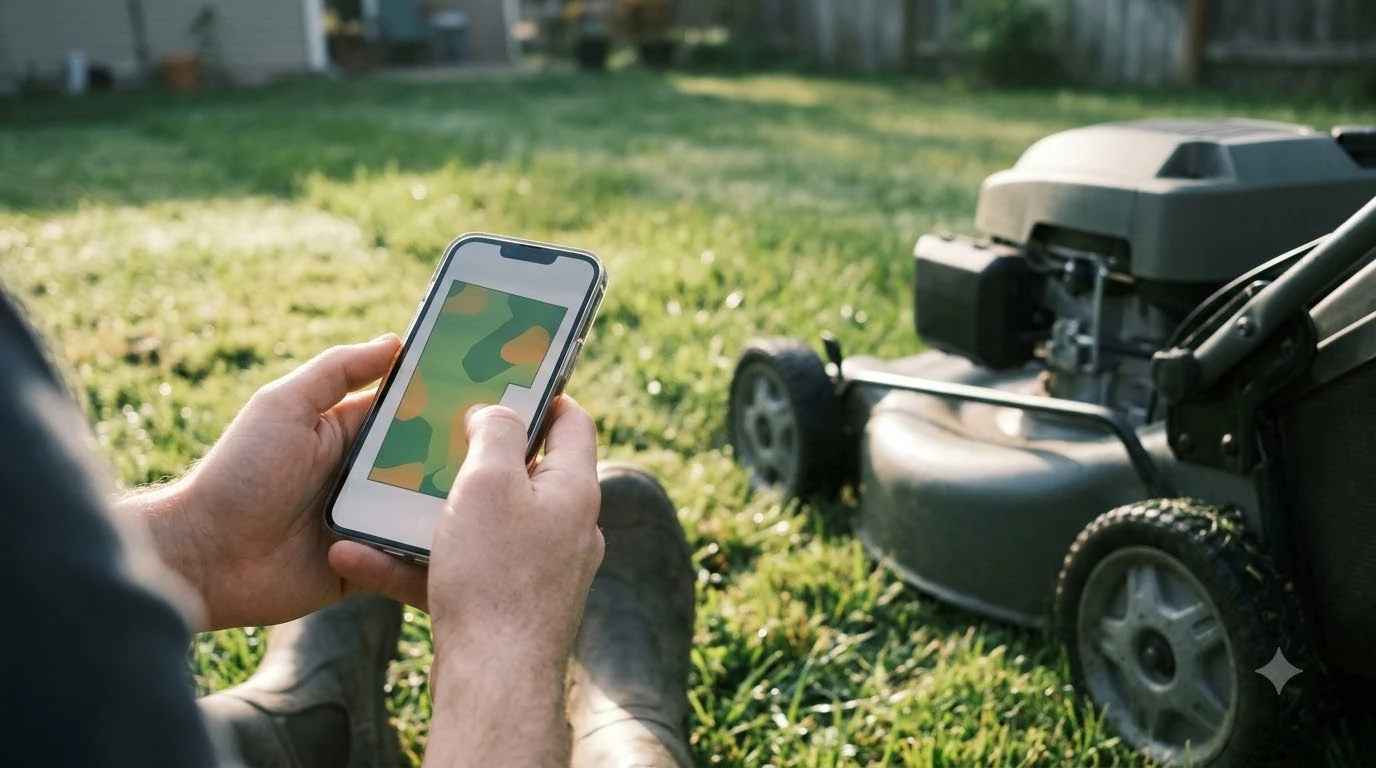

The Lymow app controls zones, schedules, cutting height, and speed, and most app problems come down to three things: the connection, the firmware version, and the app itself. Lymow’s own material describes Bluetooth, Wi-Fi, and 4G connectivity, with virtual boundaries drawn in the app and up to 80 zones. This guide covers what the app does, the setup steps where people usually get stuck, and the checks to run before you assume the mower is faulty.
The short answer
- What the app does: draws zones and no-go areas, sets schedules, and adjusts cutting height and speed, per Lymow and a published review.
- Common setup problem: Wi-Fi failures during setup, often tied to the network band. Community reports suggest using a 2.4 GHz network.
- Common error: “already bound” messages, which community guides link to stored Bluetooth pairing data.
- First fixes: update the app and mower firmware, restart the phone, and clear the app’s cache or reinstall it.
- Know the limit: community forums are not Lymow support. If the fix does not work, contact the company through its own channels.
What the Lymow app does
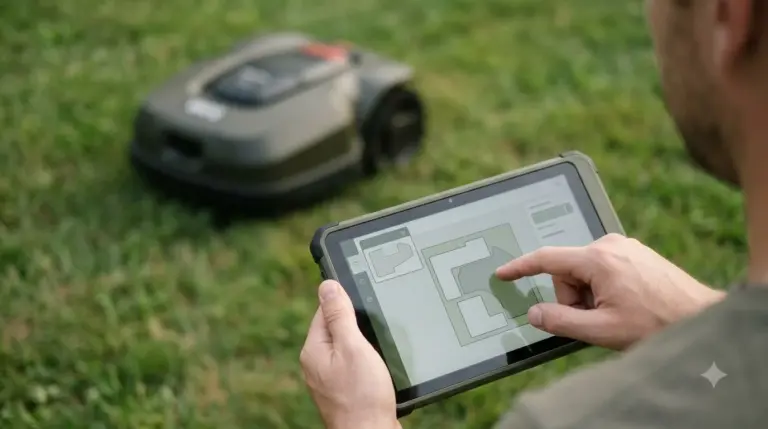
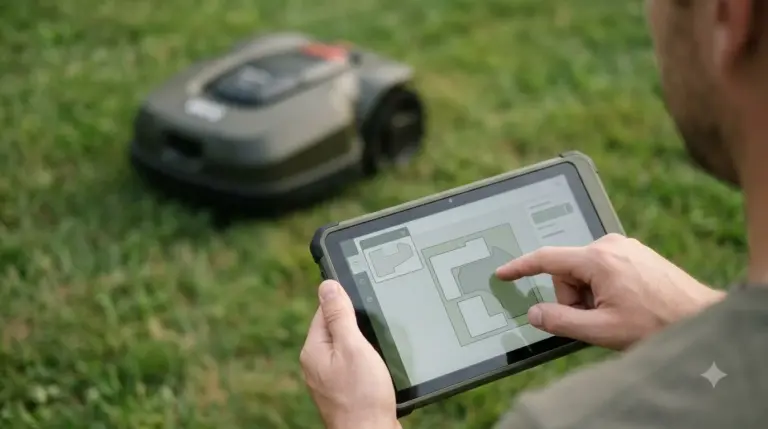
The app is the control centre for the mower. Through it you draw the boundary and any no-go zones, set when the mower runs, and choose cutting height and speed for each zone. Lymow’s material says the One Plus supports up to 80 zones, each with its own schedule, cutting height, and speed, and a published review of the Lymow One describes the app as zone mapping, schedules, cutting height and speed, and blade speed controls. The same review also called the app rough around the edges, which is a useful reminder that the software is where most early complaints come from. Readers who want a broader overview can read our robot mower app connection basics first and then continue with this page. You can find more background and practical detail on this point in our phone controls for robot mowers.
Lymow describes its virtual boundaries as drawn in the app rather than set with a buried wire. The company’s guidance says that drawing them takes about 15 to 20 minutes, and that the system relies on an RTK base station. Check that the base station is placed and powered before you start mapping, because a missing base station is a common cause of mapping trouble.
Where the Lymow app setup usually goes wrong
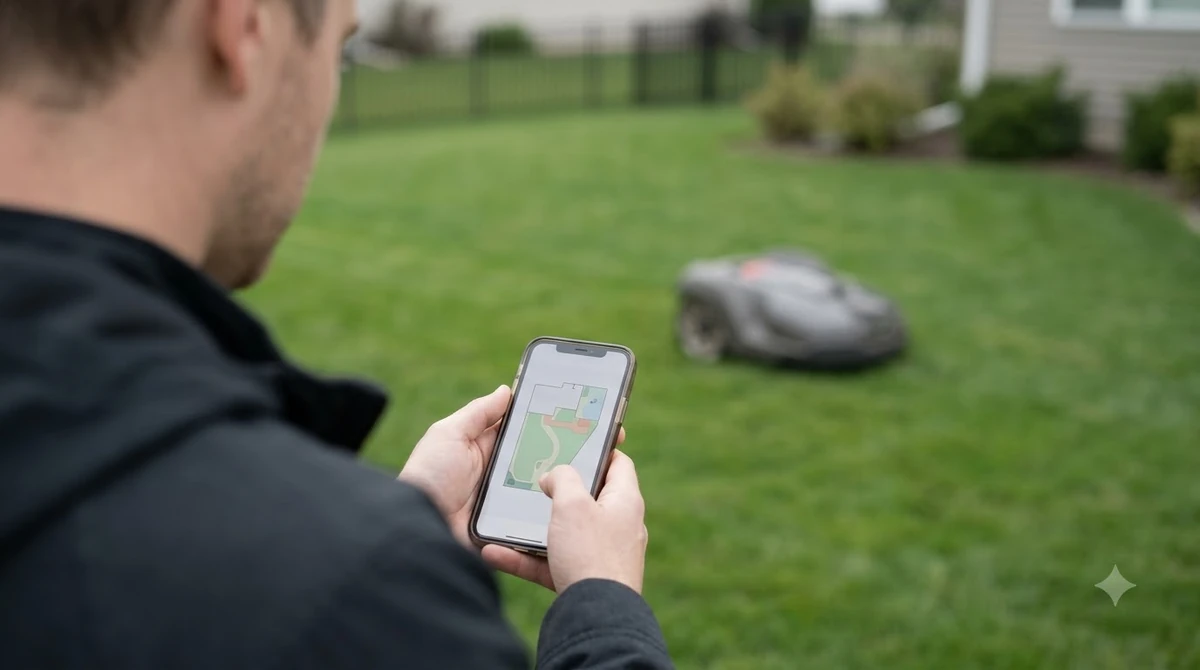
Most owners meet the app during setup, and that is where the problems tend to show up. Community troubleshooting for the One Plus repeatedly points to Wi-Fi. One thread on the Lymow community forum recommends limiting the network to 2.4 GHz, because the mower does not work well with 5 GHz networks. Other suggestions are to place the mower closer to the router during setup, and, if setup still fails, to use a phone hotspot to finish setup and install firmware updates.
Those are community suggestions, not official steps, so treat them as things to try rather than guaranteed fixes. Our reading is that the 2.4 GHz suggestion is the most useful first test, because it is quick to try and does not require changing anything on the mower.
The Lymow app “already bound” error
A common error message says the device is already bound. A community guide attributes it to Bluetooth pairing data that stays stored in the app or on the phone after an earlier connection. The fixes it suggests are to uninstall the app, restart the phone, clear cached Bluetooth connections, and check that the battery is seated properly. The same guide says a firmware update and a factory reset with re-pairing may help if the problem persists. It also notes that unbinding a stuck device may need the manufacturer, so the advice should be read as a set of tests, not a guaranteed fix. For a closely related angle, see our Anthbot app problem fixes as well.
Work through the steps in order, and stop when the error clears. Changing several things at once makes it harder to tell which one fixed the problem.
Heads up
Before you install a firmware update, make sure the latest version of the Lymow app is on your phone. Community guidance says to install the latest app before a firmware update.
Connection and firmware checks
Start with the basics before you dig deeper. Note which network the mower is on during setup, and whether the phone is on the same one. Also note whether the mower uses 4G, which lets the app reach it away from home. Check the firmware version in the app, and compare it with the latest release. A mismatch between an old app and new firmware is a frequent source of confusion. The follow-up question most readers have is answered in our Lymow Wi-Fi connection fixes.
- Restart the phone, then open the app again.
- Force-close the app and clear its cache, or reinstall it if the problem continues.
- Check the network band, and try a 2.4 GHz network during setup.
- Use a hotspot if the home network keeps failing during setup.
- Confirm the base station for mapping, since the virtual boundary depends on it.
When a reset makes sense
A reset is a bigger step than an app restart. Community threads describe a hard reset by disconnecting the battery for several minutes, but other guidance says that is usually unnecessary unless the basic restarts fail. Before you reset anything, write down your zone map, schedules, and settings, because a factory reset may remove them. If you do reset, re-pair the mower and check the firmware again before you rebuild the map. If this point matters for your setup, read our Worx Landroid app issue guide for more detail on it. A neighbouring subject worth a look for the same yard is our Lymow reset instructions.
Problems that look like app problems
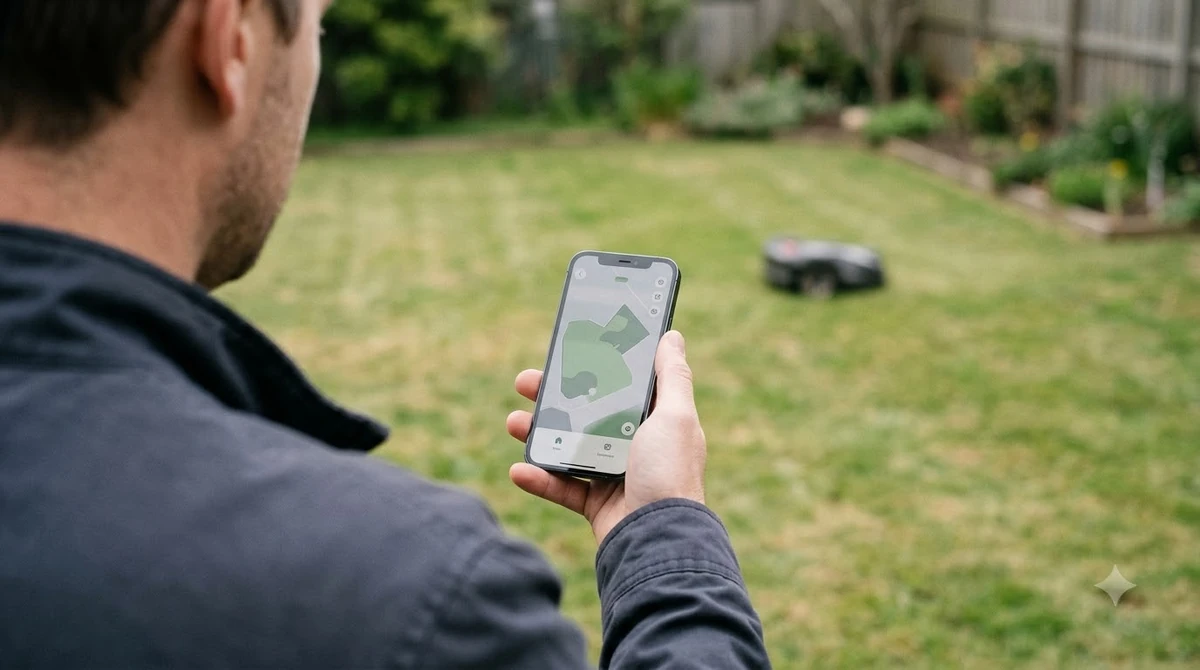
Some issues that appear in the app are really about the hardware or the site. A mower that stops or wanders may be reacting to a weak satellite or base signal, to a boundary drawn too close to a bed or edge, or to a blade or wheel that needs cleaning. The mapping points above come back to the base station and the boundary layout, so check those first. If the app shows a status you do not recognize, note the exact wording and the firmware version before you contact support. Beyond this topic, you can also read our Lymow mapping guide for an adjacent part of owning a robot mower.
Separating app problems from site problems saves time. If the app works but the mower cuts in the wrong place, the map is the likely cause. If the mower will not appear in the app at all, the connection is the first suspect.
What to prepare before you contact support
Support is faster when you can describe the problem clearly. Write down the app version, the mower firmware version, the phone model and operating system, the network type (2.4 GHz, 5 GHz, or hotspot), and the exact error text. Note what you already tried, in order. A short note like this saves a round of questions.
Who should worry about the app
Most owners will only meet app problems during setup or after an update. They matter more for owners who run several zones, use schedules every day, or manage a second yard with a separate map. Those owners benefit from a clean app setup and regular updates. Owners with a single, simple yard may rarely open the app beyond the first setup.
Frequently asked questions
What is the Lymow app used for?
It draws the boundary and zones, sets schedules, and adjusts cutting height and speed. Lymow’s material describes up to 80 zones on the One Plus, each with its own settings.
Why won’t my Lymow One Plus connect to Wi-Fi during setup?
Community reports often point to the network band. Try a 2.4 GHz network, place the mower near the router during setup, or use a phone hotspot to finish setup. These are community suggestions, not official steps.
What does “already bound” mean in the Lymow app?
A community guide links it to Bluetooth pairing data stored on the phone or in the app. Uninstalling the app, restarting the phone, and clearing cached Bluetooth connections are the first steps it suggests.
Should I update the firmware before fixing the app?
Update the app first so it is current, then check the mower firmware. An old app can cause update problems, so match the app and firmware before you change other settings.
Sources
- Freshly Charged review of the Lymow One (independent review): app features, battery and connectivity, reviewer comment on the app.
- Lymow blog: robot mowers for separate front and back yards (manufacturer): virtual boundary timing, RTK base station, profile switching.
- Lymow community handbook (community, not company support): restart, cache, and firmware advice.
 Up next8 min readLearnAnthbot App: Connection, Firmware Updates, and Common FixesUpdated Nov 13, 2026
 7 min readLearnLymow Mapping: Zones, No-Go Areas and ChannelsUpdated Nov 13, 2026
 7 min readLearnMammotion Mapping: Manual, Auto, and No-Go Zone SetupUpdated Nov 13, 2026
 7 min readLearnDreame A1 App: Fixing Connection and Offline ProblemsUpdated Nov 13, 2026
 7 min readLearnLymow won t connect to wifi: fixes that workUpdated Nov 13, 2026
 9 min readLearnAnthbot M5 RTK Station Setup Problems: Causes and FixesUpdated Nov 11, 2026