
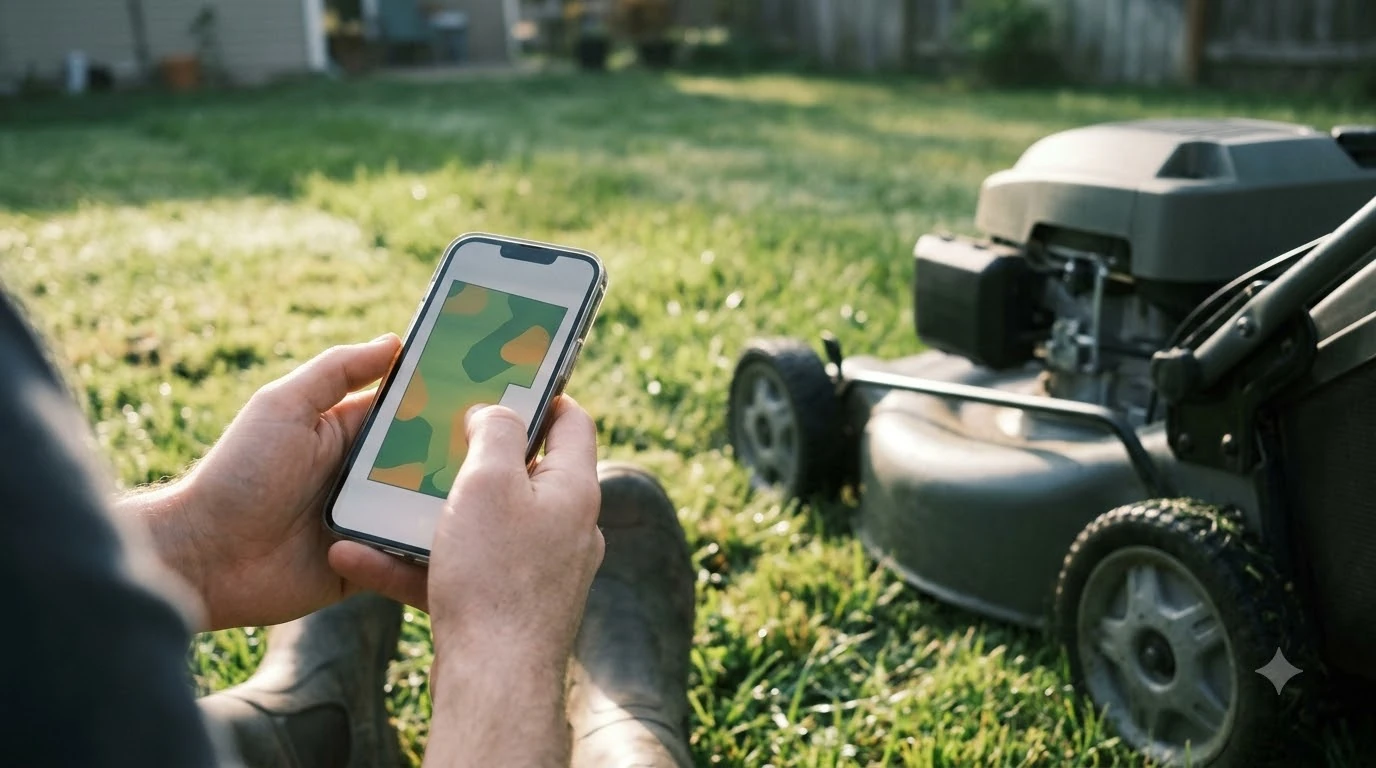

Most Anthbot app problems come down to three things: the phone and mower are not on the same 2.4 GHz Wi-Fi network, the app or mower firmware is out of date, or the mower is not sitting where the app expects it. Anthbot’s FAQ says its mowers support 2.4G Wi-Fi only, not 5G, and Anthbot’s product-support page lists app help, troubleshooting, and user manuals for the Genie and M LiDAR models. This guide covers the anthbot app across the Genie 600, M5, and M9 models, what to check when the app will not connect, and where the official help sits. Anthbot does not publish every app menu path on its support pages, so this guide names the checks rather than inventing button steps. Information is as of Nov 2026.
The short answer
- Connection: use a 2.4 GHz Wi-Fi network. Anthbot’s FAQ says 5G is not supported.
- Updates: update the app first, then check the mower’s firmware from the app, with the mower on its charging station and the battery well charged.
- Model check: the Genie 600, M5, and M9 use the same app family, but each model’s manual is the authority on its menus and settings.
- Official help: start with Anthbot’s product-support page for app help, troubleshooting, and the manual for your model.
What the anthbot app does on each model
The anthbot app is the control panel for the mower. The Genie 600, M5, and M9 each have their own manual, and the features shown in the app depend on the model. An M5 LiDAR, for example, navigates without a perimeter wire and without an RTK station, so its setup steps differ from a model that relies on RTK positioning. Connection faults often share the same causes across brands, so a guide to fixing robot mower app connection faults is a useful starting point. The app behaves a little differently on each model, so Anthbot M5 setup walkthrough is worth reading beside the app notes here.
When you search for “anthbot app,” the questions usually fall into three groups: how to connect the mower, why an update will not install, and what to do when the mower does not respond. The sections below take those in order.
Connecting the mower to Wi-Fi
Anthbot’s FAQ answers the most common connection question directly: its mowers work on 2.4G Wi-Fi, not 5G. Many home routers broadcast both bands under one name, and a phone can join the 5G band without the owner noticing. If the app cannot find or pair the mower, check the router settings for a separate 2.4 GHz network, or turn on the 2.4 GHz band for the network you use. A weak or changing signal can drop the mower during pairing, which is covered in robot mower Wi-Fi that keeps disconnecting with a short check order.
Keep the phone on the same network as the mower during setup, and keep the mower within range of the router while it pairs. A weak signal at the charging station is a common reason setup stalls halfway through, so test the connection near the station before you start.
Updating the app and the firmware
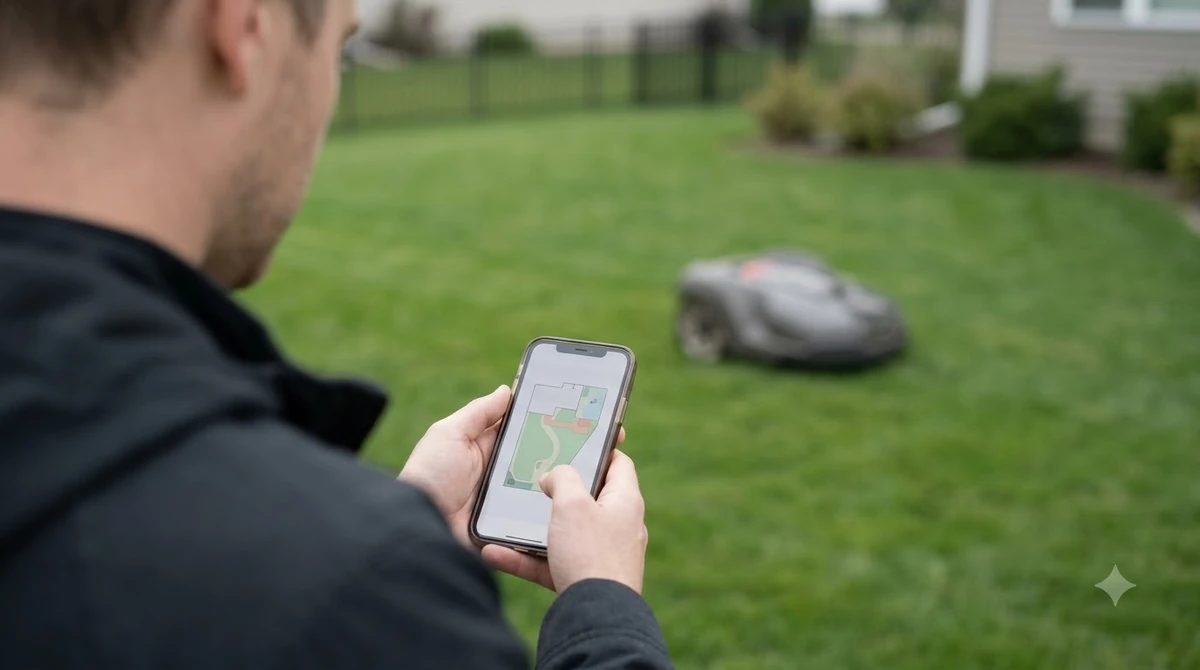
Update the app before you try a firmware update. An old app can show the wrong firmware prompt or fail to finish the process, so the app version is the first thing to check. Version mismatches are a common cause of app errors, and Anthbot M5 firmware update steps show where to start.
A reviewer’s walkthrough of the Genie app describes a firmware flow that starts with the mower on its charging station, a tap on the update option at the bottom of the firmware screen, and an automatic reboot once the install finishes. The same walkthrough warns that a battery running out mid-update can make the process fail. That account comes from a retailer’s review blog, not from Anthbot, so use it as a guide for what to expect and confirm the steps in your model’s manual.
Our reading is that the safest order is: charge the battery fully, keep the mower on the station, keep the phone close, and do not interrupt the update. If the update fails, restart the app and try again once the mower has charged.
When the mower does not respond in the app
If the app shows the mower as offline, check the basics first: the mower has power, the Wi-Fi network is 2.4 GHz, and the phone is on the same network. A mower that has moved away from its station, or a station that has shifted on the ground, can also cause status errors, so confirm both are where they should be.
- Check the power and the station. Confirm the mower is on its charging station with the battery charged, and that the station is flat and fixed in place.
- Check the Wi-Fi band. Make sure the mower’s network is a 2.4 GHz network, since Anthbot does not support 5G.
- Check the app version. Update the app to its latest version before you retry the connection.
- Restart the app and the mower. Close the app fully, turn the mower off and on, then open the app again.
- Look up the error in the manual. Anthbot’s product-support page lists manuals for the Genie and M LiDAR models, and the manual’s troubleshooting section is the next place to check.
Model notes for the Genie 600, M5, and M9
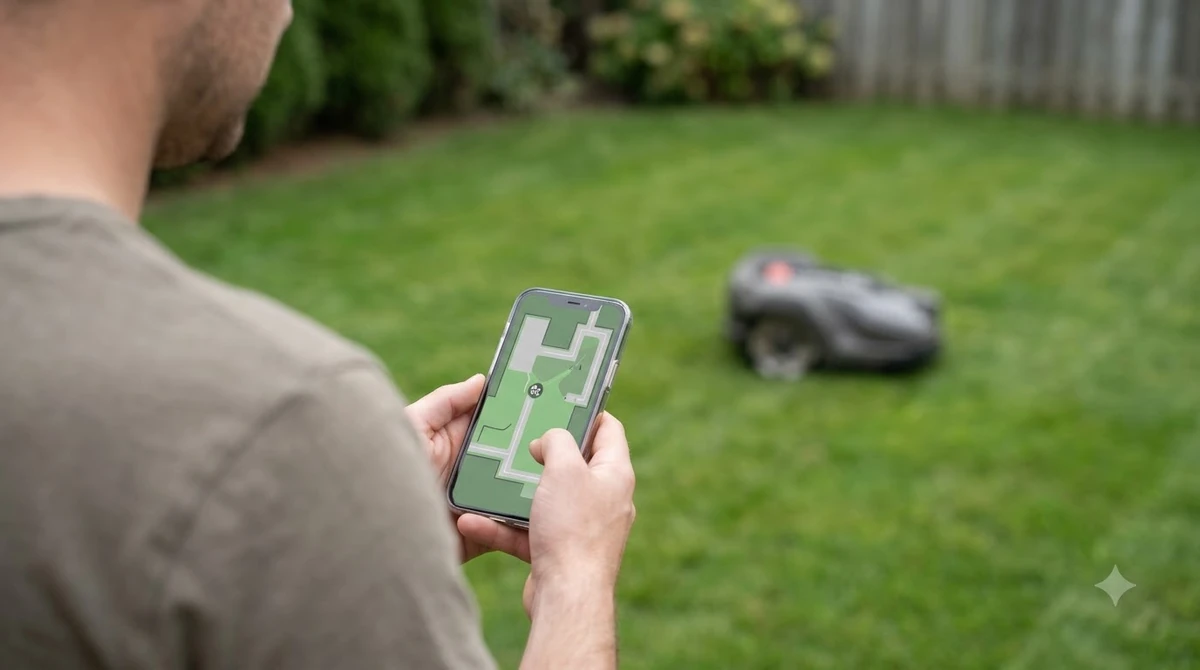
The app is shared across the family, but the setup path differs. The M5 LiDAR is a wire-free model without an RTK station, which changes how the mower positions itself and what the app needs to show. A reviewer of the M5 LiDAR lists a battery of 2.5 Ah with about 40 minutes of mowing per charge, and a Wi-Fi firmware update during setup, so it helps to have the app and the mower on the network before you start. Check your own model’s manual for the official figures. Owners of the larger Genie unit can compare notes in an Anthbot Genie600 review that lists the app features it ships with.
Owners of the Genie 600 and M9 should follow the manual that matches their model, because the menus and firmware screens can differ between versions.
Where to get official help
Start with Anthbot’s product-support page. It lists app help, troubleshooting, and user manuals for the Genie and M LiDAR models, and it is the place to find the manual that matches your mower. The FAQ answers basic questions such as the Wi-Fi band, and the support pages are the right source when the app and the manual disagree. If the problem continues after the basic checks, contact Anthbot support with your model number, the app version, and a short description of what the app shows. Official documents are the safest reference for model-specific steps, including the Anthbot Genie 3000 manual and the support pages linked from it.
What to check before you contact support
- Model and serial number: from the mower label or the manual.
- App version: from the app’s settings or about screen.
- Network: the Wi-Fi name and band, and whether the mower is on 2.4 GHz.
- What the app shows: the exact error or status text, and when it appeared.
Related reads: For the top-end model covered above, an Anthbot M9 review sets out what the app and hardware offer together.
Frequently asked questions
Does the anthbot app work on 5G Wi-Fi?
Anthbot’s FAQ says its mowers support 2.4G Wi-Fi only, not 5G. Set up the mower on a 2.4 GHz network, and check your router if the app cannot find the mower.
How do I update the anthbot app and mower firmware?
Update the app first, then follow the firmware steps in your model’s manual. A reviewer’s walkthrough of the Genie app describes starting the update with the mower on its charging station and the battery charged, but confirm the steps in your manual.
Which anthbot models does this app support?
The anthbot app covers the Genie 600, M5, and M9 models among others. Each model has its own manual and settings, so check that the manual matches your mower.
Where can I find the anthbot app help and manuals?
Anthbot’s product-support page lists app help, troubleshooting, and user manuals for the Genie and M LiDAR models. Use the manual for your exact model.
Sources
- Anthbot FAQ (Anthbot): Wi-Fi band answer, 2.4G only, not 5G.
- Anthbot product support (Anthbot): app help, troubleshooting, and user manuals for the Genie and M LiDAR models.
- Anthbot Genie app firmware updates walkthrough (Easy Lawn Mowing, a retailer review blog, not Anthbot): reviewer account of the firmware flow and battery warning.
- Anthbot M5 LiDAR review (Easy Lawn Mowing, reviewer source): battery and mowing time figures and Wi-Fi firmware note during setup.
 Up next8 min readLearnLymow App: Setup, Zones and Common Connection FixesUpdated Nov 13, 2026
 7 min readLearnHow to Update Anthbot M5 Firmware: Step-by-Step GuideUpdated Nov 12, 2026
 7 min readLearnDreame A1 App: Fixing Connection and Offline ProblemsUpdated Nov 13, 2026
 6 min readLearnHusqvarna 415X Firmware Update: How to Install ItUpdated Nov 13, 2026
 6 min readLearnHow to Update Ecovacs GOAT O1000 FirmwareUpdated Nov 12, 2026
 7 min readLearnHow to Update Dreame A1 Pro Firmware: Over-the-Air Updates ExplainedUpdated Nov 12, 2026