
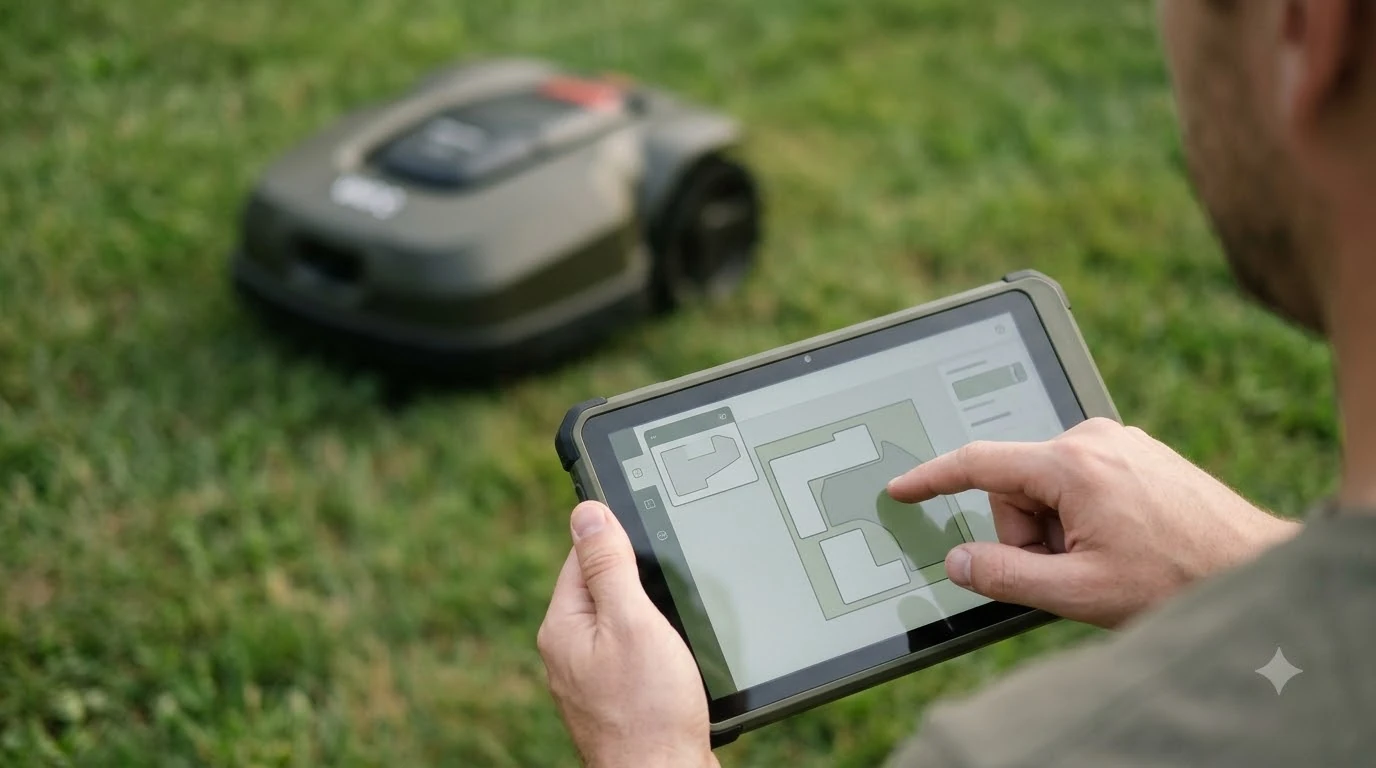

Lymow mapping means drawing each mowing zone in the app, then adding no-go zones and channels so the mower can move between areas: you start with one small test zone, walk the perimeter with the mower, fix the problem spots, and only then let it mow the full area. Community guides and the company’s own blog describe the same order, so this guide follows it step by step and points out where owners get stuck.
The short answer
- Start small: map and mow a tiny test zone before the full lawn.
- Use perimeter mode for the first run and walk alongside the mower to watch for trouble.
- Fix edges with the modify-edge tool, then retest until the perimeter runs clean.
- Add no-go zones around obstacles, keeping them away from zone boundaries.
- Create channels between zones and back to the charging dock once at least two zones exist.
Before you start lymow mapping
Good mapping depends on what happens before you tap anything. Choose a day with dry grass and little wind, make sure the charging dock and the RTK base station are fixed in place, and confirm the mower is powered on. Owners who skip this step often end up redrawing the same edges several times. The model most owners map first is assessed in Lymow One specs and limits review.
Check the RTK indicator during setup. A Lymow help-forum guide says that if RTK accuracy rises above about 0.03 m while you map, you may need to move the perimeter inward near obstacles. Think of that number as a rule of thumb from one community guide rather than an official Lymow spec, and watch the reading on your own unit.
Step 1: Map a small test zone
The first zone should be small enough that you can stand nearby and watch every pass. The purpose is to learn how the mower handles the lawn, what the app’s settings do, and where the boundary wants to go. Lymow’s own blog recommends mapping and mowing a tiny test zone first, before you commit a large area to the process.
Once the test zone runs cleanly, you have a template for the rest of the lawn. Keep the same base station position and the same mowing settings so you can compare results between zones.
Step 2: Run perimeter mode and walk the edge
For a full zone, use perimeter mode first. The mower drives the boundary without cutting the interior, and you walk alongside it. The goal is to catch collisions, sharp turns, and spots where the boundary runs too close to a fence, wall, or flower bed.
- Run the perimeter. Let the mower complete the loop while you follow at a safe distance.
- Note the trouble spots. Mark any place where the mower hesitates, veers, or gets close to an obstacle.
- Cancel the zig-zag pass. If the app is set to mow the interior, stop it so you do not cut into an edge you have not checked.
- Fix the edge. Use the modify-edge tool to pull the boundary inward near the problem spot.
- Retest. Repeat the perimeter run until it is clean, then let the mower cut the whole zone.
Adding no-go zones around obstacles
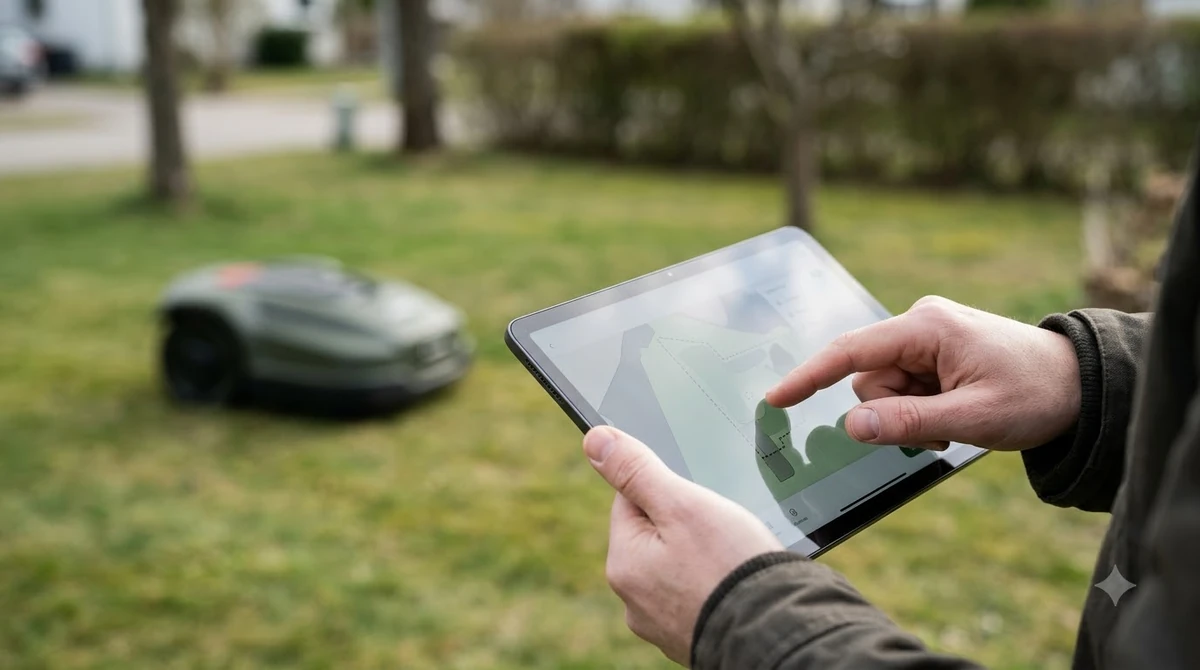
No-go zones tell the mower to stay out of a part of a mowing area, such as a garden bed, a tree base, or a pond edge. To make one, drive the mower around the obstacle, return to the start point to close the loop, and save. The mower only follows the shape you record, so a loose loop can leave a strip of grass that never gets cut.
Keep no-go zones clear of the outer boundary of a mowing zone. A no-go zone that touches the edge can leave the mower with an awkward path or a zone it cannot leave cleanly. If an obstacle sits right on the boundary, move the boundary inward instead.
Heads up
Community notes say the app’s edit options for no-go zones are limited, so it is often quicker to re-record a no-go zone than to adjust one. Check the current app version, since the editing tools change between releases.
Connecting zones with channels
A channel is the route the mower takes between two zones, or between a zone and the charging dock. Channels only become available after at least two mowing zones are set. The company’s blog advises creating channels between zones and back to the charging dock, so the mower can move from one area to the next without you carrying it. The general method for joining areas is in channels between mowing zones.
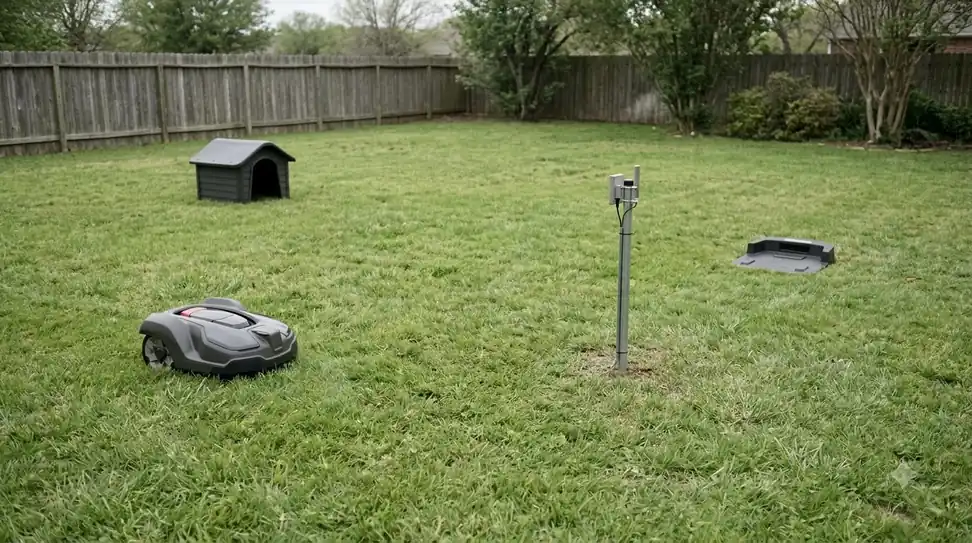
If you have more than one property, the blog says the app can manage separate maps and switch between them. Each property needs its own map, and channels should be routed away from roads for safety. The same blog gives a range guide of about 500 m from the RTK base station for best results, and about 1 km in open areas, with real performance depending on the surroundings.
When mapping does not save
If the map never saves, or the mower will only run in manual mode, the cause may be a communication problem inside the unit rather than your settings. Lymow’s guidance for that case is to contact support, so do not keep redrawing the zone while the fault remains. A mapping run that will not save is often a network issue, and Lymow WiFi connection fixes lists the checks. If the saved map is damaged, Lymow factory reset steps explain the last-resort option. When saving still fails, clearing a map and remapping is a generic way to begin again.
Before you call support, write down the zone names, the RTK reading you saw, and the step where the problem started. Those three details make the first support reply much more useful.
Related reads: App problems that interrupt mapping are covered in Lymow app troubleshooting, and it is worth reading before you change any settings.
Frequently asked questions
What is the first step in lymow mapping?
Map a small test zone first and watch the mower run. Lymow’s blog recommends this so you can learn the settings before you map the full lawn. Once the test zone is clean, repeat the same process for each zone.
What is perimeter mode used for?
Perimeter mode drives the boundary without cutting the interior. Walking alongside the mower in this mode lets you catch collisions and tight spots before the mower cuts the whole zone. Fix any problem edges with the modify-edge tool, then run the perimeter again.
Why can’t I create a channel?
Channels only appear after at least two mowing zones are set. Create the zones first, then link them to each other or to the charging dock.
Can one map cover two properties?
The company’s blog describes the app managing maps for different properties and switching between them, which suggests each property gets its own map. Properties far apart may need a second base station, a spare battery, or a second charging station, depending on the lawn size.
Sources
- Tips I wish I knew before setting up my Lymow One (Lymow community help): test zone first, perimeter mode, modify-edge fixes, channels, RTK accuracy about 0.03 m.
- How can Lymow One be used across multiple properties (Lymow blog): separate maps per property, channels to the dock, range guidance of about 500 m to 1 km.
 Up next7 min readLearnMammotion Mapping: Manual, Auto, and No-Go Zone SetupUpdated Nov 13, 2026
 8 min readLearnWhat Is a No-Go Zone on a Robot Mower?Updated Nov 11, 2026
 8 min readLearnHow to Set Up No-Go Zones on a Robot MowerUpdated Nov 11, 2026
 9 min readLearnHow to Set Up Channels Between Lawn Zones on a Robot MowerUpdated Nov 11, 2026
 8 min readLearnLymow App: Setup, Zones and Common Connection FixesUpdated Nov 13, 2026
 6 min readLearnWhy Does My Robot Mower Leave Tire Marks on the Dock Area?Updated Nov 13, 2026