
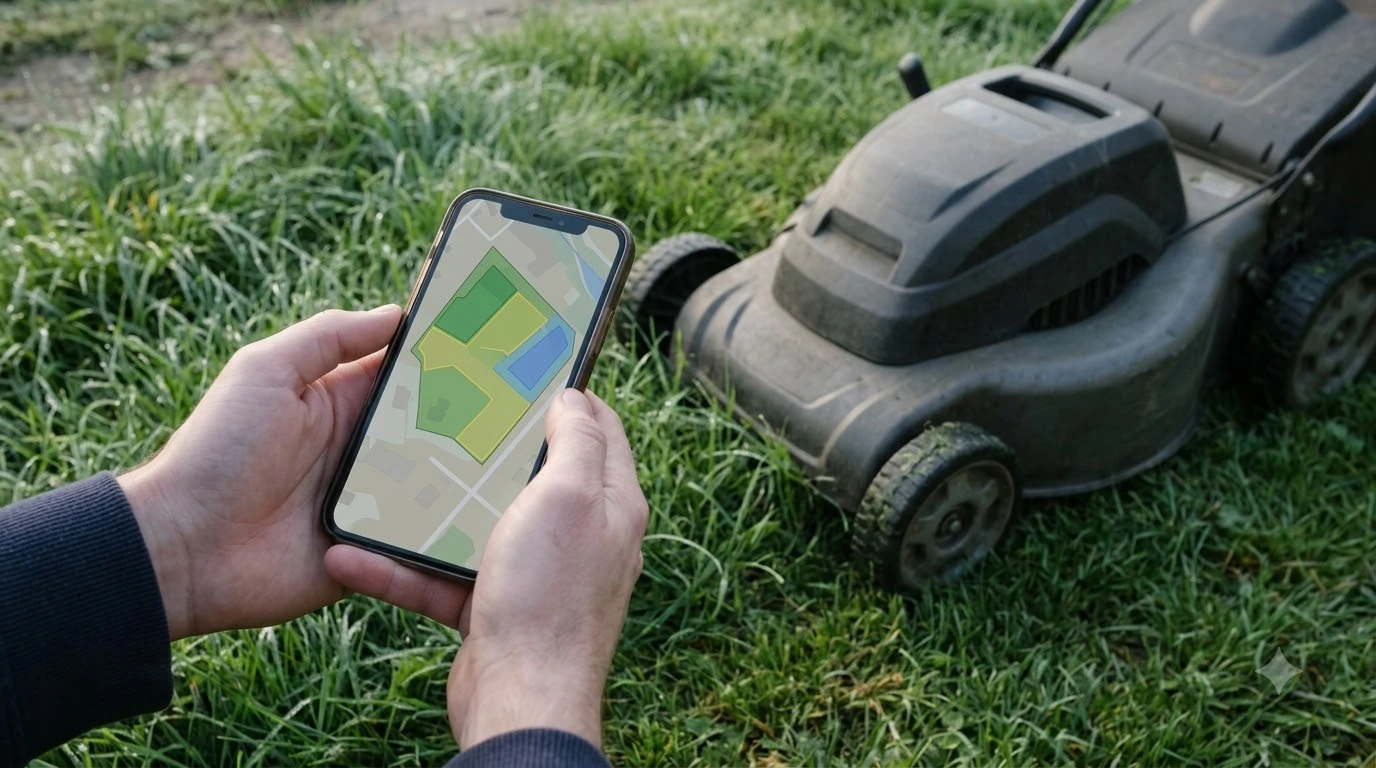

A Mammotion factory reset on the Luba starts with holding three buttons, then pressing Power for more than 5 seconds. Mammotion’s support article describes this hardware reset. The article says this is for a Luba that powers on but cannot connect to the app over Bluetooth or Wi-Fi, and it warns that the reset erases the saved map, so you will need to map the lawn again. The steps we could confirm are for the Luba. We did not find a verified reset sequence for the Yuka in the sources we read.
The short answer
- When to use it: the Luba turns on but will not connect to the Mammotion app over Bluetooth or Wi-Fi.
- Button sequence: hold the Home, Grass, and START buttons together, then press the Power button for more than 5 seconds.
- What you see: the Luba beeps continuously and the side LED lights stay on for up to one minute.
- What is lost: the saved map. Create the map again after the reset.
When a Mammotion factory reset makes sense
A factory reset is a last step for a mower that is powered on but will not pair with the app. Mammotion’s support article frames it this way: the reset is meant for a Luba that turns on but cannot connect over Bluetooth or Wi-Fi. If the mower does not power on at all, or it only has a connection problem with the phone, start with the simpler checks in the app. A reset is sometimes needed for sync faults, which Mammotion app issues explains in a short troubleshooting guide.
Before you reset anything, confirm that the problem is not a phone or network issue. Turn Bluetooth and location permissions on for the app, move the phone closer to the mower, and check that the Wi-Fi network is working. A reset does not fix a bad router or a blocked app permission, so it only makes sense after those checks fail.
The Luba factory reset steps
The support article gives the sequence in three parts. First, press and hold the Home, Grass, and START buttons at the same time. Second, while those three buttons are still held, press the Power button and keep it pressed for more than five seconds. Third, watch for the signs that the reset has started: the Luba should beep continuously, and the side LED lights stay on for up to one minute. To start again after resetting, setting up the Luba 3 again lists the pairing and mapping steps.
Work on a level spot near the charging station, and keep the mower clear of children and pets during the reset. The article does not give app steps for this reset, so do not expect an option inside the app to start it. Once the beeping and LED show the reset has run, release the buttons and wait for the mower to finish before you try to connect it again.
Reconnect the mower to the app after the reset, and then rebuild the map. The map is the item the article names as erased, so plan on time to walk the boundary again. If the Luba still cannot connect, the article asks you to send log feedback from the app so the support team can see what happened.
What a reset erases and what it keeps
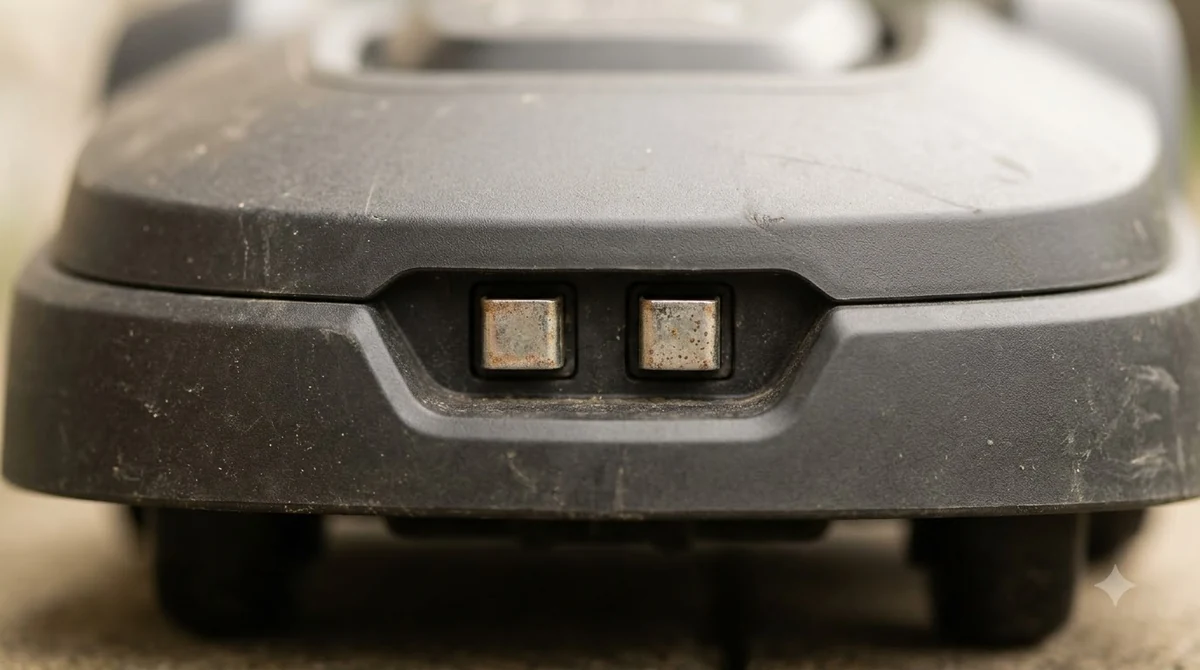
The article says the reset would erase the map. It does not list settings or account binding as erased, and it does not say those items are kept either. Treat this as unknown: write down your schedule, cutting height, boundary notes, and any no-go zones before you start. That way you can rebuild them quickly if the app does not restore them. What survives a reset depends on how the lawn was mapped, as covered in what Mammotion mapping data survives for typical setups.
A reset also does not replace a firmware update. If the mower is connected later, check the firmware, because a version that was installed before a fault can return after the reset.
Check the firmware before you reset
Mammotion’s firmware guidance for the Luba 2 and Yuka uses the app. On the first screen of the app, which shows the mower’s picture, tap the hexagon icon in the top right corner, then tap Robot version. The app will either prompt you to update or tell you that the firmware is current. The same page says to return to the first screen, swipe to the picture of the bound RTK, and repeat the check for that device. Version checks come before a reset, and Mammotion Luba 3 firmware update steps show how to confirm the installed release.
Our reading is that checking firmware first is the cheaper test. A firmware update is less disruptive than a full reset, and it may fix the connection fault without erasing the map. The firmware page we read does not mention a reset, and it does not warn about map or settings changes during an update, so do not assume the two steps behave the same way.
Yuka: what is not verified
Many owners search for a Yuka reset with the same words, so it is worth stating the limit clearly. The Luba article is the only reset source we read, and it describes Luba buttons and the Luba map. We did not confirm the same button sequence for the Yuka, and some forum replies describe restart and date-time problems that are not the same as a factory reset. Because the Yuka details are not confirmed here, Luba 3 AWD against the Yuka sets out what is known about each model.
If you own a Yuka, ask Mammotion support for the reset method for your exact model and firmware before you hold any buttons. Give them the model name, the serial number, the app version, and the robot version shown in the app.
Related reads: For ownership feedback on the main model covered above, read the Luba 3 AWD long-term review and its notes on reliability.
Frequently asked questions
What does the Mammotion Luba factory reset erase?
The support article says the reset erases the saved map, so you need to create the map again. It does not say whether settings or account binding are erased, so keep a note of your settings first.
How long does the Luba reset take?
The article says the Luba beeps continuously and the side LED lights stay on for up to one minute after the reset starts. Wait for that cycle to end before you try to reconnect.
Can I reset a Mammotion Yuka with the same buttons?
We did not verify the Yuka sequence in the sources we read. Contact Mammotion support for the method for your model before you press any buttons.
Should I update the firmware before a reset?
Check the firmware first in the app, under the hexagon icon and Robot version. If the app offers an update, it may solve the connection problem without a reset.
Sources
- Mammotion support: how to factory reset Luba (Mammotion): used for the button sequence, the LED and beeping signs, and the map erasure warning.
- Luba 2 and Yuka firmware update guide (Robomate support): used for the app path to the robot version and the RTK check.
 Up next8 min readLearnMammotion LUBA RTK No Fix? Check These Four Things FirstUpdated Nov 10, 2026
 7 min readLearnLymow Factory Reset: Steps, Backup and What to Try FirstUpdated Nov 13, 2026
 7 min readLearnHusqvarna Automower Factory Reset: Steps for Newer and Older ModelsUpdated Nov 13, 2026
 6 min readLearnEcovacs GOAT Factory Reset: Step-by-Step GuideUpdated Nov 13, 2026
 9 min readLearnHow to Update Mammotion Luba 3 Firmware: Versions and StepsUpdated Nov 11, 2026
 7 min readLearnHow to Set Up Mammotion Luba 3: Easy Step-by-Step GuideUpdated Nov 10, 2026