
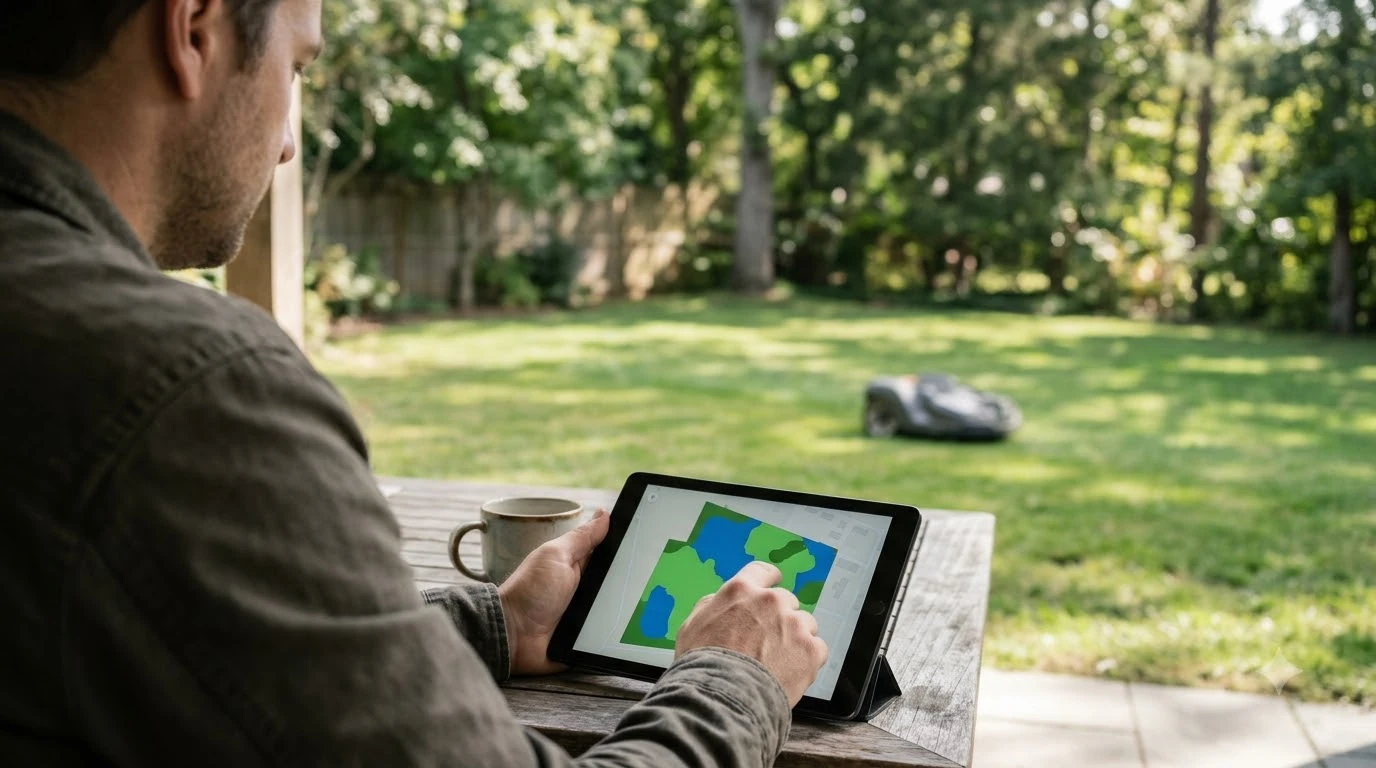

Most Worx Landroid app problems come from the Wi-Fi setup, not the app itself. Worx’s Landroid Vision help pages say the mower needs a 2.4 GHz network, a password without special characters such as exclamation marks, and a return to the charging station with a battery of at least 50%. A “Mower Locked” error usually means the mower lost contact with the network it was first paired to for 72 hours.
The short answer
- Band: use a 2.4 GHz network. Worx says this is required for connection.
- Password: avoid special characters, and check the exact spelling, since an exclamation mark can stop the connection.
- Network type: use your main secured network, not a guest or public one.
- Mower Locked: reconnect to the original network, bring the mower back into range and wait 10 to 15 minutes.
- Before setup: return the mower to the dock, check the house icon and charge to at least 50%.
Why the Worx Landroid app fails to connect
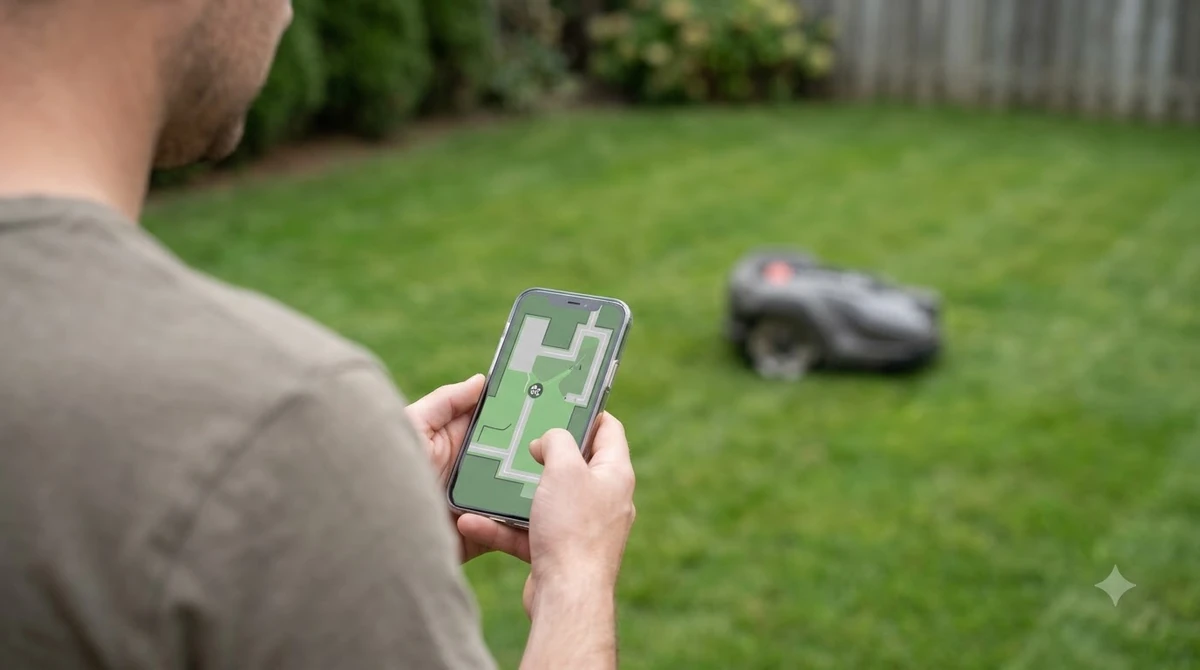
The Landroid app reaches the mower through your home Wi-Fi, so a connection failure usually sits between the mower and the router. Worx’s Vision help pages list the requirements the mower needs to pair: a 2.4 GHz band, a secured main network and a password the mower can read. If any of these are off, the app can show a connection error even though your phone is online.
When you troubleshoot, start with the network, then the mower, then the app. Changing one thing at a time helps you see which step fixed the problem, and it stops you from changing a router setting that other devices depend on.
Wi-Fi band and router settings
The Worx requirements page is clear that the Landroid Vision needs a 2.4 GHz network. Many routers broadcast 2.4 GHz and 5 GHz under one name, so check your router’s band settings. If the router uses a single combined network, you may need to enable a separate 2.4 GHz name for setup, or temporarily steer the mower to that band. If the mower cannot join the network at all, Worx Landroid Wi-Fi connection troubleshooting walks through the router checks in order.
Worx also asks owners to disconnect Wi-Fi repeaters during setup. Repeaters often broadcast on 5 GHz and can interfere with pairing. Reconnect them after the mower is online, and check the signal where the mower docks, not only near your phone.
Heads up
Worx’s requirements page does not cover SSID broadcast, DHCP or firewall settings. Some third-party guides mention those, but we did not confirm them on an official Worx page, so do not change router security settings based on those guides alone.
Passwords and special characters
Worx tells owners to avoid special characters in the Wi-Fi password, and it uses the exclamation mark as its example of a character that can stop the mower connecting. The fix is simple: if the password includes symbols, change it on the router to letters and numbers, then retry the setup. Confirm the password on the router admin page, since a single wrong character will fail silently.
The page also says the Landroid does not allow insecure connections, so use your main secured network. A guest network or an open public network is not a good choice for setup, even if the password is correct.
Mower Locked: what it means and how to clear it
The “Mower Locked” message, also shown as E9, appears when the locking function is enabled and the mower cannot communicate with its Wi-Fi network for 72 hours. Once locked, the mower stops working until it is unlocked. Worx lists a router or provider change and a power outage as the likely causes, since either can leave the mower on a network that no longer responds. The lock message is usually tied to the PIN, and Worx Landroid PIN reset steps explain what can and cannot be cleared.
- Confirm the network is online. Check that your Wi-Fi works from another device.
- Reconnect to the original network. Move the mower back within range and check that it is on the network it was first paired with.
- Wait. Worx says the mower should unlock about 10 to 15 minutes after it reconnects.
- Use the separate unlock guide if it stays locked. Worx’s page points to a USB-stick unlock process in a separate article.
Docking, battery and the setup checklist
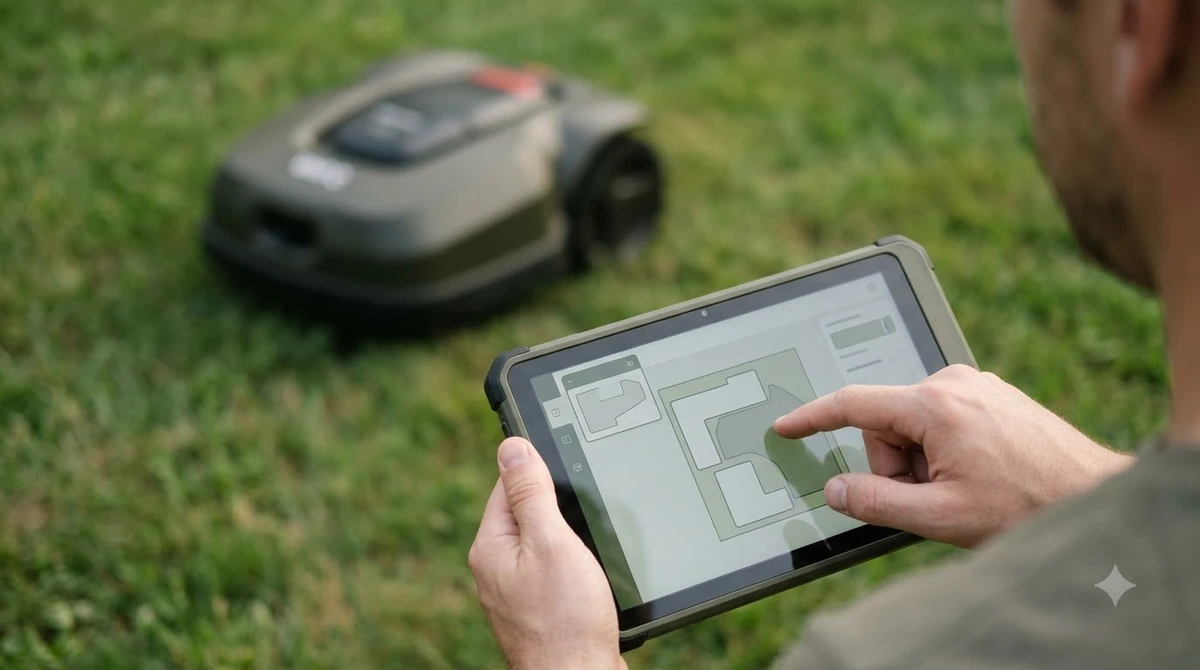
Several connection problems are really docking problems. Before you start the Wi-Fi setup, return the mower to its charging station, check that the display shows the house icon, and charge the battery to at least 50%. A mower that cannot find its dock or has a low battery may stop mid-setup and look like a network fault. A mower that cannot dock may also report odd app states, so check Worx Landroid docking problems alongside the setup list.
Our reading is that a short checklist saves time. Write down the network name, the band, the password length and whether it has symbols, and the exact error on the app screen. If you need support, these details show which step failed.
Vision models and the L variant
The app steps above come from Worx’s Landroid Vision pages, which Worx organises by model number. The Vision L may have its own page with extra steps, and we did not read that page. Check the support page for your exact model before following any step that differs from the Vision guide. Worx’s help centre also lists a “Select a different product” option if your model is not shown. Vision owners can follow Worx Landroid Vision setup guide to confirm the pairing steps were done in the right order.
Frequently asked questions
Why won’t my Worx Landroid connect to Wi-Fi?
The most common causes are a 5 GHz network instead of 2.4 GHz, a password with special characters, or a Wi-Fi repeater interfering during setup. Check each one, then retry.
What does “Mower Locked” mean on the Landroid Vision?
It means the mower could not reach its Wi-Fi network for 72 hours and has locked itself. Reconnect it to the network it was first paired with, then wait about 10 to 15 minutes.
Does the Landroid app need a 2.4 GHz network?
Yes, according to Worx’s Landroid Vision requirements page, which says 2.4 GHz is required for connection.
Can a special character in the Wi-Fi password stop the mower connecting?
Worx says it can, and it uses the exclamation mark as its example. Use a password with letters and numbers for setup.
Sources
- Worx Landroid Vision wiki, Requirements for the Wi-Fi Setup (manufacturer): used for the 2.4 GHz band, the password rule, the repeater advice, the dock and battery steps.
- Worx Landroid Vision wiki, Mower Locked (manufacturer): used for the 72-hour lock rule, the likely causes and the reconnect and wait steps.
 Up next6 min readLearnMammotion App Not Connecting: Luba Fixes That WorkUpdated Nov 13, 2026
 6 min readLearnNavimow App Not Connecting: Fixes That WorkUpdated Nov 13, 2026
 7 min readLearnRobot Mower App Not Connecting? Check These Causes FirstUpdated Nov 12, 2026
 6 min readLearnWorx Landroid Not Docking? Fix the Usual CausesUpdated Nov 10, 2026
 8 min readLearnWorx Landroid Won t Connect to Wifi: Step-by-Step FixesUpdated Nov 13, 2026
 9 min readLearnWorx Landroid No Wire Signal: Causes and FixesUpdated Nov 11, 2026