

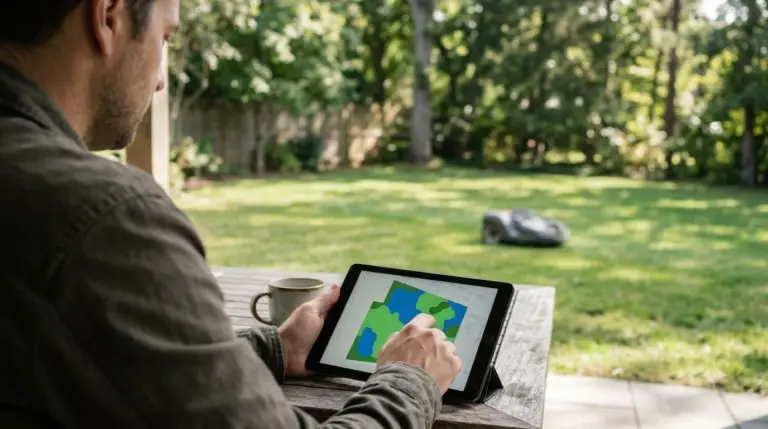
Learning how to adjust robot mower collision sensitivity in the app requires opening your mower’s settings or task menu and toggling its non-contact obstacle avoidance mode—such as switching between standard avoidance, light-touch, or bumper-only detection—rather than recalibrating the physical bumper itself. Because mechanical bumpers rely on fixed physical switches, companion apps control how early and aggressively your mower reacts to optical, radar, or ultrasonic sensor warnings. Tuning these thresholds stops your mower from treating tall grass, dandelions, or deep shadows as solid barriers while keeping delicate yard features safe.
The short answer
- Physical bumpers stay fixed: You cannot change the mechanical force required to trigger a physical contact bumper in software; apps only govern active sensors like cameras, LiDAR, radar, or ultrasonic arrays.
- Look under task or mower settings: Depending on your brand, the toggle sits inside global mower settings (under accessories or advanced features) or inside individual mowing task settings.
- High sensitivity protects clutter: Standard or high sensitivity makes the robot steer wide around toys, patio furniture, and pets without making physical contact.
- Low sensitivity clears dense turf: Lowering sensitivity or enabling a light-touch or basic mode prevents false stops on tall weeds, leaves, and harsh sun-to-shade transitions.
- Use zone overrides for tricky spots: Instead of turning obstacle avoidance off yard-wide, map virtual exclusion zones or sensor-off zones over uneven patches and flower beds.
How collision and obstacle sensitivity controls actually work
Most modern robot mowers combine a physical contact bumper with non-contact sensors, and your smartphone app adjusts only the electronic detection threshold.
When owners ask how to adjust robot mower collision sensitivity in the app, they are usually trying to solve one of two problems: the mower repeatedly bumps hard into patio chairs, or it refuses to mow through slightly overgrown clover because its sensors mistake tall stems for a wall. Understanding which hardware layer your app controls prevents frustration when hunting through menus.
According to Husqvarna Automower object avoidance documentation, ultrasonic and radar sensors scan ahead of the chassis and trigger an early course change before physical contact occurs. However, those same sensors can misread tall grass or dense dandelions as solid barriers, forcing the mower to leave uncut islands behind.
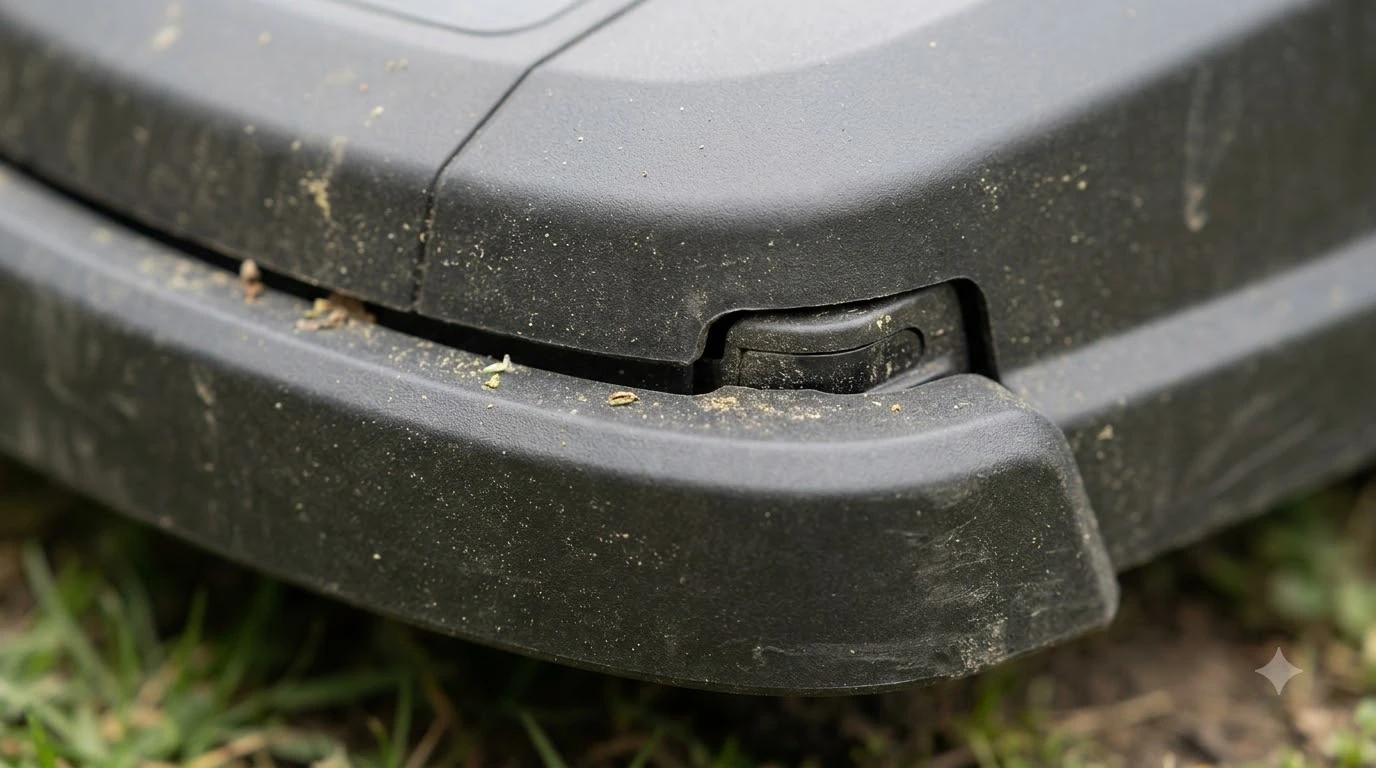
In contrast, a spring-loaded or Hall-effect physical bumper acts as a failsafe. Consumer robot mowers do not let users dial down the physical spring tension of a mechanical bumper through software. When you lower collision sensitivity in an app, you are telling the robot to ignore minor visual, radar, or ultrasonic echoes and rely more on gentle bumper contact before turning away.
Step-by-step guide to changing sensitivity in your mower app
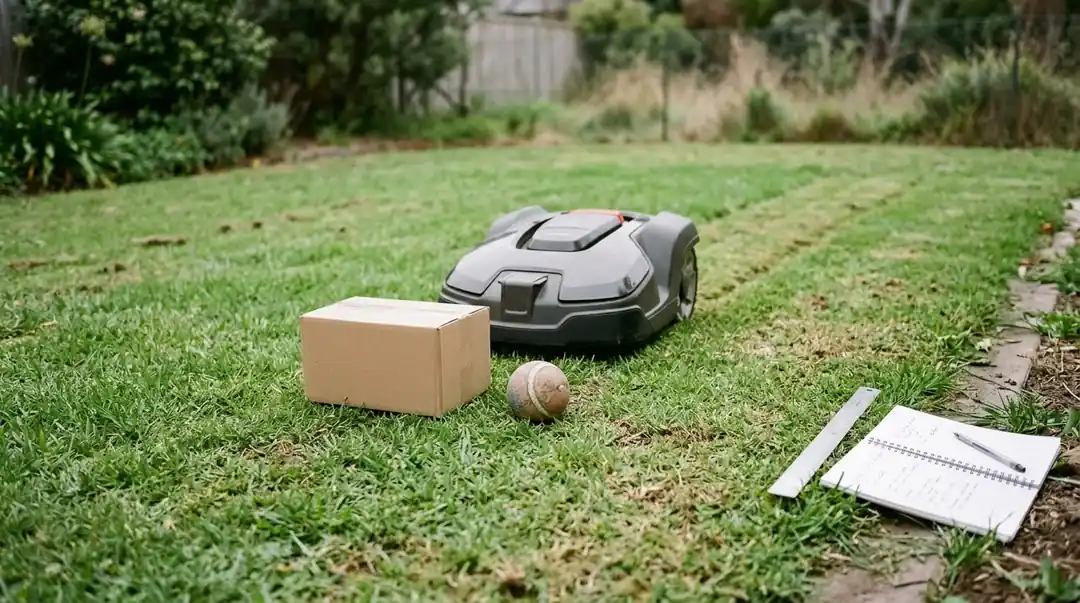
While menu names vary across brands, nearly every companion app follows the same four-step workflow to modify obstacle detection behavior.
Before changing any parameters, make sure your phone is connected via Bluetooth, Wi-Fi, or cellular link and that both your app and mower firmware are current. Outdated firmware frequently hides newer avoidance tiers or prevents changes from saving to the robot’s onboard controller.
- Open your mower’s configuration menu. Launch your brand’s companion app, select your active mower on the home screen, and tap the gear icon or More menu to enter device settings. On task-based apps, open your saved mowing schedule or map task and tap Edit instead.
- Locate the obstacle or sensor submenu. Look for labels such as Obstacle Detection Mode, Object Avoidance, AI Recognition Sensitivity, or Accessories / VisionFence under advanced mower settings.
- Select the appropriate sensitivity tier. Choose a higher sensitivity (often labeled Standard, Normal, or Less Touch) if you want the mower to avoid objects before touching them. Switch to a lower tier (such as Basic, Strong Light, or Slow Touch) if the mower stalls in thick grass or bright glare.
- Save and verify on a short test run. Tap Save or confirm the prompt, then start a brief manual mowing session near the problem area to verify that the mower clears healthy turf without colliding forcefully with solid objects.
Heads up
Avoid disabling obstacle detection completely unless your lawn is completely clear of toys, hoses, and low garden edging. Turning off non-contact sensors forces the robot to rely strictly on its physical bumper, which will not trigger on soft plants, low solar lights, or small objects lying flat in the grass.
How major robot mower brands label collision sensitivity
Each manufacturer uses different terminology for sensor sensitivity, and some restrict adjustments to on-off toggles or zone-specific overrides.
Our reading of official support manuals across leading wireless and boundary-wire platforms shows that brands split into two camps: those offering tiered sensitivity modes per task, and those offering binary toggles paired with map-level sensor exclusions. According to Mammotion’s 2026 app feature guide, newer updates even split controls into Simplified and Expert settings while adding a Basic AI mode designed to ignore tall grass and low steps.
| Brand / App | Menu Location | Available Sensitivity Controls | Best Use Case |
|---|---|---|---|
| Husqvarna (Automower Connect) | More > Settings > Accessories | Toggle switch to enable or disable radar/ultrasonic object avoidance; auto-disables near boundaries | Temporarily turning off avoidance during spring overgrowth or heavy dandelion blooms |
| Mammotion (Mammotion App) | Task > Edit > Settings > More > Obstacle Detection Mode | Multiple tiers (such as Standard, Basic AI, Slow Touch, or Off) plus No-Go Zones | Switching to Basic or light-touch modes so narrow strips and thick turf do not trigger false stops |
| Segway Navimow (Navimow App) | Settings > Mower > Advanced Features > VisionFence | Channel Obstacle Avoidance toggle, EdgeVision switch, and map-based VisionFence Off Zones | Keeping vision active along complex borders while masking bumpy patches with VisionFence Off Zones |
| LawnMaster (OcuMow / App) | App Settings > AI Recognition Sensitivity | Normal Mode (high sensitivity) vs. Strong Light Mode (low sensitivity) plus Safe Zones | Lowering sensitivity in harsh sunlight or using Safe Zones over bare patches and shadows |
When to adjust sensitivity versus using virtual map zones
Lowering global collision sensitivity solves yard-wide false stops, whereas virtual map zones fix localized trouble spots without sacrificing safety elsewhere.
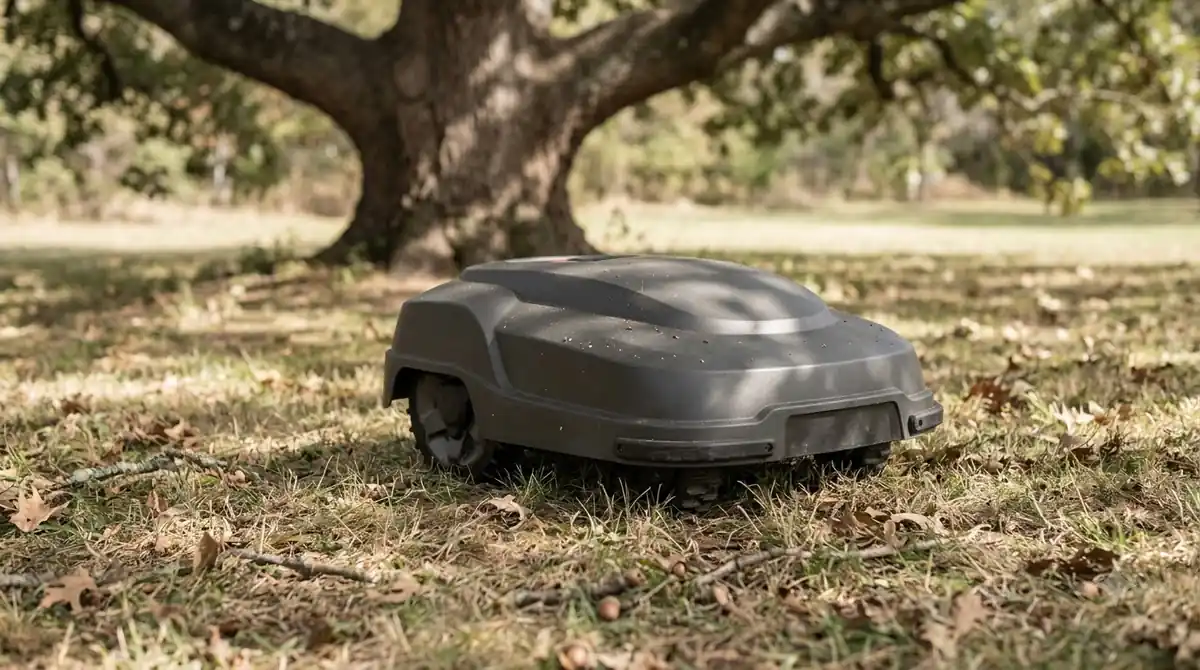
If your mower hesitates across the entire lawn because cool-season grass is growing fast or wind has scattered dry leaves everywhere, dialing back sensor sensitivity for a week makes sense. Once you catch up on mowing height, you can restore standard sensitivity so the robot resumes giving patio furniture and swing sets a wide berth.
Conversely, if your mower only gets confused in one corner—such as a shaded slope, a patch of yellow dormant turf, or a transition strip between two lawn sections—changing global sensitivity is the wrong tool. Instead, use your app’s map editor to draw a sensor-ignore area (called a Safe Zone or VisionFence Off Zone on supported models) directly over that turf blemish, or place a strict No-Go Zone around delicate flower beds and exposed tree roots.
Troubleshooting a mower that still bumps too hard or stops early
If changing app settings fails to improve how your robot handles obstacles, hardware debris, grass height, or lighting conditions are usually to blame.
- Clean the chassis gap and sensor lenses: Dried grass clippings wedged between the floating upper shell and lower chassis can jam mechanical collision sensors or keep them perpetually triggered. Brush out the bumper gap and wipe camera lenses or ultrasonic transducers with a soft microfiber cloth.
- Raise the cutting deck height: When the blade disc is set too low in dense turf, resistance against the blades or front housing can mimic a physical impact and trigger a collision fault.
- Check boundary buffer behavior: Many mowers automatically suspend object avoidance near perimeter wires or virtual borders so they can trim edges cleanly. Do not mistake normal edge-trimming bumps against a fence or wall for a broken sensitivity setting.
- Restart after firmware updates: If a new sensitivity mode appears stuck or unresponsive in the app, force-close the mobile app, reboot the mower using its main power switch, and confirm the setting sticks after reconnection.
Frequently asked questions
Can I change how hard my robot mower’s physical bumper hits objects?
No, you cannot adjust the mechanical spring force of a physical bumper through a mobile app. App settings only control non-contact sensors—such as cameras, radar, LiDAR, or ultrasonic detectors—that tell the mower to slow down or steer away before the bumper makes contact.
Why does my robot mower stop in front of tall grass or shadows?
High sensitivity settings cause optical and ultrasonic sensors to interpret tall weeds, dandelions, or sharp sun-to-shade contrasts as solid obstacles. Switching to a lower sensitivity mode, temporarily disabling object avoidance, or drawing a sensor-ignore zone over that spot lets the mower cut through.
Why is the collision sensitivity setting missing from my mower app?
Entry-level mowers that rely solely on a physical bump sensor without cameras, radar, or ultrasonic modules do not have adjustable collision sensitivity. If your model includes active avoidance hardware, check for pending app and mower firmware updates, as manufacturers frequently add or relocate sensor toggles in software releases.
Is it safe to turn off obstacle avoidance in the app?
Disabling non-contact obstacle avoidance is safe only on fenced, clutter-free lawns where permanent hazards like pools, drop-offs, and flower beds are protected by physical barriers or verified No-Go Zones. Even with avoidance turned on, manufacturers note that sensors can miss small toys, flat hoses, and low objects.
Sources
- Object avoidance with radar or ultrasonic sensors in Automower (Husqvarna): Used for how radar and ultrasonic sensors detect solid objects versus tall vegetation, boundary-zone deactivation distances, and app menu paths.
- Mammotion App Features: New Features and Improvements in 2026 (Mammotion): Used for 2026 Dual-Mode settings (Simplified vs. Expert), AI Obstacle Detection Basic mode behavior, and No-Go Zone recommendations.
- Robotic Mower FAQs (LawnMaster): Used for AI recognition sensitivity modes (Normal Mode vs. Strong Light Mode) and Safe Zone usage over shadows, bare patches, and slopes.
- (Navimow X3) Can the Navimow X3 recognize the obstacles in the channel? (Segway Navimow): Used for Navimow app menu hierarchy under Advanced Features and VisionFence settings.
 Up next8 min readLearnHow to Adjust Cutting Height After Overseeding With a Robot MowerUpdated Nov 19, 2026
 7 min readLearnSunseeker S4 App: Fixing Offline and Pairing ProblemsUpdated Nov 13, 2026
 6 min readLearnMammotion App Not Connecting: Luba Fixes That WorkUpdated Nov 13, 2026
 7 min readLearneufy E15 App: Fixing Offline, 4G, and Lifted AlertsUpdated Nov 13, 2026
 8 min readLearnAnthbot App: Connection, Firmware Updates, and Common FixesUpdated Nov 13, 2026
 6 min readLearnWorx Landroid App Not Connecting: Fixes That WorkUpdated Nov 13, 2026