
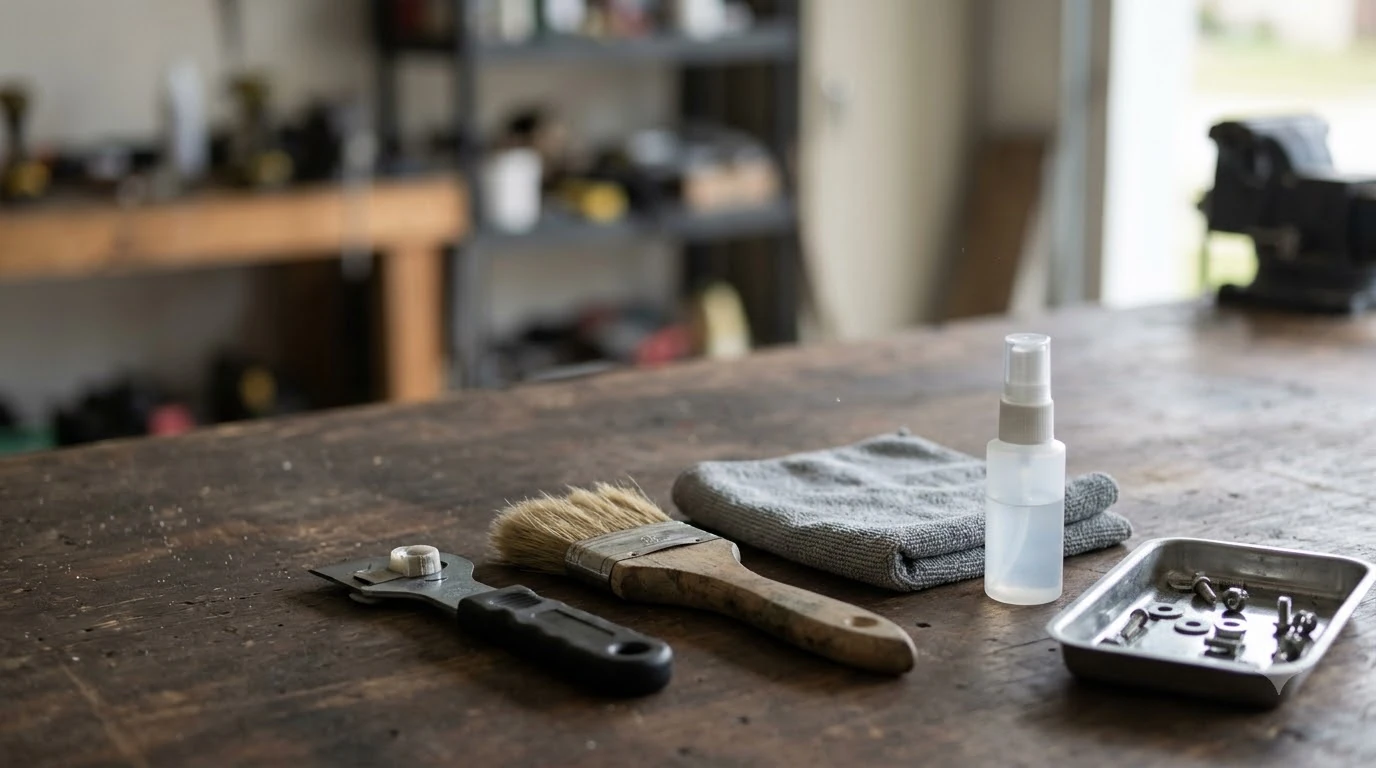

A robot mower camera lens cleaning kit is optional. Husqvarna and Mammotion describe the same basic routine for vision cameras: power the mower off, rinse the lens with clean water, and wipe it with a soft or microfiber cloth. Both warn against harsh chemicals and abrasives, which is the main thing a cleaning kit can get wrong.
The short answer
- Kit: a robot mower camera lens cleaning kit is not required. Husqvarna’s recommended materials are clean water and a soft cloth.
- Cloth: dry microfiber for the lens, per Mammotion’s UK guide.
- Avoid: abrasives, solvents, harsh chemicals, wire brushes and pressure washers.
- Power: switch the mower off completely before you clean.
- Warning sign: “No object detection available” in the app can mean a blocked or dirty lens.
Do you need a robot mower camera lens cleaning kit?
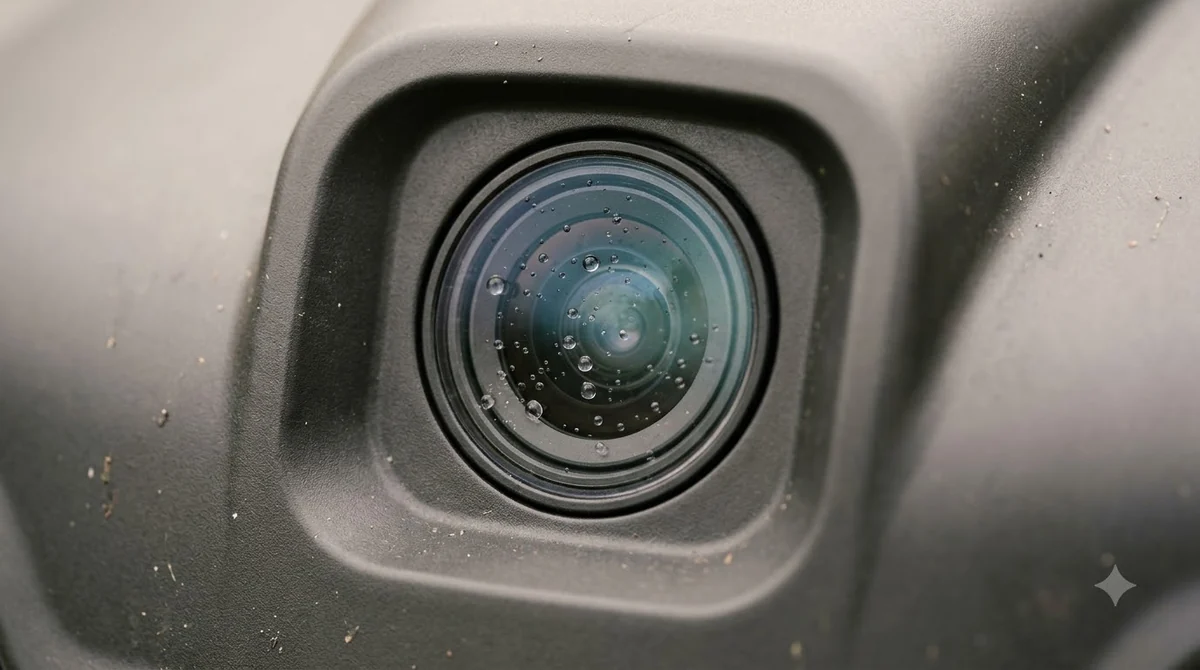
No dedicated kit is required, because the camera guidance from Husqvarna and Mammotion asks for little more than water and a soft cloth. Husqvarna’s support page for AI-vision models lists clean water and a soft cloth as the recommended materials. It names abrasive materials, solvents and harsh chemicals as the things to avoid.
| Item | What the guidance says | Source |
|---|---|---|
| Clean water | Rinse the camera with plain or running water to clear dirt and particles | Husqvarna |
| Soft cloth | Wipe the lens carefully with a soft cloth; Mammotion specifies a dry microfiber cloth for lenses | Husqvarna, Mammotion |
| Soft brush | Pollen and dust on the camera sensors may need brushing down weekly during the season | Mammotion |
| Harsh products | Avoid abrasives, solvents and harsh chemicals, which can scratch the lens | Husqvarna, Mammotion |
If you do buy a kit, our reading is that a soft microfiber cloth and a soft, non-metal brush cover the job. Be cautious with any spray bottle in the set, because the manufacturers’ warnings focus on what goes onto the optics. A spray of harsh chemical is the one item to skip.
What to clean on the mower
The vision camera lens and the LiDAR module are the optical parts that need the most care. Mammotion’s UK cleaning guide says the LiDAR optical window must stay clear, because even a layer of dust or a splash of mud can reduce detection range. It advises wiping it gently without pressing on the surface.
- Camera lens: the glass on the front of the mower, cleaned with water and a soft cloth.
- LiDAR window: kept clear and wiped gently, never pressed or scraped.
- Housing: Mammotion says a slightly damp cloth suits the housing, while lenses get a dry cloth.
Mammotion’s UK guide also warns that wiping a dusty lens or LiDAR window with a dirty, damp cloth can spread dirt and leave fine scratches. Wire brushes can scratch optical surfaces too, so a soft brush is the safer choice. Pressure washers can push water into electronic parts.
Heads up
The solvent warning in Mammotion’s EU guide is written for the housing, with alcohol, gasoline and acetone on the list. Our reading is that the same restriction should apply to the lens, so skip any spray you would not put on the housing.
How to clean a robot mower camera lens step by step
Cleaning the camera takes a few minutes and needs no special tools. For dust on the sensors, a compressed air duster for robot mower sensors is a separate option to read about. The steps below combine Husqvarna’s cleaning routine with Mammotion’s power-off advice. Work through them in order, and keep the mower off until the lens is dry. Use the same routine whether you clean with a robot mower camera lens cleaning kit or with a cloth and a bowl of clean water.
- Switch the mower off completely. Mammotion says to make sure the robot is completely powered off before any cleaning work begins.
- Find the camera. Husqvarna places it on the front of the mower.
- Check the glass for debris. Remove any leaves, slugs or other material covering the lens.
- Rinse with running water. Husqvarna’s troubleshooting steps say to rinse the camera to clear remaining particles.
- Wipe and dry. Wipe the lens carefully with a soft cloth and dry it, as Husqvarna’s guidance describes.
- Restart and check. Restart the mower and watch the app for the object detection message.
When to clean the camera
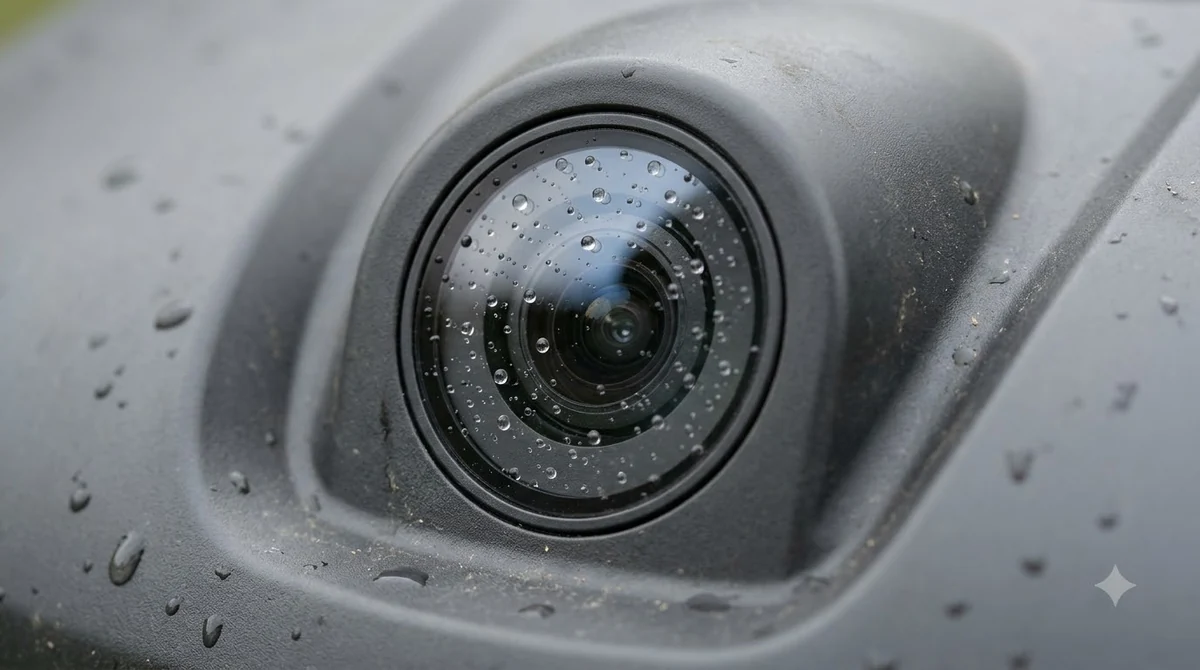
Clean the camera after mowing in wet or dusty conditions, and whenever the app reports that object detection is unavailable. Husqvarna’s object detection page says the camera’s visibility setting applies when it cannot see clearly because of heavy rain or dirt on the lens, and the mower then pauses until visibility is good again.
- After mowing wet grass, when mud or clippings can splash onto the front of the mower.
- After dusty or pollen-heavy weeks, which Mammotion says may need brushing weekly.
- When the app shows “No object detection available.”
- When the mower hesitates or struggles to avoid obstacles, which our reading treats as a hint that a lens or sensor may be dirty.
The schedules differ by source. Mammotion’s EU guide suggests cleaning the mower once a week or every other week during the growing season. Its UK guide separates quick cleans every one to two weeks from a thorough clean of the lenses and optical windows once a month, and its table shows more frequent cleaning in leafy, damp autumn weather. Our reading is that a yard under trees or near a dusty road needs more checks than an open, clean lawn.
When cleaning does not clear the warning
If a camera error stays after cleaning and drying, Husqvarna says the vision module or firmware may be the cause, and the next step is to contact a dealer. Its troubleshooting page says the app may show a “Vision system problem” message in that case.
Heads up
Restart the mower before you call. Husqvarna lists a restart as the first thing to try if the problem persists after the lens has been cleaned and dried.
What to look for in a robot mower camera lens cleaning kit
Judge a kit by what it puts on the lens, not by how many pieces it includes. Our reading of the manufacturer guidance gives four checks that matter for a robot mower camera lens.
- Soft microfiber cloth: the item both guides rely on for the lens.
- Soft, non-metal brush: useful for dust and pollen on the sensors, without the scratch risk of wire bristles.
- No harsh solvent: skip any product that relies on solvents or harsh chemicals.
- Your model’s manual: the final word on what your mower allows, since general guides cover many models.
Our reading is that a robot mower camera lens cleaning kit matters less than the habit behind it. A mower that is switched off, wiped with a clean soft cloth and checked after rough mowing will keep its camera working. A mower that is cleaned with the wrong product can end up with scratched optics, and a scratch does not come off with the next wipe. Read your model’s manual before you buy anything for the lens, and keep the kit to soft materials. If you are still choosing between camera and satellite navigation, see RTK versus vision robot mowers.
A kit earns its place if it makes the routine easy to repeat. Mammotion’s UK guide describes quick cleans that happen often, with a thorough clean of the lens and optical windows once a month, so a soft cloth and a brush that live with the mower are more useful than a set you open once a year. Store the kit somewhere dry, away from the mower’s charging dock, so the cloth stays clean between uses. A wider robot mower maintenance kit and an end-of-season winterizing routine can share the same storage box.
Frequently asked questions
Can I use glass cleaner on the mower camera?
Husqvarna warns against harsh chemicals and solvents because they can scratch the lens surface. Use clean water and a soft cloth unless your model’s manual names a specific cleaner.
Do I need to switch the mower off first?
Yes. Mammotion says to make sure the robot is completely powered off before any cleaning work begins, so switch it off and keep it off until the lens is dry.
How often should I clean the camera?
Our reading is to inspect the camera after mowing in wet or dusty conditions. Mammotion’s EU guide suggests once a week or every other week in the growing season, while its UK guide suggests quick cleans every one to two weeks.
Why does my mower still show a camera error after cleaning?
Husqvarna says that if the error persists after cleaning and drying, the vision module or firmware may be the cause. Restart the mower and contact your dealer.
Sources
- How to clean the camera on Automower with AI vision technology (Husqvarna support): cleaning steps, recommended materials and what to avoid.
- Troubleshoot camera errors on Automower robotic lawn mowers with AI vision technology (Husqvarna support): glass check, rinsing, drying and next steps.
- Object detection and avoidance with AI vision technology (Husqvarna support): visibility limits from dirt or heavy rain, and the lens-care advice.
- Cleaning a Robot Lawn Mower: A Step-by-Step Guide (Mammotion UK): dry microfiber on lenses, LiDAR window, wire brush and pressure warnings, cleaning schedule.
- Robot lawn mower maintenance: cleaning, blades, battery and storage (Mammotion EU): power-off advice, weekly or fortnightly cleaning in season, solvent warning.
 Up next8 min readGearBest Robot Mower Cleaning Brush: What to Use and What to AvoidUpdated Nov 11, 2026
 9 min readGearBest Outdoor Security Camera to Watch a Robot Mower: What to CheckUpdated Nov 11, 2026
 8 min readGearBest Outdoor Timer for Robot Mower Charger: Is One Needed?Updated Nov 11, 2026
 8 min readGearDoes a Robot Mower Need a Garage?Updated Nov 11, 2026
 8 min readGearRobot Mower Wire Splice Kit: What It Includes and How to Use ItUpdated Nov 11, 2026
 8 min readGearRobot Mower Starter Kit: What to Buy and What to SkipUpdated Nov 11, 2026