
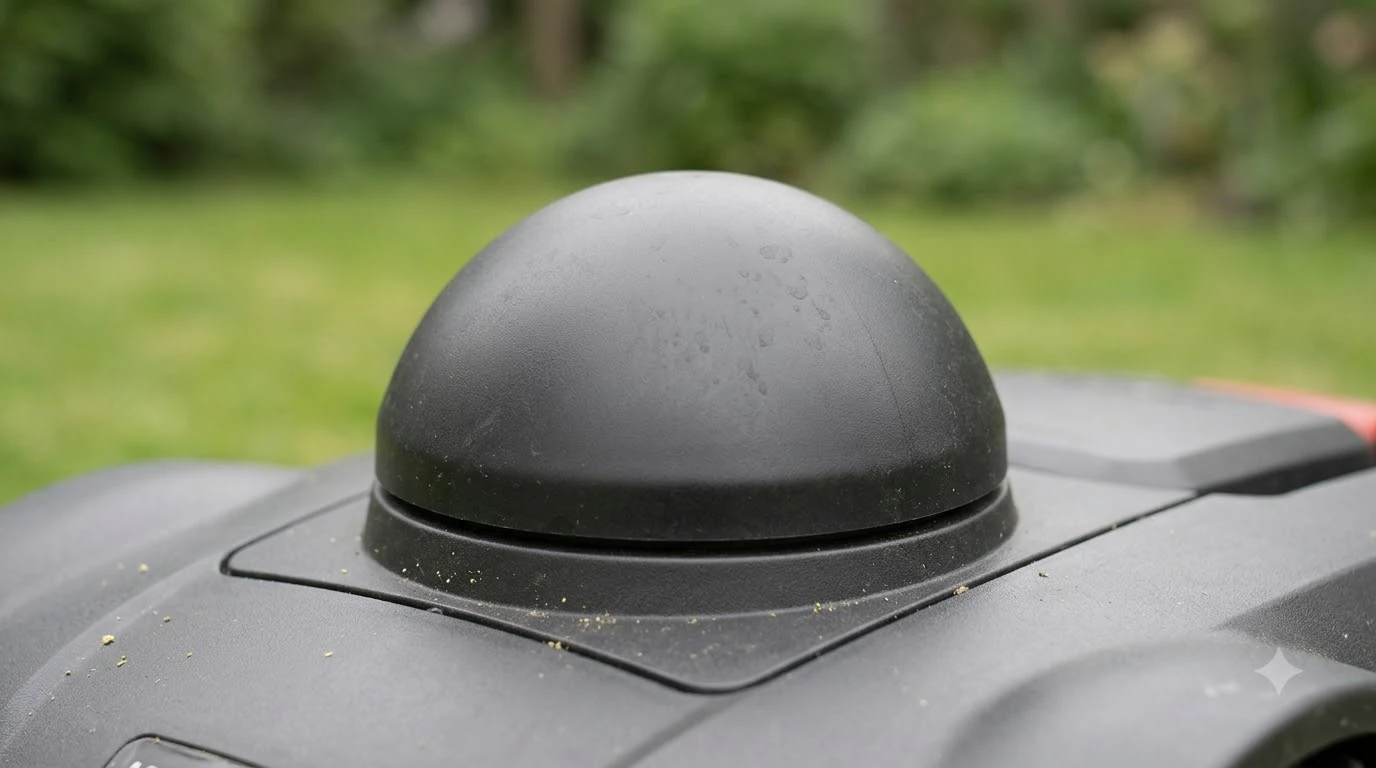

An Anthbot M5 RTK station setup problem usually comes down to four things: where the station sits, how much sky it can see, whether it has power, and whether the app has paired with it. Start by confirming your M5 uses a station at all, because the LiDAR version does not. The steps below follow the rules that RTK station makers publish.
The short answer
- Check the model first. The M5 LiDAR works without an RTK station, while the standard M5 is listed with RTK.
- Place the station well. Use flat, open ground at least 3 m (10 ft) from walls and trees, never in a corner or under a tree.
- Confirm power and cables. The station turns on by itself once it has power, so check the supply and connectors first.
- Read the status page. Pair in the app, check the satellite count and signal strength, then re-map if you move the station.
First, confirm your M5 uses an RTK station
Not every M5 has an RTK station, so the first check is what came in your box. A reviewer of the ANTHBOT M5 LiDAR model writes that it “does not require perimeter wiring and it also does not require RTK stations,” and that it maps and navigates with LiDAR and a dual vision camera instead. The same review’s comparison table lists the standard M5 with “Full-Band RTK + Dual Vision,” so the two versions use different positioning.
The reviewer lists the M5 LiDAR’s contents as the mower, a charging station, a power lead with an extension, ground screws, pegs, a quick start guide, and a user guide. No separate RTK station appears in that list. If your box matches it, the RTK station problems in this guide do not apply, and the issue is more likely the charging station or the app. For the standard unit, see the first-time Anthbot M5 setup and our Anthbot M5 review.
Heads up
We could not read an Anthbot-published RTK station setup guide for this article. The placement, power and pairing steps below come from other makers’ RTK guides (Mammotion and ECOVACS) and an independent RTKdata guide, so treat them as general RTK practice and check the Anthbot M5 manual for exact steps and menu names.
What the RTK station does for the mower
An RTK station is a fixed receiver that stays in one place, so its satellite position is known exactly and it can help the mower’s own satellite fix stay accurate. ECOVACS, which sells RTK mowers, says an RTK system needs a base station set up “in an open, unobstructed area,” and that “incorrect setup reduces positioning precision.”
The same ECOVACS article says RTK accuracy “loses accuracy when signals weaken or drop unexpectedly.” That makes placement the most common cause of a poor reading. Our reading is that an Anthbot M5 RTK station setup problem is usually a site problem, not a fault in the hardware, until the basic checks below have been made.
Anthbot M5 RTK station setup problem: a poor view of the sky
An Anthbot M5 RTK station setup problem often starts with a station that cannot see enough sky. The station needs a clear view, and nearby walls, roofs and trees can block the satellites it uses. Mammotion’s RTK station guide says to place the station on flat, open ground or on an unobstructed wall or roof, and to keep roofs and trees from blocking satellite signals. It also asks for at least 3 m (10 ft) between the station and any wall or tree.
The same guide rules out three spots: the corner of an L-shaped building, a narrow path between two structures, and a spot under a tree. For lawns shaped like an O or U, or for several separate lawns, it recommends a wall or roof. Mammotion’s 2023 LUBA article gives a stricter sky test, saying the mower and the RTK station each need “at least 90 degrees” of open sky view of the lawn. A signal that keeps dropping out is covered in RTK signal that keeps dropping, and mounting options for an RTK base station covers wall and pole choices.
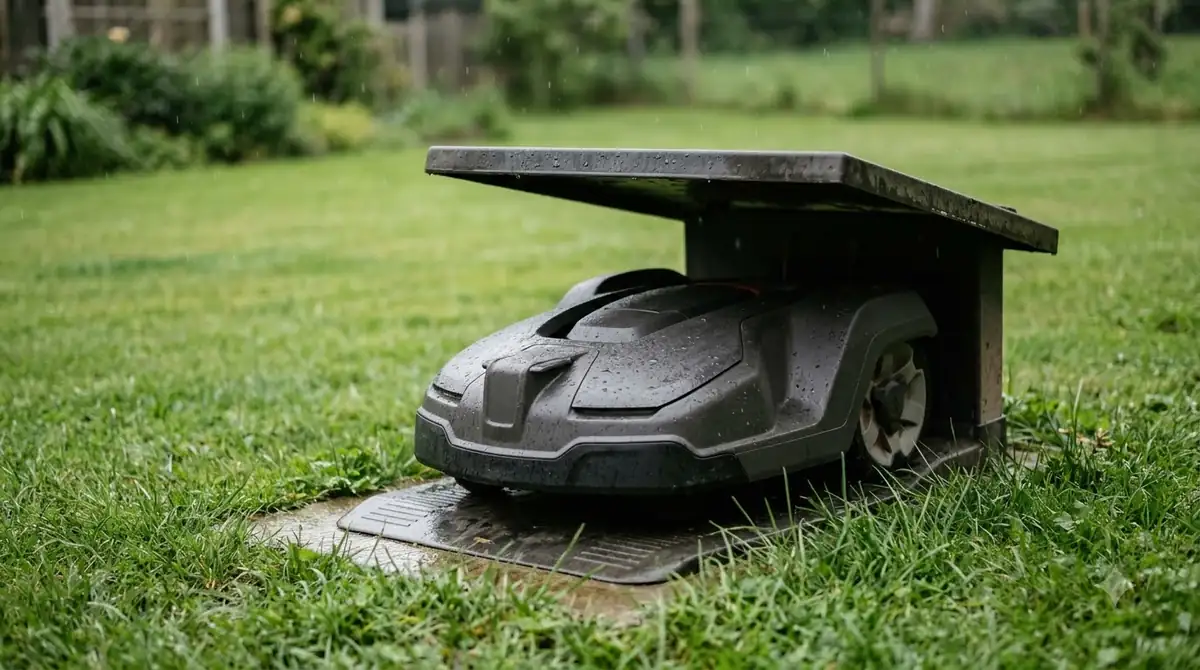
Problem 2: Metal, parked cars and walls bounce the signal
Nearby metal and large flat surfaces can reflect satellite signals, which makes the reading jump or drift. An RTK accuracy guide from RTKdata lists metal sheds, parked cars, brick walls, large windows and metal fences as sources of this bounce, and it says to keep the base away from vehicles, metal objects and water.
This is easy to miss in a small yard. A station placed beside a garage wall with a car parked on the other side can be fine in the morning and worse after the car moves. Our reading is that the spot should look clear in every direction, not just from the sky above it.
Problem 3: The station does not power up
An RTK station powers on by itself once it has power, so a dead station usually points to the supply path rather than the satellites. Power is the easiest cause of an Anthbot M5 RTK station setup problem to rule out, so check it before anything else. Mammotion’s guide says to “supply power to the RTK reference station and it will turn on automatically.” In a floor mount, the station cable connects to the shorter charging station cable, and the cable is then secured with a cord tie and cable peg. In a wall mount, the power supply plugs into a wall socket.
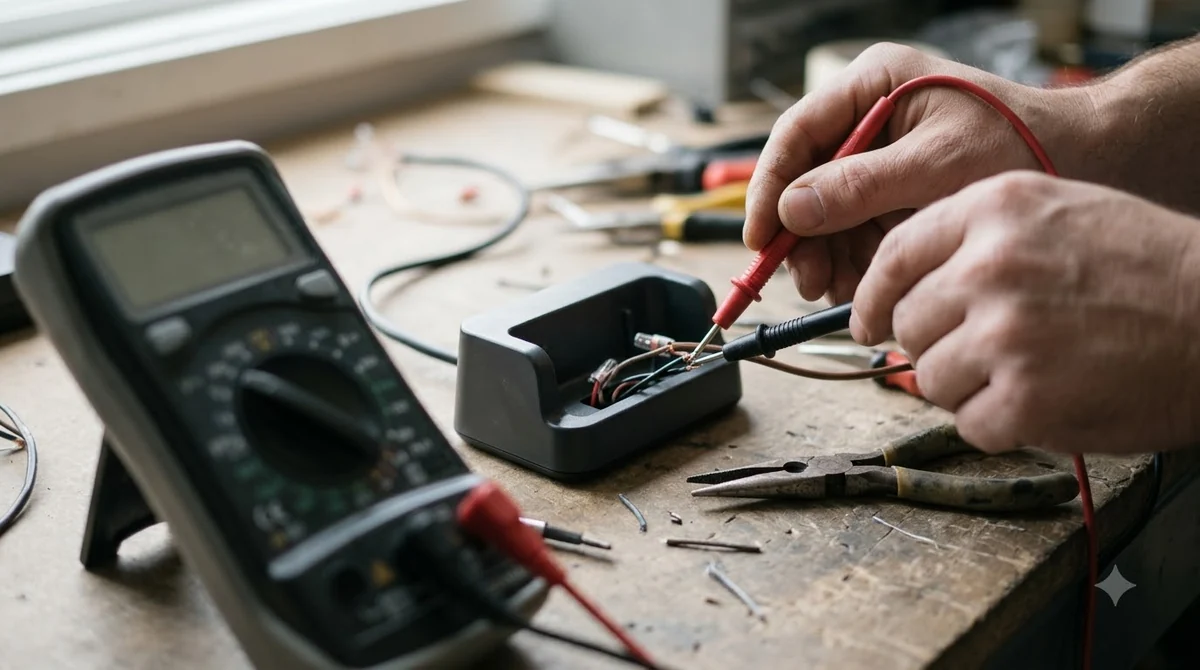
If the station stays dark, check the outlet, the power supply and both cable ends before you touch anything else. A multimeter can confirm that the outlet has voltage, but if you are not comfortable testing mains or low-voltage wiring, ask a qualified person to check it. Our reading is that cables should run where neither the mower nor people walk, and outdoor cabling for an RTK base station goes into the cable side.
Problem 4: The app does not pair or shows no satellites
On Mammotion’s app, pairing starts from an Add option, and the station’s status page shows whether it is receiving satellites. Anthbot’s app may use different labels, so treat this as a pattern to look for in the Anthbot M5 app. Mammotion’s guide says to tap Add, then follow the onscreen steps “to connect RTK reference station and set network successfully.” After that, open Settings or tap the status bar on the station page to see the satellites received, the signal strength, and any firmware update.
Mammotion’s guide does not give numeric thresholds for a good or poor reading, so compare the numbers before and after each change. Its LUBA article advises checking satellite signal strength in the app and editing the boundary where reception is poor. If the count stays low after the station is in a clear spot, the next step is to check whether the firmware is current.
Problem 5: The map shifts after you move the station
Moving the station after mapping can shift every boundary, so re-map after any move. RTKdata’s guide says not to move the base after mapping, because shifting the reference point shifts every boundary in the map. The same guide describes the effect as a change to the whole map, not a single bad reading.
Our reading is that if the station must move, treat it as a new setup: place it on the new spot, confirm the status page, and map again rather than adjusting the old boundary by hand. This takes longer, but it avoids a mower that cuts outside its intended edge.
Step-by-step fix checklist
Work through these steps in order, because each one depends on the one before. Following them in order also makes it clear which change fixed the Anthbot M5 RTK station setup problem, if one of them did. Anthbot’s app screens may use different labels from the other makers’ guides, so use your model’s manual for exact names.
- Confirm the model. Check the box for an RTK station. If there is none, the RTK steps do not apply.
- Power the station. Check the outlet, the power supply and both cable ends.
- Move to a clear spot. Use flat, open ground, 3 m from walls and trees, away from metal and parked cars.
- Pair in the app. Follow the onscreen steps to connect the station and set its network. Mammotion’s app uses an Add option for this.
- Read the status page. Note the satellite count and signal strength, then compare after each change.
- Re-map after any move. Do not keep a boundary from before the station was moved.
Frequently asked questions
Does the Anthbot M5 need an RTK station?
It depends on the version. A reviewer describes the M5 LiDAR as working without an RTK station, while the standard M5 is listed with RTK positioning. Check the box contents and the quick start guide for your unit.
How far can an RTK station be from the mower?
No Anthbot distance figure was found in the sources checked for this article. Mammotion’s 2023 LUBA article says its base signal covers up to 45,000 square meters, which is about 11 acres, so use that figure only as a comparison for another brand.
Can I put the station under a tree?
Mammotion’s guide says no, and it lists a spot under a tree among the places to avoid. It also asks for at least 3 meters of clearance from any tree or wall, because branches can block the satellites the station needs.
Why does the signal get worse after I move the station?
The new spot may have a worse sky view or be near metal, a car or a wall. Check the spot against the placement rules, then re-map the lawn, because moving the station after mapping can shift the boundary.
Sources
- ANTHBOT M5 LiDAR review (independent reviewer): LiDAR model without RTK, box contents, M5 RTK listing in comparison table.
- ECOVACS, LiDAR vs RTK robot lawn mowers (manufacturer): open, unobstructed base site, precision loss from placement and satellite dependency.
- Mammotion support, how to install an RTK reference station (manufacturer): placement, 3 m clearance, power-on, app pairing, status page, cable connections.
- Mammotion, can LUBA get a good RTK signal (manufacturer, 2023): 90 degree open-sky guidance, signal coverage, checking signal in the app.
- RTKdata, wire-free robot mower RTK accuracy guide (third party): reflective objects, metal and vehicles near the base, and the rule against moving the base after mapping.
 Up next8 min readLearnMammotion Luba Stuck at Charging Station: Causes and FixesUpdated Nov 11, 2026
 7 min readLearnHow to Set Up an RTK Robot Mower: Base Station StepsUpdated Nov 11, 2026
 9 min readLearnWorx Landroid No Wire Signal: Causes and FixesUpdated Nov 11, 2026
 8 min readLearnSegway Navimow Vision Fence Not Working: Causes and FixesUpdated Nov 11, 2026
 8 min readLearnHusqvarna Automower No Loop Signal: Causes and FixesUpdated Nov 11, 2026
 9 min readLearnRobot Mower Lifted Error Keeps Appearing: Causes and FixesUpdated Nov 11, 2026