
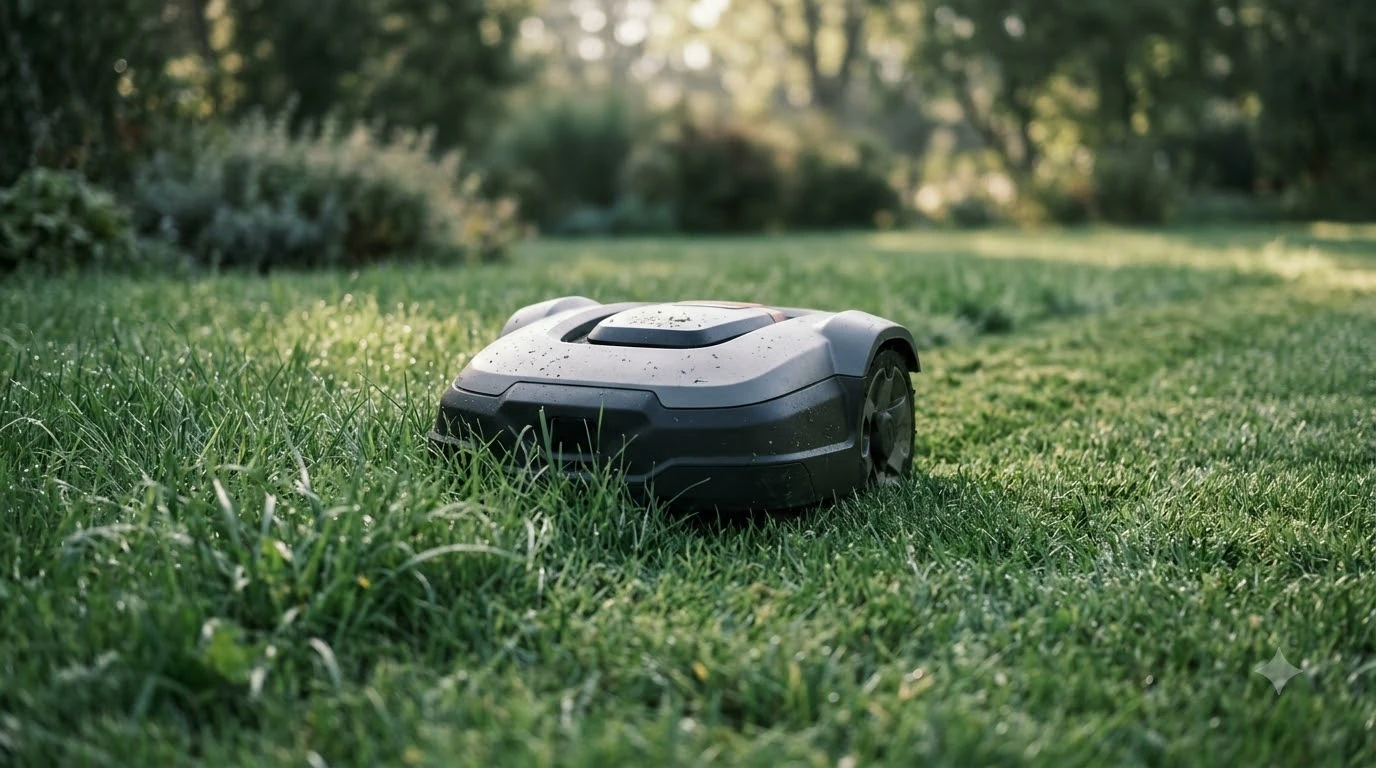

An Ecovacs GOAT RTK signal lost warning usually comes from the reference station or from the sky view around the charging station, so start there. RTK positioning depends on a powered, steady reference station and on a clear view of satellites at the mower. Ecovacs support lists a power cycle of the station, a repair in the app, and checks for shade, reflective objects and fences as the first fixes, and it sends owners to customer care if the fault continues.
The short answer
- Reference station reported as abnormal: power the station off and on again, then repair it in the app under Settings, then RTK, then More.
- Station moved or its indicator off: confirm it has not been moved, that it is powered, and that its indicator is on. An indicator that stays off can mean a faulty station.
- Return path: keep the area within 2 meters of the station clear of obstacles.
- Heavy shade over the station: Ecovacs recommends an open spot near grass with good RTK reception, under 7 meters from that grass.
- No-signal zones on the map: place physical fences over 20 cm tall around no-coverage areas that touch a boundary or no-go zone.
- Still failing: contact ECOVACS Customer Care.
What an Ecovacs GOAT RTK signal lost warning means
RTK positioning combines satellite signals with a correction signal from a fixed reference station (our explainer covers what an RTK base station is), which is why the mower needs both to stay accurate. When either side is weak, the mower loses precision, and that is what “signal lost” usually means in practice. Our reading is that the cause usually falls into one of three groups: the station, the mower’s view of the sky, or obstacles that block satellites.
The GOAT O1000 RTK product page describes its navigation as “RTK + Camera + 3D ToF (LiDAR-Enhanced RTK Navigation),” with 2 cm positioning precision and up to 45 satellites. The page says the mower “works reliably even in shaded areas,” but it does not say what the mower does when RTK signal is weak. That gap is why the troubleshooting steps below come from Ecovacs’ support pages instead.
Ecovacs’ own comparison of RTK and LiDAR says RTK “struggles under dense trees and buildings” and that “obstructions can risk interfering with satellite connectivity.” The article gives no numeric threshold for how much shade or cover is too much, so you will need to judge your own yard by watching where the mower loses its fix. See also how an RTK robot mower behaves near tall buildings.
Other brands report positioning in levels, and the same idea helps when you read a log. Mammotion, which makes a different robot mower and does not use Ecovacs’ labels, describes Fix as accuracy under 10 cm; Float as roughly 50 to 200 cm; Single as meter-level; and None as no positioning. Check your own GOAT app for the exact status names it shows, because this scale is not Ecovacs’ own.
Check the reference station first
An Ecovacs GOAT RTK signal lost or station abnormal message can appear while the reference station looks normal, a documented Ecovacs case, and the fix starts with a power cycle. The Ecovacs support article describes a blue light that stays on as normal operation, and it does not define any other light pattern.
- Power cycle the station. Turn the RTK reference station off and on again.
- Repair it in the app. Go to Settings, then RTK, then More, and run the repair.
- Escalate if it persists. If the warning remains, contact ECOVACS Customer Care.
Before you repeat those steps, confirm the basics. Ecovacs asks owners to check that the station is powered on, has not had a power cut or switched off partway through, and that its indicator is on. If the indicator stays off, the support page says the station may be faulty and points to customer care.
Look at the docking area
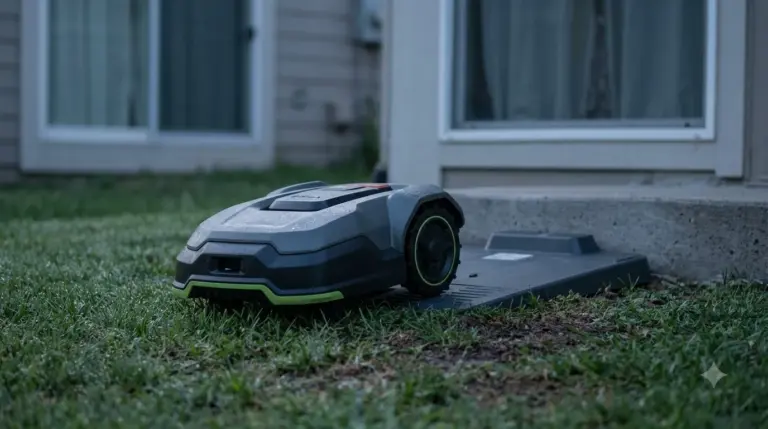
Many Ecovacs GOAT RTK signal lost alerts and docking complaints trace back to the station’s position, the space around it, and the surfaces the mower reads. Ecovacs lists nine checks in its docking troubleshooting article, and the first items are the ones you can do in a few minutes.
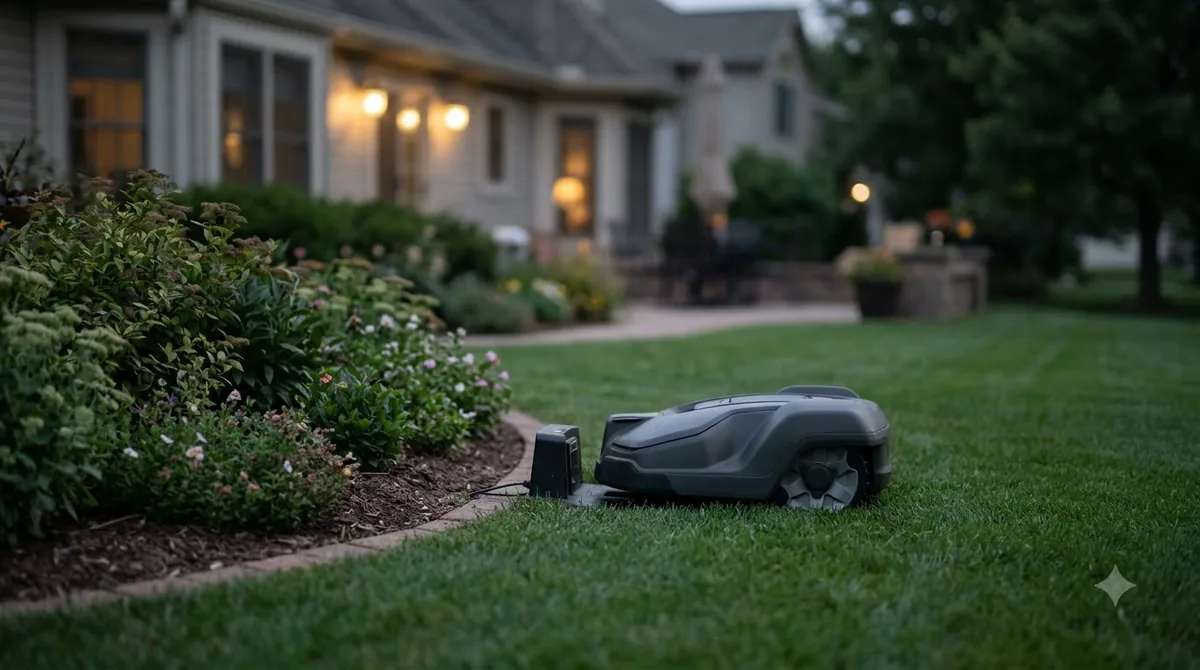
- Power and position. Confirm the station is on and has not been moved.
- Return route. Keep the area within 2 meters of the station free of obstacles.
- Reflective film. Make sure the white reflective film inside the station is not covered or damaged.
- Corrosion. Look for copper rust on the station’s contacts and the mower’s charging contacts. Turn both off before you wipe the contacts dry.
- Reflective objects. Remove items that can mislead the mower, such as open umbrellas, reflective metal railings, mirrors, road signs, and fluorescent shoes or laces.
- Camera. Keep the AI camera at the front of the mower clean.
- Shade above the station. If many shaded areas sit over the station, move it to an open area, preferably near grass with good RTK reception. Ecovacs gives the recommended distance as under 7 meters.
Our reading is that the shade item matters most for RTK, because a station under a tree canopy can lose satellites the same way the mower does. Moving it a few meters is a cheap test before you change anything else.
Map the no-signal zones
If the signal map in the app shows a large area without coverage, Ecovacs advises physical fences rather than relying on the virtual boundary alone. Its Danish-language help page, read here in English, names tree canopy, shade and buildings as the usual causes, and it says the GOAT cannot receive satellite signals at its current location.
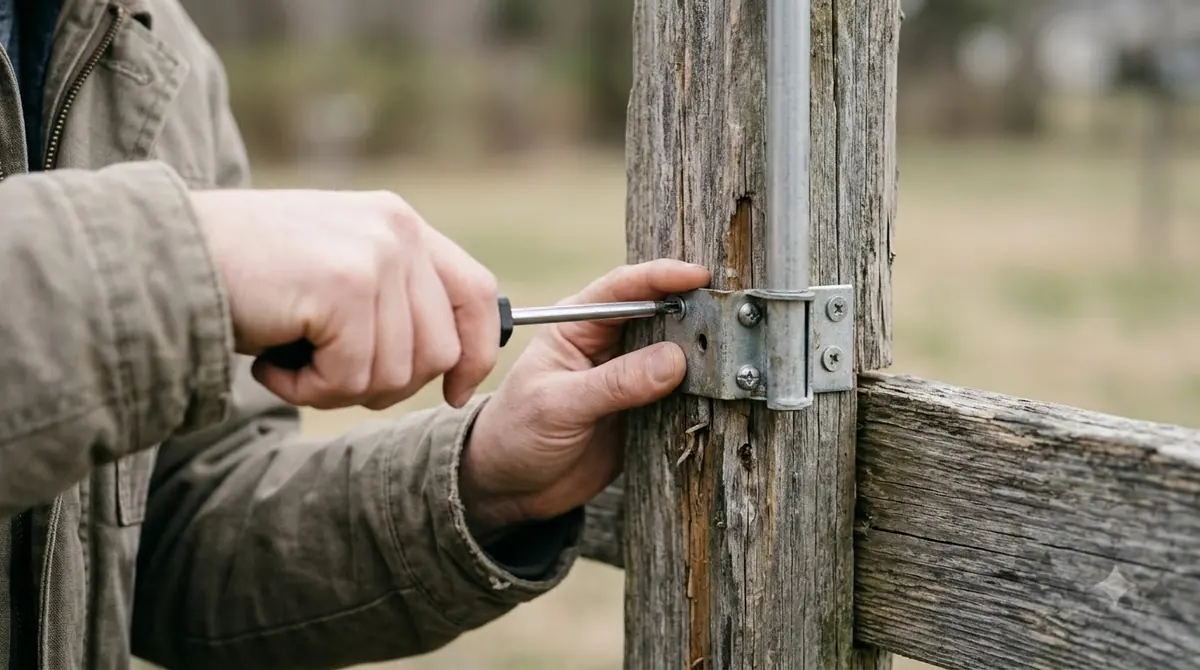
Where a no-signal area touches a map boundary or a no-go zone, Ecovacs recommends fences more than 20 cm tall so the mower stays inside its boundary. A fence does not restore satellite reception. It only keeps the mower from wandering into a gap while it is blind.
Our reading is that the most useful step is to trace the no-signal area on the map against the trees, walls and garden structures next to it. Those are the spots most likely to need a fence or a tighter no-go zone. If trees are the problem, see which robot mowers work under trees without RTK.
Where to place the reference station
The placement rules Ecovacs gives for GOAT come from its docking and FAQ articles: an open area, close to grass with good RTK reception, and under 7 meters from that grass. The O1000 RTK product page lists a reference station with a 10 m power cable in the box, but it gives no placement guidance or coverage radius. If you are still weighing the model, see whether the Ecovacs GOAT O1000 RTK is worth it.
Another brand’s guidance for its own station is a useful cross-check. Mammotion’s support article for its Luba mowers asks for no obstruction within at least 5 meters of the reference station, and suggests moving the station to a more open area or mounting it on a wall or roof when the signal stays weak. That is a different product, so treat the 5-meter figure as a general rule of thumb rather than a GOAT specification. Our guide to where to mount an RTK base station covers the general options.
When to contact Ecovacs support
Contact customer care when an Ecovacs GOAT RTK signal lost warning survives both the power cycle and the in-app repair, or when the station indicator stays off after you have checked the power.
- The station fails after a power cycle and repair. Ecovacs says to contact customer care if the issue persists.
- The indicator is off. The support page describes this as a possible station fault.
- The mower still cannot find or connect to the station after the nine docking checks.
Before you call, write down the exact error text the app shows, the date the problem started, and where the station sits relative to trees and the house. Those details help the support team tell a station fault from a yard problem.
Frequently asked questions
Why does my GOAT say the RTK reference station is abnormal when the light is blue?
Ecovacs’ FAQ describes a blue light that stays on as normal station operation, so the warning can still appear. The recommended steps are to power the station on again, repair it in the app under Settings, then RTK, then More, and contact customer care if it persists.
Does an Ecovacs GOAT RTK signal lost alert mean the mower is broken?
Not on its own. Ecovacs documents signal loss from shade, trees, buildings and reflective objects, and its first steps are checks on the station, its position and the surroundings. A fault that remains after those checks is the point to contact support.
Will a fence fix a no-signal area on the signal map?
A fence does not restore satellite reception. Ecovacs recommends physical fences over 20 cm tall around no-coverage areas that touch a boundary or no-go zone, so the mower stays inside its area while the signal is missing.
How far should the charging station be from grass?
Ecovacs recommends an open spot close to a grassy area with good RTK reception, with the recommended distance under 7 meters. Keep the 2-meter zone in front of the station clear as well.
Sources
- Ecovacs help center: RTK reference station normal but GOAT reports abnormal (Ecovacs): power cycle, in-app repair steps and customer care escalation.
- Ecovacs help center: why the GOAT cannot find or connect to the docking station (Ecovacs): the nine docking checks and the 2-meter zone.
- Ecovacs help center: GOAT cannot locate or connect to the station (Ecovacs, Danish-language page): the under 7-meter distance, corrosion steps and reflective objects.
- Ecovacs help center: large no-signal area on the RTK signal quality map (Ecovacs, Danish-language page): causes and the 20 cm fence recommendation.
- GOAT O1000 RTK product page (Ecovacs): navigation type, 2 cm precision, up to 45 satellites and the reference station in the box.
- LiDAR vs RTK robot lawn mowers (Ecovacs blog): RTK sensitivity to dense trees and buildings.
- About the new positioning information and how to troubleshoot (Mammotion support, a different brand): positioning status levels and the 5-meter station guidance.
 Up next8 min readLearnMammotion LUBA RTK No Fix? Check These Four Things FirstUpdated Nov 10, 2026
 7 min readLearnHow long does the Ecovacs GOAT O1000 battery last?Updated Nov 11, 2026
 9 min readLearnHow to Set Up Ecovacs GOAT O1000: Step-by-Step GuideUpdated Nov 10, 2026
 6 min readLearnHow to Update Ecovacs GOAT O1000 FirmwareUpdated Nov 12, 2026
 6 min readLearnEcovacs GOAT App Problems and How to Fix ThemUpdated Nov 13, 2026
 7 min readLearnEcovacs GOAT A3000 Manual: Where to Find the Right PDFUpdated Nov 13, 2026