
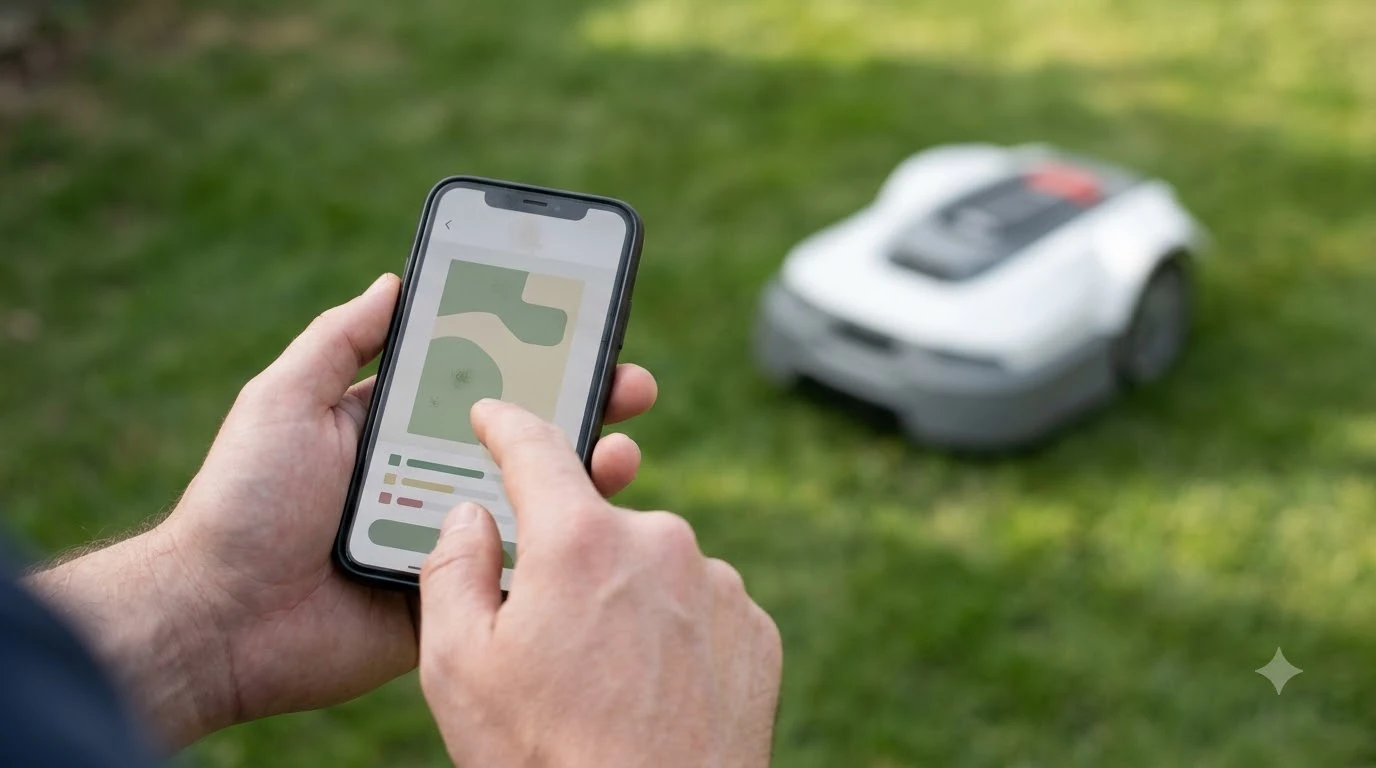

How to connect a robot mower to wifi comes down to two steps: pair the mower with your phone over Bluetooth, then join your 2.4 GHz home network from the manufacturer’s app. The exact menu names differ by brand, so this guide uses Husqvarna’s published Automower steps as the worked example. Check your own manual for the menu names on other brands.
Most failed attempts at learning how to connect a robot mower to wifi come from two things: a network the mower cannot use, usually a 5 GHz-only or hidden network, or a weak signal where the charging station sits. Check those two first before you contact support.
The short answer
- Pair first. For how to connect a robot mower to wifi, link the phone to the mower over Bluetooth, with the app installed and logged in.
- Pick 2.4 GHz. Husqvarna Wi-Fi models support only 2.4 GHz networks, and the network name must not be hidden.
- Join in the app. Choose the network, enter the password, and wait for the confirmation message.
- Check the dock. Wi-Fi-only models need a strong signal at the charging station to receive updates.
What you need before you start
Before you begin, gather a few items, because knowing how to connect a robot mower to wifi is far easier with them in hand. Husqvarna’s setup article asks for the Automower Connect app, a logged-in account, the Wi-Fi password, and the mower placed near the router. A PIN for the mower is also needed during the steps.
- The manufacturer’s app installed on your phone, with an account you can log in to
- The Wi-Fi password for the network you plan to use
- Your mower’s PIN code, which the app asks for before you change settings
- The mower parked near the router so the first connection is not borderline
Keep the phone within Bluetooth range during the whole process. Husqvarna’s setup begins by pairing the mower with the phone over Bluetooth, and the app depends on that link to send the network details.
Step-by-step: how to connect a robot mower to wifi on an Automower
On a Husqvarna Automower, you join Wi-Fi in the Automower Connect app under More, then Settings, then Automower Connect, after the phone is paired with the mower over Bluetooth. The steps below show how to connect a robot mower to wifi in Husqvarna’s published order.
- Open the app. Open Automower Connect and log in to your account.
- Move the mower. Park the mower close to the router before you start the Wi-Fi steps.
- Go to settings. Tap More, then Settings, then Automower Connect.
- Enter the PIN. Type the mower’s PIN code when the app asks for it.
- Select the network. Under Wi-Fi, tap Select network and choose your network from the list.
- Enter the password. Type the Wi-Fi password for that network.
- Connect and wait. Tap Connect and wait until the app confirms the connection.
If your network does not appear in the list, Husqvarna’s advice is to restart the mower, restart the app, update the app to the latest version, and confirm the mower’s firmware is current. Then move the mower closer to the router and confirm that the 2.4 GHz band is switched on.
Why the network must be 2.4 GHz
For how to connect a robot mower to wifi, the band is the first check. Husqvarna states that its Wi-Fi-enabled Automower models support only 2.4 GHz Wi-Fi networks. The page says directly that “5 GHz networks are not supported,” so a 5 GHz-only setup will not be usable for the mower, even if your phone connects to it without trouble.
- Band: 2.4 GHz only. Some routers need 2.4 GHz turned on separately in their settings.
- Name: The network name must be visible. A hidden SSID will not appear in the mower’s list.
- Extenders: Any extender or mesh system must also support 2.4 GHz, because that is the only band the mower uses. See what to check in outdoor mesh wifi for a robot mower.
Many modern routers combine 2.4 GHz and 5 GHz under one name. In that case, check the router’s band settings and make sure the 2.4 GHz side is enabled. The Sunseeker glossary notes that 2.4 GHz often reaches farther than 5 GHz, though interference is higher, which is one reason the band matters for a lawn that sits far from the house.
Checking the signal at the charging station
Wi-Fi-only Automower models need a strong Wi-Fi signal at the charging station, because Husqvarna states that updates cannot be installed without a Wi-Fi connection. The page does not give a distance or signal-strength figure, so the practical test is to check the signal reading at the dock itself.
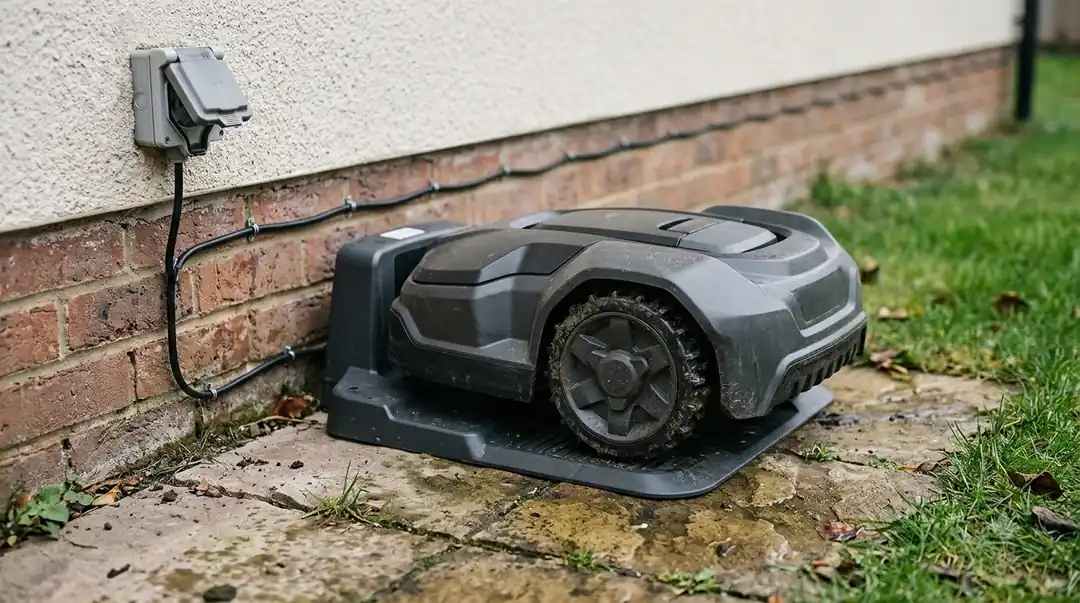
Husqvarna’s main placement advice is to put the router as close as possible to the lawn, or near windows that face the work area. A dock next to a strong router can still get very little signal at the far corner of the lawn, because exterior walls and landscaping weaken the link. Wi-Fi + mobile models can receive updates over the mobile network if Wi-Fi is unavailable at the charger, a trade-off covered in our guide to cellular versus wifi mowers.
Fixing a connection that will not link
When the mower will not connect, and you are stuck on how to connect a robot mower to wifi, the fastest fixes are a restart of the mower, phone and app, followed by a check of the router and its internet link. Husqvarna lists four likely causes: no network added in the app, a router that has lost power, a router online without internet, and a weak signal or an out-of-range mower.
| Symptom | What to check | Fix |
|---|---|---|
| No network appears | 2.4 GHz is enabled and the name is not hidden | Turn on 2.4 GHz in the router, then restart the mower and app |
| Network shows but will not join | Password is correct and the router is online | Re-enter the password and confirm the internet connection works |
| Connection drops at the lawn edge | Signal strength under Wi-Fi in the app | Move the router toward the lawn or a window facing the work area |
| Bluetooth link lost during setup | Phone is still paired to the mower | Keep the phone nearby and reconnect over Bluetooth before retrying |
| Weak signal at the dock | Signal at the charging station | Move the router, or add an extender that supports 2.4 GHz |
Husqvarna advises keeping the router away from thick walls, metal objects, and other electronics that can block the signal. If you add an extender, choose a model that supports 2.4 GHz, and pick an outdoor-rated unit when it sits outside. Our reading is that an extender helps most when the dock is the weak point, not when the lawn is far from the house. Our guide on whether you need a wifi extender goes through that decision.
What happens when Wi-Fi drops after setup
What happens when Wi-Fi drops depends on how the mower navigates. On a Husqvarna Wi-Fi-only model that uses the Wi-Fi-based satellite correction system, the mower stops, searches for a signal, and loses remote app access if the signal is not recovered. A boundary-wire or reference-station model keeps mowing on schedule, but it has no remote access until the link returns.
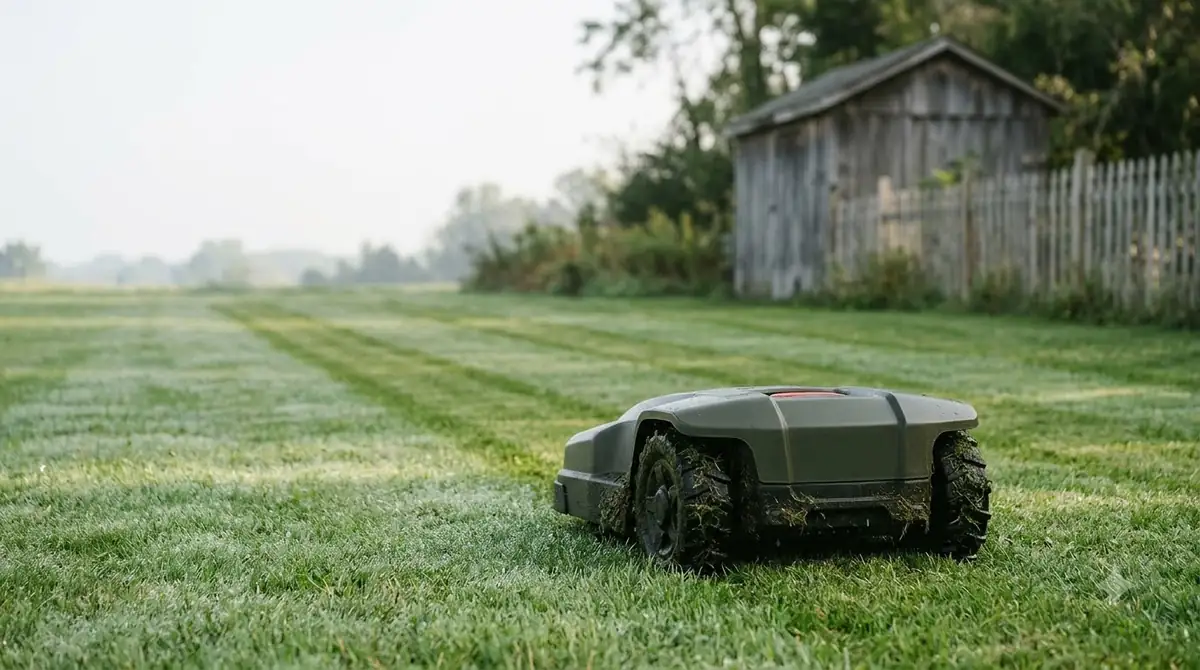
Bluetooth is a short fallback, and it is the same link you use during setup. Husqvarna’s Wi-Fi-only models keep Bluetooth connectivity within 30 m (98.4 ft) when Wi-Fi is lost. The page gives no Wi-Fi range figure, so the lawn’s distance from the router is still the main thing to test. If the back of the yard has no signal at all, read about a robot mower in a yard with no wifi in the back.
On other brands, the Sunseeker glossary describes the same split in general terms, and our overview of wifi, Bluetooth and 4G connectivity compares the options. A Wi-Fi mower depends on the app for setup, schedules, map edits, alerts, and updates. Without a connection, those app features stop working.
Which models use Wi-Fi and which use mobile
Husqvarna splits its Automower range into Wi-Fi-only models, Wi-Fi plus mobile models, and mobile-only models. The model name therefore tells you which connection to expect when you learn how to connect a robot mower to wifi.
| Group | Example models (Husqvarna) | If Wi-Fi is lost |
|---|---|---|
| Wi-Fi-only | Aspire R4, Automower 320 NERA, 305E NERA, 310E NERA, Aspire R6V, 308V, 312V | Depends on navigation type (see above); some can add mobile with a dealer-installed Automower Connect Kit |
| Wi-Fi plus mobile | 430X NERA, 450X NERA, 405XE NERA, 410XE NERA, 405VE NERA, 410VE NERA, 430V NERA, 450V NERA | Can receive updates over the mobile network |
| Mobile-only | 435X AWD, 435X AWD NERA | No Wi-Fi hardware; uses the mobile network only |
Model lists change over time, so check the current support page for your exact model before you rely on any group above. Our reading is that a Wi-Fi-only model needs the strongest home network, while a mobile model can fall back to the mobile network.
Frequently asked questions
Does a robot mower need wifi to mow?
It depends on the model and the navigation system. On Husqvarna boundary-wire or reference-station models, the mower keeps mowing on schedule without Wi-Fi, but remote app access stops. Wi-Fi-only models that use the Wi-Fi-based satellite system stop mowing when the signal is lost.
Can a robot mower connect to a 5 GHz network?
Husqvarna’s Wi-Fi models do not support 5 GHz. The mower only connects to 2.4 GHz networks, so you may need to turn on the 2.4 GHz band in your router’s settings and make sure the network name is not hidden.
Why will my robot mower not find my network?
The most common causes are a 5 GHz-only network, a hidden network name, a router that has lost power or internet, or a mower out of range. If you are still asking how to connect a robot mower to wifi after a failed try, restart the mower, phone and app, update the app, and move the mower closer to the router before retrying.
Do I need a wifi extender for my robot mower?
Only if the signal at the charging station or along the lawn is too weak, because the setup itself does not require one. Husqvarna says any extender or mesh system must support 2.4 GHz, and outdoor-rated units should be used outside. Test the signal in the app before you buy anything.
Sources
- How to connect your Automower robotic lawn mower to Wi-Fi (Husqvarna support): setup steps, 2.4 GHz rule, SSID visibility, charging station signal and firmware updates.
- Problem with the Wi-Fi connection to Automower (Husqvarna support): causes, fixes, router placement and extender advice.
- Wi-Fi robot lawn mower glossary (Sunseeker): app dependency for setup and updates, and signal at the far corner of the lawn.
 Up next7 min readLearnLymow won t connect to wifi: fixes that workUpdated Nov 13, 2026
 8 min readLearnWorx Landroid Won t Connect to Wifi: Step-by-Step FixesUpdated Nov 13, 2026
 9 min readLearnRobot mower wifi keeps disconnecting: causes and fixesUpdated Nov 12, 2026
 7 min readLearnWhy Does My Robot Mower Lose WiFi When the Garage Closes?Updated Nov 19, 2026
 8 min readLearnWhat Is a No-Go Zone on a Robot Mower?Updated Nov 11, 2026
 8 min readLearnCan a Robot Mower Stay Outside in Winter?Updated Nov 11, 2026