
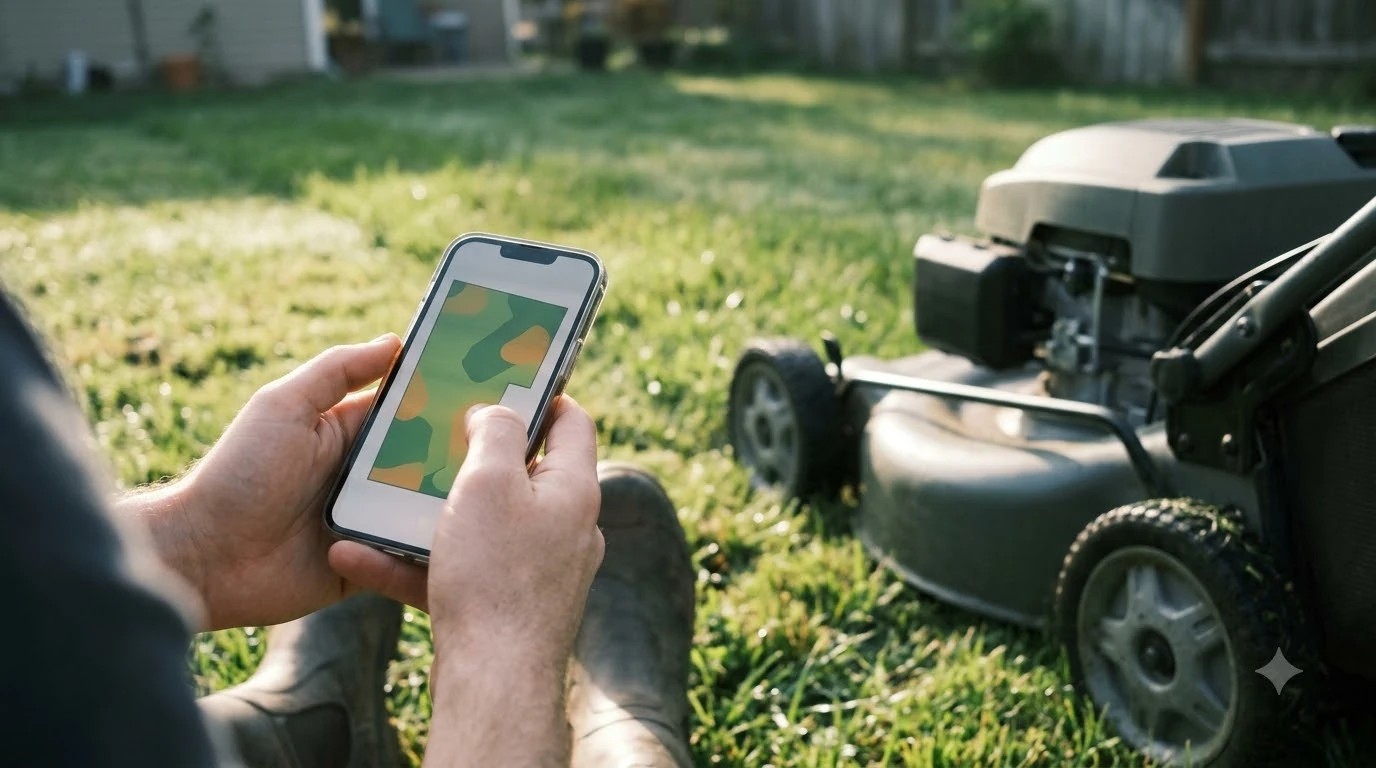

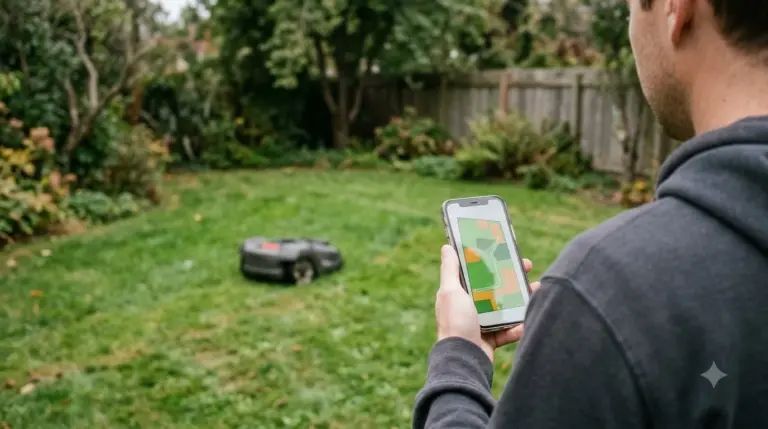
Anthbot mapping means the mower learns the lawn’s edges, zones, and no-go areas through the ANTHBOT app before it mows. You can let the mower trace the lawn automatically, draw the edges by hand, or use both. Map after the charging station is in its final spot, and map again if you move the station or rebuild the map. The steps and the reviewer observations below are current as of Nov 2026.
The short answer
- Before mapping: update the firmware, place the charging station in its final position, and clear the lawn of loose hoses and toys.
- Auto mapping: the mower traces the lawn itself, which works well in open areas with few corners.
- Manual mapping: you drive the edges with the app’s controls, which gives more precise edges next to beds, walls, and paths.
- No-go zones: draw them around obstacles and check the result on the map before the first full mow.
- Moving the station: treat it as a new setup and map again, because a moved base can shift the whole map.
What Anthbot mapping does for the mower
The map is the mower’s record of where the lawn is and where it must not go. It holds the outer edges, the zones it should cover, the channels between zones, and any no-go areas. Without a map, the mower has nothing to follow, so mapping is the step that decides whether the first mow is clean or messy. When the app misbehaves during mapping, Anthbot app troubleshooting is the place to look. Mapping happens inside the broader install covered in Anthbot M5 setup steps.
The reviewer of the Anthbot M5 LiDAR, writing at EasyLawnMowing, describes the M5 as navigating with LiDAR and a camera rather than a boundary wire. That is why mapping, not wire installation, is the main setup task. The app is also where you check the map, so plan on spending time in it.
Prepare the lawn and the charging station before you map
Most mapping problems start before the first screen tap. Place the charging station on a flat, firm spot with clear space on both sides, and keep metal objects, vehicles, and reflective surfaces away from it, since the RTKdata guide notes that these can disturb the signal near the base. Then update the firmware over Wi-Fi, because mapping on old software means redoing it later. Station placement affects mapping quality, as Anthbot RTK station troubleshooting explains, which gives more context than this short overview can.
Walk the lawn first and look for things that will confuse the mower: garden hoses, toys, furniture that moves, and gaps under a fence. Our reading is that removing these before mapping saves more time than fixing them afterward, because the map records what the mower sees on the day you map.
- Update the firmware. Install any update through the app before you start, so the map is built on the current software.
- Set the charging station. Place it in its final spot and confirm it is secure.
- Clear the lawn. Move hoses, toys, and loose items out of the mowing area.
- Choose a mapping method. Use auto for open lawns, manual for tricky edges, or a mix of both.
- Check the map. Look at the outline and zones on screen before you run the mower.
Auto mapping versus manual mapping
Auto mapping lets the mower trace the lawn by itself. The EasyLawnMowing reviewer found that it handled shadows well and got close to the edges, though in one spot it stopped short of where the reviewer would have stopped by hand. That fits a simple rule: auto mapping suits large open areas with few corners, and it is the quicker option when you do not need precise edges everywhere. Large yards are often split into areas, as zone mowing for large lawns explains.
Manual mapping means you drive the mower around the edge of a zone with the app’s remote-style controls. The same reviewer said manual edges were the most precise, which matters for beds, a driveway, or a path where a short stop would be visible on the grass.
| Situation | Better method | Reason |
|---|---|---|
| Large open lawn with few corners | Auto mapping | Quick, and the edges are simple to trace |
| Edges beside flower beds or a driveway | Manual mapping | Precise stops keep the mower off the bed edge |
| Narrow passage between two zones | Manual, then a channel | The mower needs a clear, deliberate route |
| Yard with many small obstacles | Mix both, then add no-go zones | Auto for the open part, manual for the tight areas |
A mix works well for most yards. Let the mower trace the open lawn, then drive the edges that matter most by hand. Check the finished outline on the screen, since small gaps are easier to fix on the map than after the mower has already run.
Draw no-go zones and channels
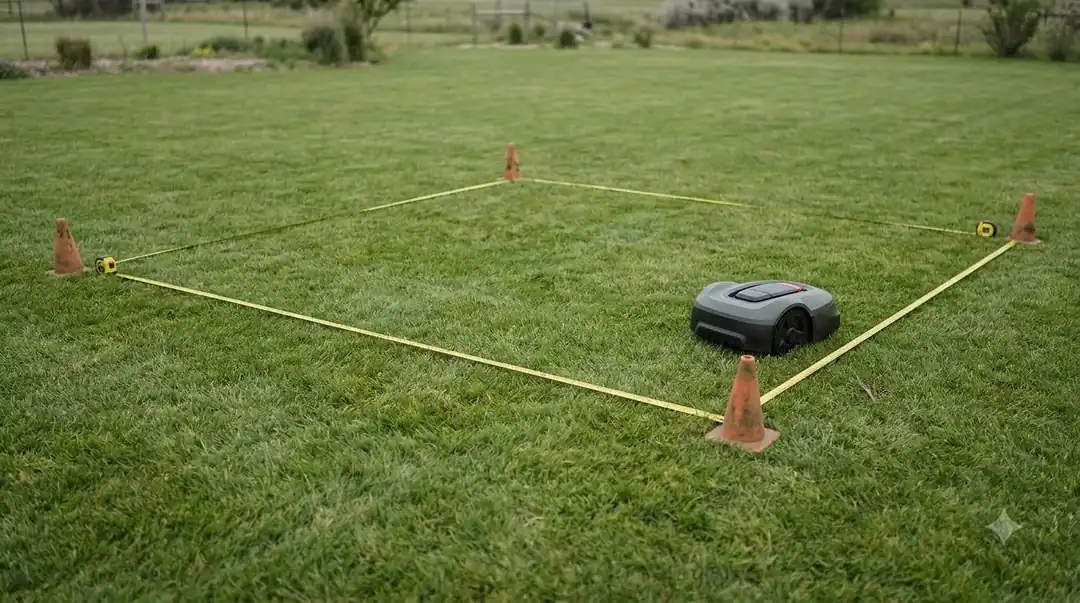
No-go zones keep the mower out of areas such as a garden bed, a pool surround, or a pet’s corner. Draw them around the obstacle, not through the middle of the lawn, so the mower has room to turn. The reviewer confirmed that the app supports no-go zones but did not describe how to draw one, so follow the on-screen prompts and check the result on the map before the first run. Joining areas follows a general method, outlined in drawing channels between zones. No-go areas often protect garden beds, which keeping mowers out of flower beds covers.
Channels connect separate zones so the mower can move between them. A channel should be wide enough for the mower to pass without catching a corner, and it should avoid tight turns beside fences or planters. If a channel looks too close to an edge, redraw it on the map instead of hoping the mower will squeeze through.
Heads up
A no-go zone only protects an area if it is on the map. If you add a new bed or toy after mapping, add the zone at once, or the mower may drive over it on the next mow.
When to rebuild the map
Rebuild the map when you move the charging station, when you change the lawn shape, or when the mower starts missing sections. The Anthbot FAQ covers the map rebuild steps, so follow the maker’s wording in the app before you start over. If the rebuild keeps failing, troubleshooting a failed map lists general fixes.
Moving the station is the most important case. RTKdata’s guide to wire-free robot mower accuracy says not to move the base after mapping, because shifting the reference point moves every boundary in the map, not just a single spot. Our reading is that a moved station should be treated as a new setup: place it on the new spot, confirm the status page, and map again rather than adjusting the old boundary by hand.
Related reads: Owners of the Genie can use the Anthbot Genie manual walkthrough for button and app details.
Frequently asked questions
Do I need to map the lawn before the first mow?
Yes. The mower needs a map of the edges, zones, and no-go areas before it can mow the lawn properly. Plan on the mapping step taking some of your first session.
Should I use auto mapping or manual mapping?
Use auto mapping for open areas and manual mapping for edges that need to be precise, such as beds, walls, and paths. Most yards benefit from a mix of both.
Can I move the charging station after mapping?
You can, but a moved base can shift the whole map. Treat the new position as a fresh setup and map the lawn again.
What if the map looks wrong after mapping?
Check the outline and zones on the screen before the first run. Redraw the edge or channel that looks wrong, or rebuild the map if the problem covers the whole lawn. Use the maker’s FAQ steps for the rebuild.
Sources
- EasyLawnMowing review of the Anthbot M5 LiDAR (independent reviewer): auto mapping results, manual mapping precision, and the navigation method.
- Anthbot FAQ (maker): map rebuild steps and app-related questions.
- RTKdata, wire-free robot mower RTK accuracy guide (third party): the rule against moving the base after mapping.
 Up next7 min readLearnHow to Update Anthbot M5 Firmware: Step-by-Step GuideUpdated Nov 12, 2026
 8 min readLearnHow to Set Up Anthbot M5: Step-by-Step GuideUpdated Nov 10, 2026
 6 min readLearnWhat Is a Passage on a Robot Mower Map?Updated Nov 13, 2026
 6 min readLearnHow Long Does It Take a Robot Mower to Map a Yard?Updated Nov 14, 2026
 7 min readLearnHow to Clear a Robot Mower Map and Start OverUpdated Nov 14, 2026
 10 min readLearnHow to Map Your Lawn with a Robot Mower AppUpdated Nov 11, 2026