
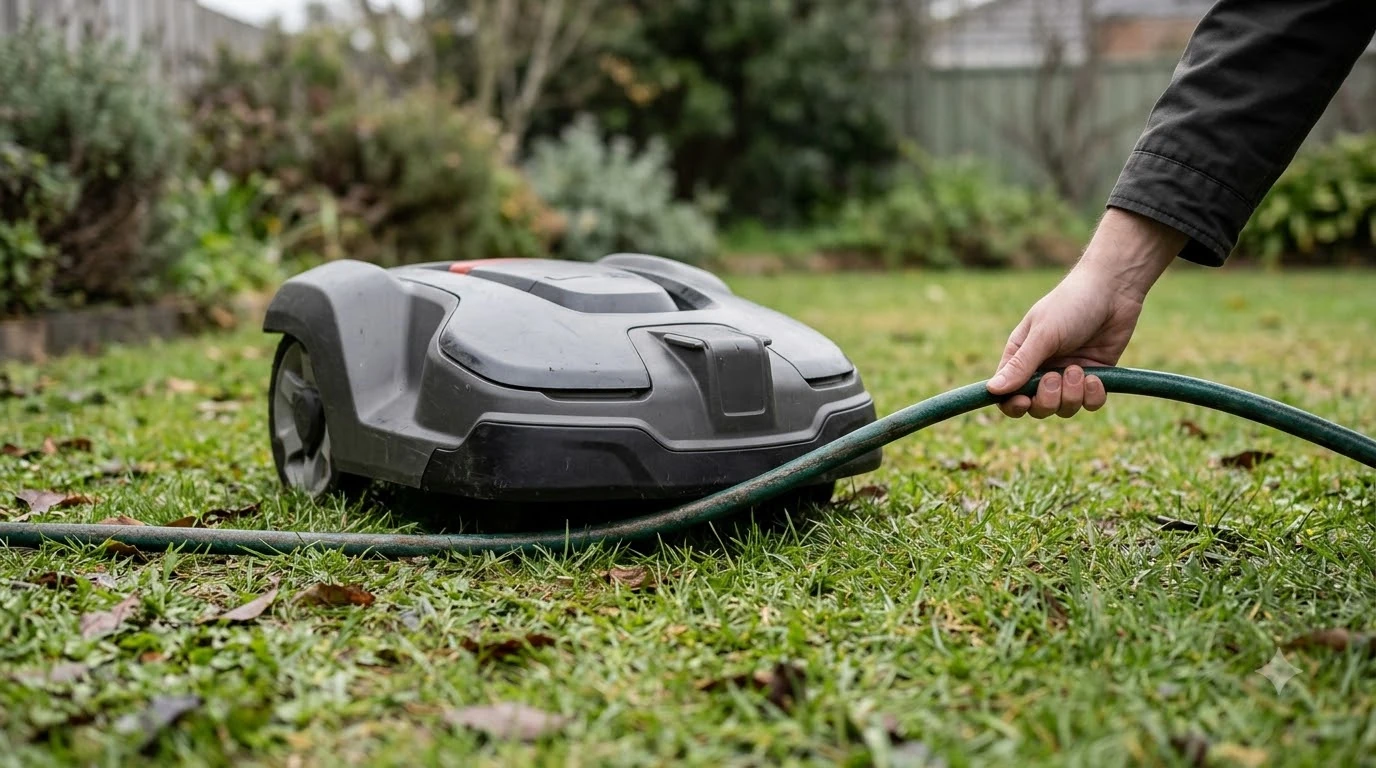

A Worx Landroid stuck on the lawn usually has one of four causes: it cannot dock, its battery is low, something blocks its path, or the boundary wire is damaged. Start with the charging base and power supply, since most docking faults trace back there. Worx’s own support pages list the same checks, so work through them in that order before you contact support. As of November 2026, these are the steps the manufacturer documents for a Worx Landroid stuck in any of these states.
The short answer
- Docking: Check that the base is flat, the charging contacts are clean, and the mower sits fully on the contacts.
- Low battery: Dock the mower by hand, and the emergency charge should start on its own.
- Still stuck: Export a log file to a FAT32 USB drive and send it to Worx support.
Worx Landroid stuck: the four usual causes
A Worx Landroid stuck in one spot is usually showing a symptom, not the fault itself. The mower reports that it cannot continue, and the cause is often a charging problem, a discharged battery, an obstacle in its route, or a break in the boundary wire it follows. A Worx Landroid stuck in the same place twice is rarely random, so note where it stops. Separating these four groups is the first job, because each one needs a different check. Stuck behavior is only one of several common faults, and a robot lawn mower problems overview helps you rule out the other categories first. Owners of the camera-based model describe a few repeat faults, summarized in reported Landroid Vision complaints from several sources. Check the display or app message first, and reading error codes by brand can narrow a stuck mower to a specific cause.
| Likely cause | What Worx documents | What to check first |
|---|---|---|
| Docking fault | The mower cannot make full contact with the charging poles | Clean the poles and dock again |
| Base out of level | On Landroid Vision, a station tilted more than 5 degrees triggers a charging error | Place the base flat and level |
| Temperature | Battery charging is blocked outside its safe range (Vision error E7 covers this) | Move the base if it sits above 55 C or below 3 C |
| Discharged battery | Emergency charge starts after manual docking | Dock by hand and wait for charging to finish |
The table is a guide, not a diagnosis. Your model’s manual and the app’s status screen show which message is active, and that message is the best starting point for a Worx Landroid stuck at any stage.
Worx Landroid stuck at the base: check power first
Most docking faults come down to power or contact. Worx’s Landroid Classic troubleshooting page asks you to confirm three things before anything else: the power supply is firmly seated in the base, the outlet works, and the cable between the supply and the station has no damage. Plug a different device into the same outlet to rule out a dead socket. The charger LED is the quick signal here. An LED that stays off, or flickers, points to a power issue rather than the mower. A mower that cannot reach the charger often looks stuck, and Landroid not docking troubleshooting covers the approach path and contacts.
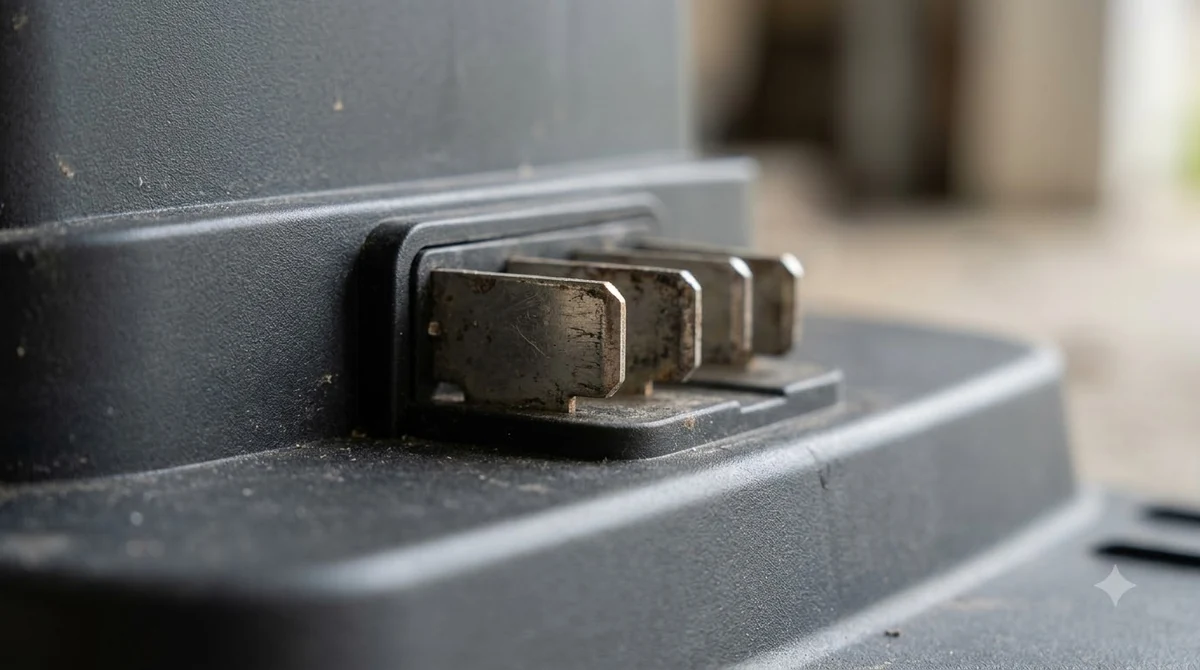
Next, look at the charging poles on the base and on the mower underside. Worx recommends cleaning the contacts regularly, because dirt and oxidation build up and interfere with charging. Use a dry cloth, and make sure the mower sits square so that its pins meet the poles. On the Landroid Vision, Worx also flags a base tilted more than 5 degrees as a charging error, so a level surface matters as much as a clean one. If a Worx Landroid stuck at the base keeps trying to dock, these two checks clear most cases.
Clear the path and check the boundary wire
If the mower is not docking, the problem may be on the lawn rather than at the base. A stuck mower often stops at a spot where a hose, a toy, a low branch, or a garden tool sits in its route. Walk the path from the mower’s last position toward the base and remove anything that blocks the way. Make sure the lawn is free of loose debris that could catch the blades or the wheels. When the mower wanders then stops, Landroid boundary signal loss is worth checking before you replace any parts.
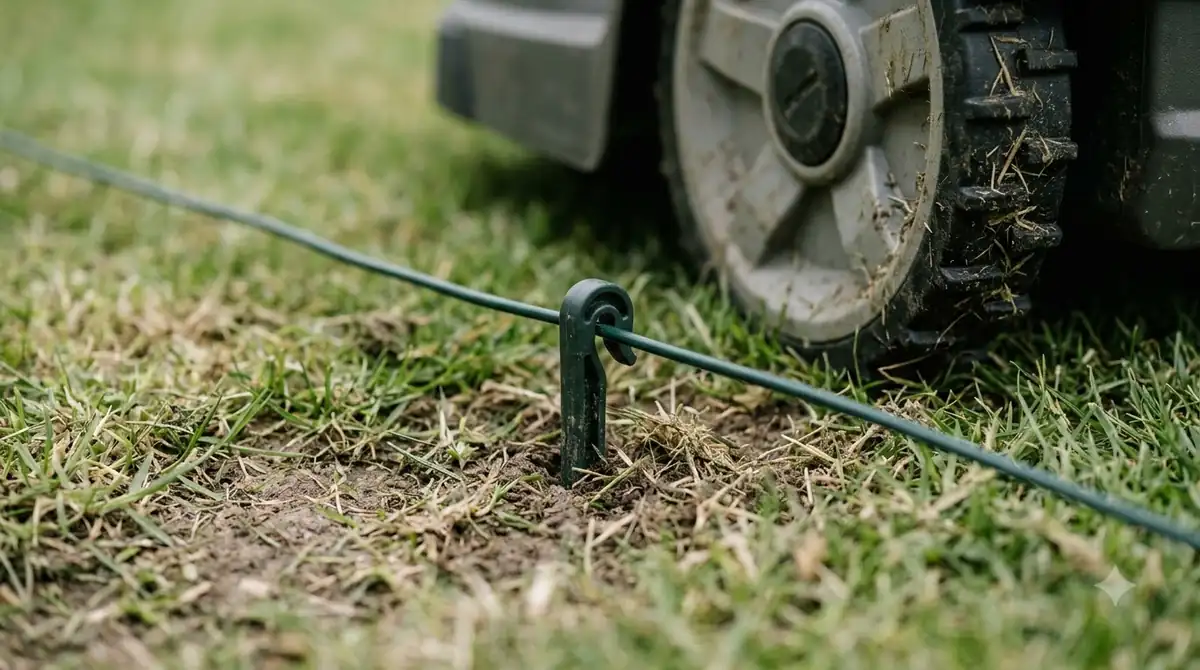
The boundary wire is the next suspect. When a Worx Landroid stuck at the edge of the lawn, the wire is the first thing to check: look for cuts and loose connectors where it meets the base. Worx publishes a separate maintenance page for locating a damaged spot in the boundary wire, and that is the right reference when the wire is the cause. Do not assume the wire is fine just because the mower moved there before.
Temperature and battery state can block charging
A battery outside its safe temperature range will not charge normally, and Worx lists this as its own error category on Landroid Vision. The documented limits are a base temperature above 55 C or below 3 C. Move the base to a cooler or warmer spot if it sits outside that range, and let the battery settle before you try again. A Worx Landroid stuck with an empty battery has a simple fix: place the mower on the base by hand, and the emergency charge should start on its own. Once charging ends, switch the mower on and check the app. If charging fails across several attempts, the pack itself may be the limit, and a replacement battery for the Landroid is the usual remedy.
Collect a log file when the Worx Landroid stays stuck
If the mower stays stuck after these checks, the log file gives Worx support the detail it needs. Turn on the mower, enter the PIN, and insert a FAT32 USB drive of 2 to 8 GB. Wait for the beep or the USB message, then remove the drive. On a computer, open the file named LOG_xxxx.htm and send it to support with a short description of what the mower did before it stopped. A log helps support far more than a general complaint, because it records the sequence of events leading to the Worx Landroid stuck state.
Related reads: A mower that stays stuck while offline may be a connection issue, so Landroid Wi-Fi connection problems are worth reviewing when you gather logs. If a fault persists after every check, factory reset steps for the Landroid explain what a reset clears and what you must set up again.
Frequently asked questions
Why is my Worx Landroid stuck near the charging base?
The most common reason is contact. Dirt or misalignment on the charging poles stops the mower from making full contact, so it tries to dock again and again. Clean the poles, check that the base is level, and make sure the mower sits square.
What should I do if the battery is completely flat?
Dock the mower by hand. Worx documents that the emergency charge starts on its own once the mower is on the base. Let it finish charging, then switch the mower on and check the app for any remaining error.
How do I create a log file for Worx support?
Turn the mower on, enter the PIN, and insert a FAT32 USB drive between 2 and 8 GB. Wait for the beep or USB message and then remove the drive. Open the LOG_xxxx.htm file on a computer and send it to support with a description of the problem.
Can a cold or hot day make a Worx Landroid stuck?
Yes. Worx lists a base temperature above 55 C or below 3 C as outside the charging range on Landroid Vision. Move the base to a more suitable spot and let the battery reach a normal temperature before charging again.
Sources
- Worx Landroid Classic wiki: The mower does not charge (Worx): power supply, contact, emergency charge and log file steps.
- Worx Landroid Vision wiki: E7 charging and docking errors (Worx): temperature limits, base tilt above 5 degrees and poor contact.
 Up next6 min readLearnWorx Landroid Not Docking? Fix the Usual CausesUpdated Nov 10, 2026
 6 min readLearnEcovacs GOAT App Problems and How to Fix ThemUpdated Nov 13, 2026
 9 min readLearnHusqvarna Automower Guide Wire Problem: How to Diagnose and Fix ItUpdated Nov 10, 2026
 7 min readLearnWorx Landroid Customer Service: Routes, Warranty and Log FilesUpdated Nov 13, 2026
 7 min readLearnWorx Landroid Factory Reset: What You Can DoUpdated Nov 13, 2026
 6 min readLearnWorx Landroid App Not Connecting: Fixes That WorkUpdated Nov 13, 2026