
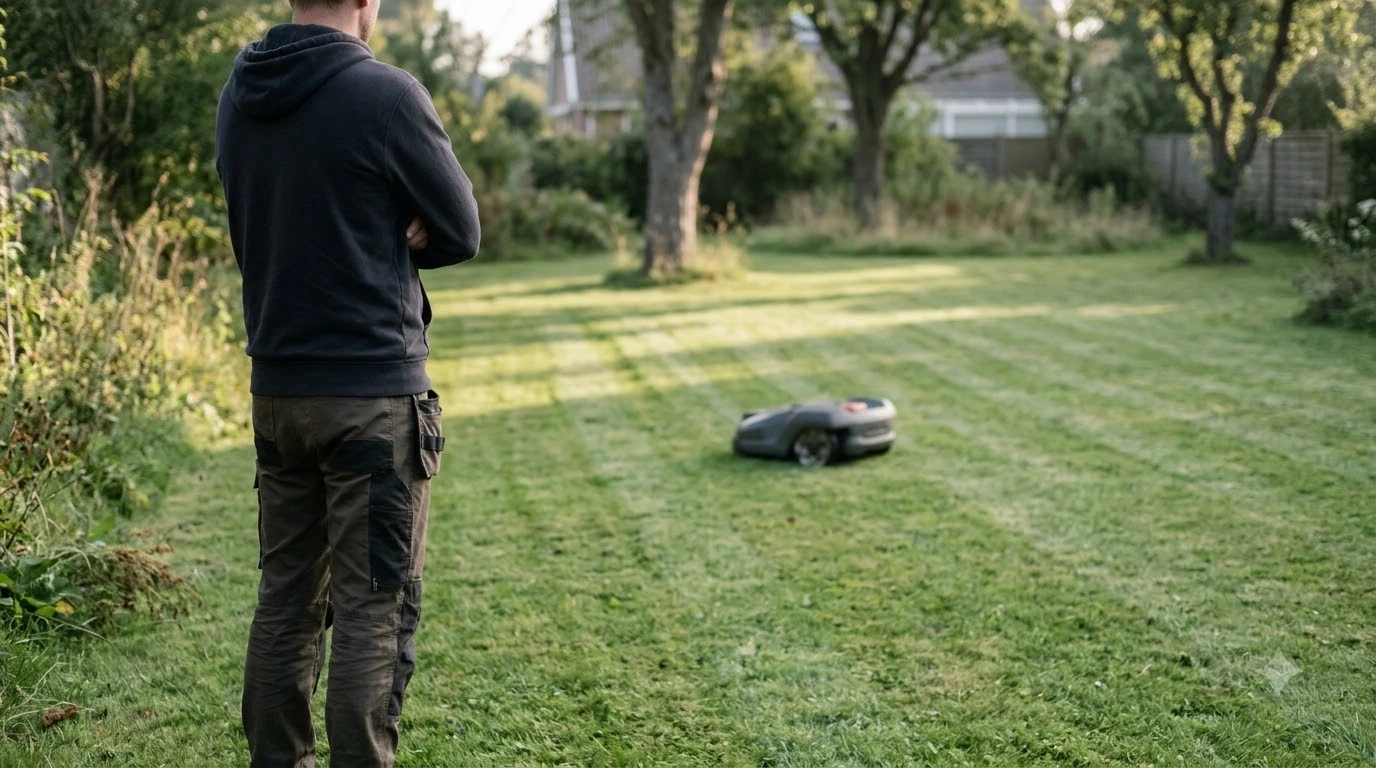

A Worx Landroid factory reset is not a single button we could confirm. Worx does not publish a general reset in the pages we read, so the reset most owners need is the PIN reset. Worx’s wiki describes resetting a forgotten PIN through the Landroid account’s “Unlock” function. A full reset that wipes settings is a different job, and the Worx pages we read do not describe one, so check your model’s manual before you try.
The short answer
- Forgotten PIN: register or log in to your Worx Landroid account on a computer, then use the “Unlock” function. Worx says this resets the PIN to its factory default.
- Full factory reset: not described on the Worx pages we read, so do not assume a button sequence from a third-party site.
- Unpairing: Worx’s account page describes unpairing the mower from the app to reset its ownership, then pairing it again.
- Lock feature: if Lock is enabled, the mower locks after 72 hours without a Wi-Fi connection.
What “Worx Landroid factory reset” usually means
People searching for a Landroid factory reset usually want one of three things. They forgot the PIN and the mower will not accept it. They want to sell or hand over the mower and clear the old owner’s settings. Or the app has lost the mower and pairing will not complete. Each has a different fix, and mixing them up can waste time or erase more than you meant to. For the steps that apply across brands, see generic robot mower reset steps before looking at the Worx details below. Owners deciding whether to keep a cloud-connected unit can read the Worx Landroid Vision Cloud review for context.
Our reading is that you should identify which problem you have before you touch any reset option. A PIN problem is usually solved through the account. An ownership or pairing problem is solved by unpairing and pairing again. A full wipe is the one step to treat with the most care, because the Worx material we checked does not describe its effect on schedules, zones or Wi-Fi settings.
How to reset a forgotten Landroid PIN
Worx’s Landroid Vision troubleshooting page describes the PIN reset in four steps. Register an account if you do not have one, log in on a computer, use the “Unlock” function to reset the PIN to its factory default, and contact Worx support if the reset cannot be completed or the PIN cannot be entered on the mower’s interface.
- Find your account. Use the email and password linked to the mower. If you cannot log in, contact Worx support before you try anything else.
- Log in on a computer. The Unlock function is accessed through the account, not through the mower’s screen.
- Download the file for your mower. Worx’s account page says the unlock and PIN reset use a file specific to your mower.
- Restore the default PIN. Follow the page’s instructions to apply the reset, then set a new PIN you will remember. The Worx pages we read do not state the default PIN value, so check your model’s manual for it.
The Worx wiki warns that without the PIN the mower cannot be operated, so record the PIN in your account once it is set. That single habit prevents most lockout cases.
Unpairing and pairing again
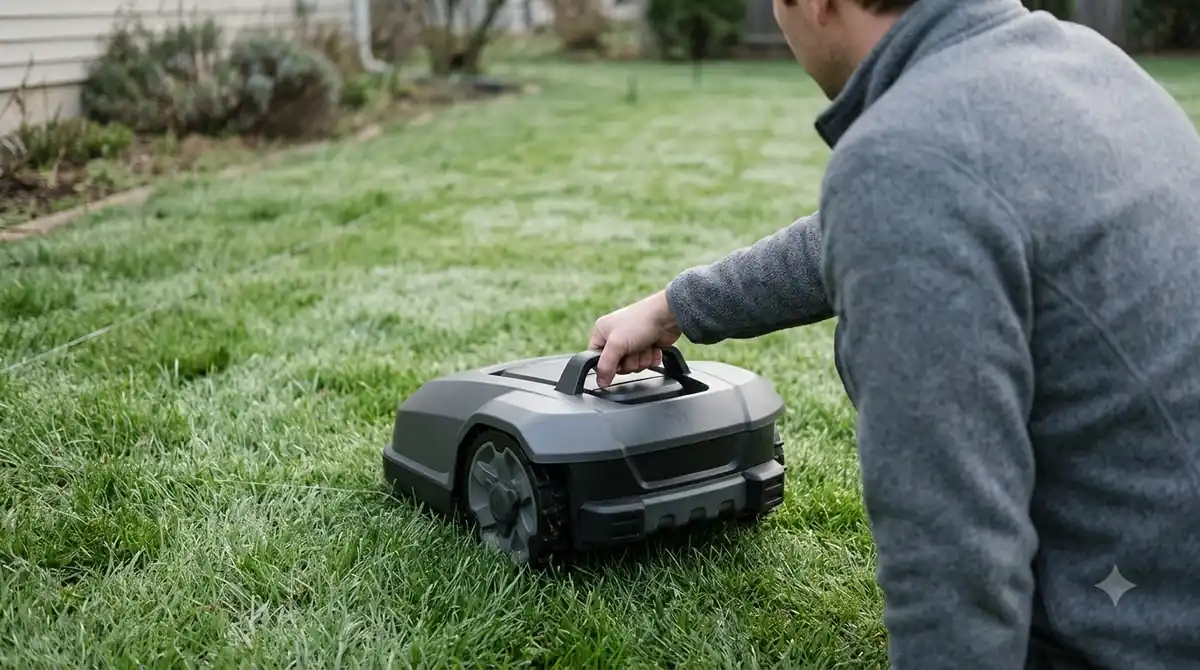
If the goal is to change ownership, or the app has tied the mower to an old account, Worx’s account page says to unpair the Landroid from the app to reset its ownership. After unpairing, repeat the pairing process before the mower can be used again. This is not a factory reset: it changes which account controls the mower, not the mower’s internal configuration. Pairing again often depends on the app, and Worx Landroid app issues lists the usual connection problems. To pair from scratch, setting up a Worx Vision from scratch lists the order of the setup steps.
Keep your Wi-Fi details handy. Worx’s account page says that if pairing fails, you can connect the mower to Wi-Fi using a USB drive, so check the manual for that route before you rely on the app alone.
Why we did not find a full factory reset procedure
We read the Worx pages for the PIN and the account, and neither describes a step that resets the mower to default settings. A search also turned up third-party sites that describe a reset, but they vary by model, and at least one warned that a reset may erase your settings and Wi-Fi connection. Treat those steps with caution, and check the manual for your exact model first. When no full procedure is available, Worx Landroid customer service explains the routes to ask about a reset.
Our reading is that a reset which wipes schedules, zones and pairing is worth doing only when support or the manual confirms the steps for your model. Writing down your zones, schedule and boundary setup before any reset is a cheap precaution.
Lock feature and when it matters
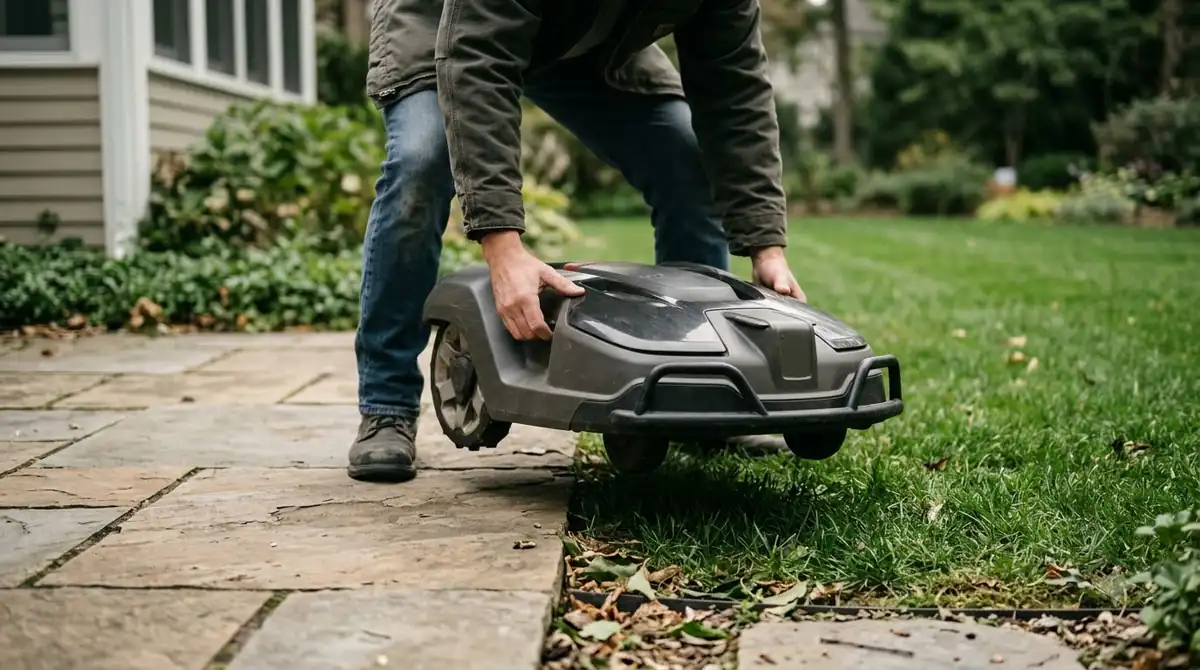
The lock is a separate issue that often looks like a reset problem. Worx says that if the Lock function is enabled, the mower locks after 72 hours without a Wi-Fi connection. A mower that refuses to start after a few days away from its network may be locked rather than broken. Check the Wi-Fi link at the dock first, then the lock setting in the account.
Heads up
Do not repeat a PIN attempt many times in a row. Enter the PIN carefully and use the account reset if it fails, because repeated wrong entries can make the lockout harder to clear.
Before you reset: a short checklist
- Confirm the mower model and that it is registered to your account.
- Write down the PIN, zones, schedule and boundary settings.
- Check the Wi-Fi signal at the charging station.
- Use the account Unlock for a forgotten PIN, and unpair only when you intend to change the owner.
- Contact Worx support if you cannot finish a step or the mower reports an error the manual does not explain.
Related reads: Updating the software before a reset can avoid repeat faults, as covered in updating Landroid Vision firmware. Keep the identifying numbers ready before you start, and see finding the serial number on your mower for where they are printed. A mower that keeps getting stuck may not need a reset at all, which is covered in Worx Landroid getting stuck problems.
Frequently asked questions
Is there a factory reset button on the Worx Landroid?
The Worx pages we read do not describe a factory reset button or a general reset sequence. The documented reset is the PIN reset through the account’s Unlock function. Check your model’s manual for anything beyond that.
How do I reset a forgotten Worx Landroid PIN?
Log in to your Worx Landroid account on a computer and use the Unlock function, which Worx says resets the PIN to its factory default. Contact Worx support if you cannot complete it.
Will a reset delete my zones and schedule?
We did not find a Worx source that confirms this. Write down your zones, schedule and boundary settings before any reset, and check with Worx support for your model.
Why does my Landroid lock after a few days?
If the Lock function is on, Worx says the mower locks after 72 hours without a Wi-Fi connection. Restore the Wi-Fi link and check the lock setting in the account.
Sources
- PIN Code (Worx wiki, Landroid Vision troubleshooting): the four-step PIN reset through the account’s Unlock function, and the support fallback.
- Landroid Account (Worx wiki): unpair and re-pair steps, the mower-specific unlock file, the 72-hour lock, and the USB Wi-Fi route. The page does not describe a factory reset.
 Up next6 min readLearnEcovacs GOAT Factory Reset: Step-by-Step GuideUpdated Nov 13, 2026
 6 min readLearnNavimow Factory Reset: What the Support Pages ConfirmUpdated Nov 13, 2026
 6 min readLearnMammotion Factory Reset: Luba Steps, What Is Erased, and What to CheckUpdated Nov 13, 2026
 7 min readLearnLymow Factory Reset: Steps, Backup and What to Try FirstUpdated Nov 13, 2026
 7 min readLearnHusqvarna Automower Factory Reset: Steps for Newer and Older ModelsUpdated Nov 13, 2026
 8 min readLearnHow to Reset a Robot Mower: Restart First, Then Factory ResetUpdated Nov 11, 2026