
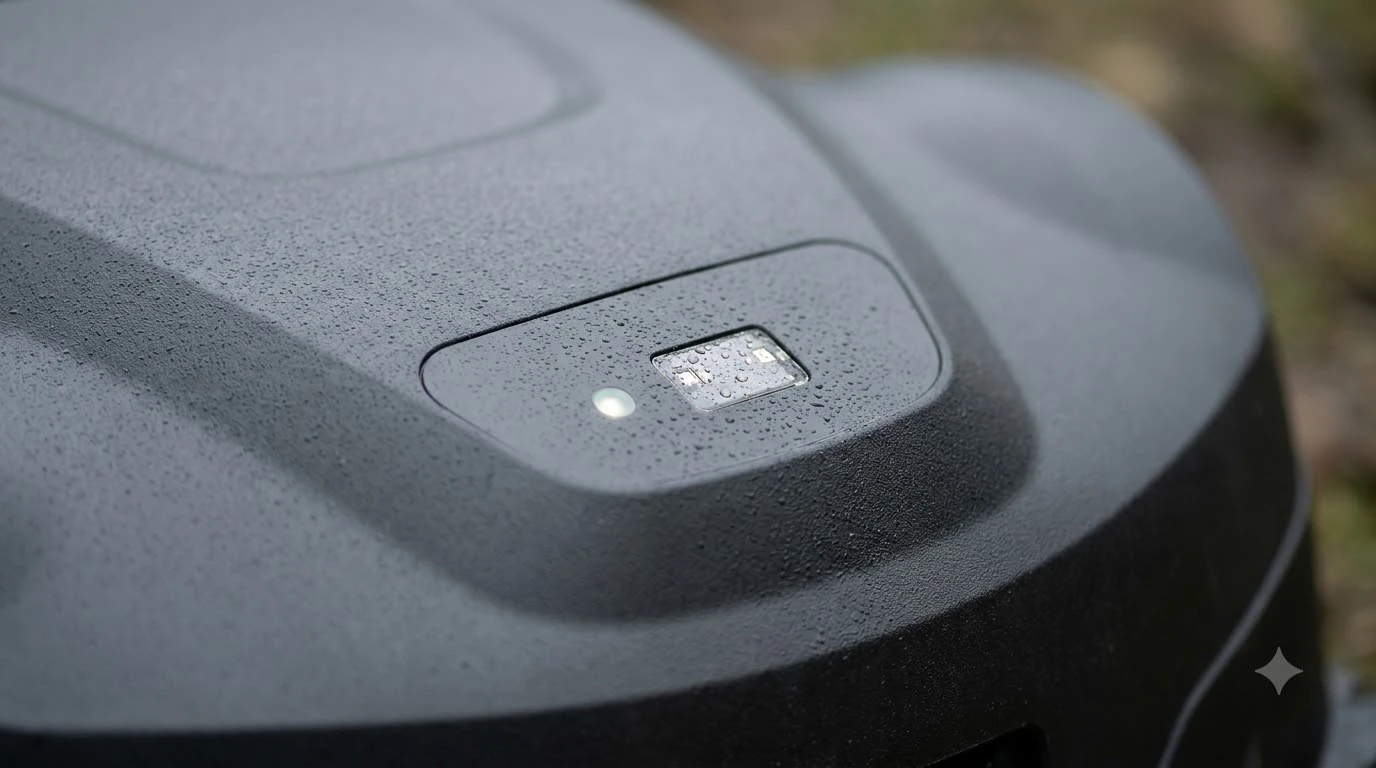

When the Mammotion app cannot find or connect to a Luba, check the network band and the key first, then the phone’s Bluetooth scan. Mammotion’s support articles say Luba supports only 2.4 GHz Wi-Fi, and that a power cycle with the key unplugged and re-seated clears most connection faults. For Bluetooth, the app must see the mower in a BLE scan before pairing can work.
The short answer
- Wi-Fi band: Luba supports 2.4 GHz only, so a 5 GHz-only network will not connect.
- Key reset: power off, unplug the key on the back of the mower, plug it back in, and power on.
- Bluetooth check: confirm the Luba appears in the phone’s Bluetooth or BLE scanner list before retrying in the app.
- Hotspot test: if Luba will not join your Wi-Fi, try a phone hotspot, then reset the key if it still fails.
- Yuka and other models: we did not find an official Yuka connection article, so contact Mammotion support for those.
Why the Mammotion app cannot connect
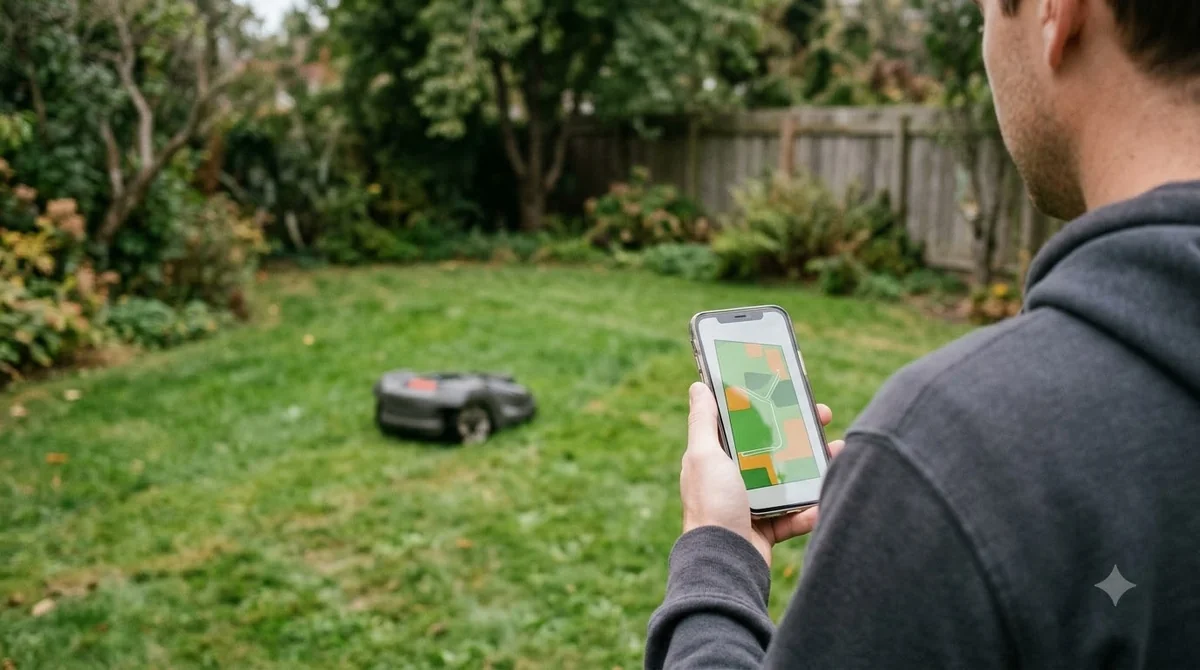
The Mammotion app talks to a Luba over two links. Bluetooth is used for the first pairing and some local control, and Wi-Fi is used for the remote connection and firmware updates. A fault in either link can look like an app problem, which is why Mammotion’s support article for Bluetooth says the issue could be either the mower or the app. For the bigger picture behind this topic, begin with our robot mower app not connecting overview and then come back here.
When troubleshooting, change one part at a time. Reset the mower, then the app, then the network. If you change everything at once, you will not know which step fixed the fault.
Wi-Fi: the 2.4 GHz rule and placement
Mammotion’s Wi-Fi support article is direct: Luba only supports the 2.4 GHz Wi-Fi connection. Check whether your network runs 2.4 GHz, or whether your router offers a 2.4 GHz option alongside 5 GHz. If your router has one combined name for both bands, it may help to use the 2.4 GHz side during setup. You can find more background and practical detail on this point in our offline message in the mower app. See our robot mower Wi-Fi disconnect causes for further detail on a connected question.
Placement also matters. The article notes that distance from the router or physical obstacles can block the connection, and it suggests bringing the mower closer to the router. The same step helps with firmware updates, which also run over Wi-Fi.
The key reset for Luba
The key is the small removable part on the rear of the mower, and Mammotion’s support articles use it as the main reset. The steps are the same in each article: power the Luba off, unplug the key from the rear, plug the key back into its slot, then power the mower on again.
- Power off the Luba.
- Unplug the key on the rear part of the mower.
- Plug the key back into the slot.
- Power on the Luba, then reopen the app and retry.
If the Luba still will not join your Wi-Fi after the reset, Mammotion’s article suggests trying a phone hotspot. If the mower connects to the hotspot but not your home network, the problem is in the home network settings, usually the band or the router placement. If it connects to neither, repeat the key reset and then contact support.
Bluetooth pairing and the BLE scanner check
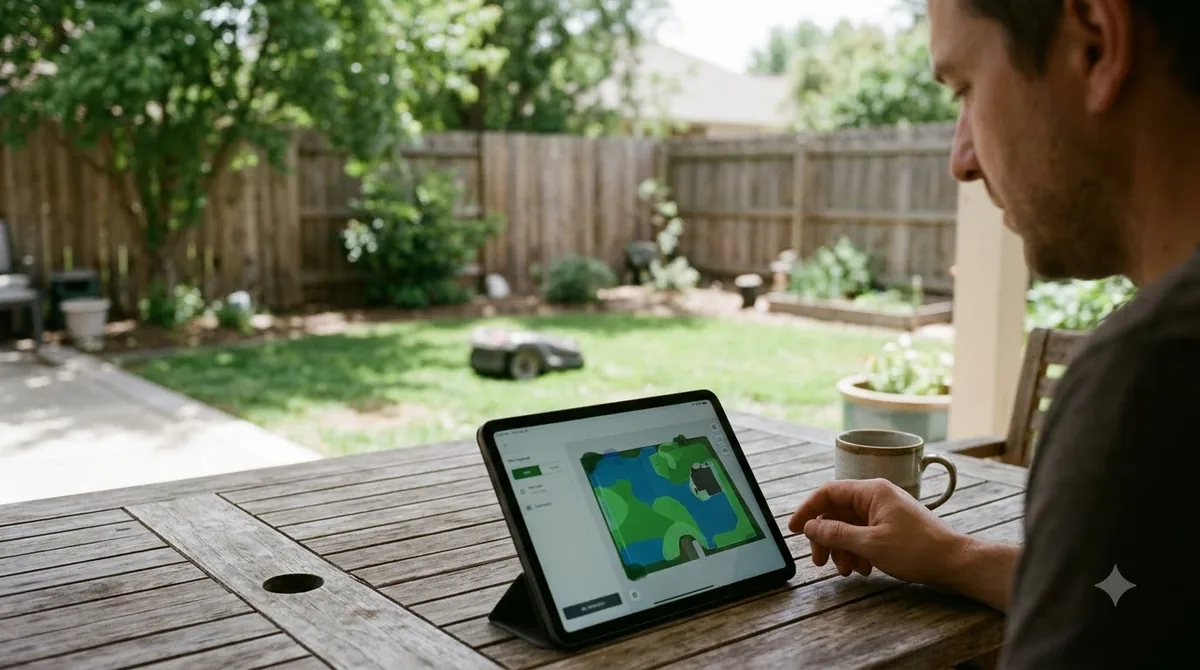
The Bluetooth article covers the case where the app cannot connect to Luba over Bluetooth. The first step is the same key reset. Then restart the app and check the phone’s Bluetooth list. On Android, open Bluetooth settings, power on the Luba and look for a device named “Luba.” On iPhone, Mammotion’s article uses a third-party tool, the BLE Scanner app, with the Luba filter turned on. If the Luba appears in that scanner, the article says there should be no issue with the mower itself. For a closely related angle, see our Segway Navimow app connection issues as well.
Heads up
A third-party scanner app is only a diagnostic tool. Do not share your account details with it, and remove it once you have checked the mower’s name in the list.
Yuka and other Mammotion models
The official articles we read cover Luba. We did not find an official Mammotion connection article for the Yuka in the same search, and the user reports we came across are not official fixes, so we have not used them as steps here. If you own a Yuka, contact Mammotion support through its support site and give the exact model, the app version and the step where the connection fails. If this point matters for your setup, read our Dreame app connection issues for more detail on it.
Keep the model name in mind when you search. The Luba 2 and Luba 3 articles share the same key and Wi-Fi steps in the pages we read, but confirm the step applies to your model before you follow it.
What to send Mammotion support
If the key reset, the hotspot test and the Bluetooth scan do not solve the problem, support will need a clear record. Write down the model, the app version, the Wi-Fi band, whether the mower shows up in the phone’s Bluetooth list, and the exact message on screen. Our reading is that this record helps support find the fault faster than a general description of the problem.
Related reads: Also worth reading is our Mammotion mapping problem fixes, which covers a connected question.
Frequently asked questions
Why won’t my Luba connect to the Mammotion app over Wi-Fi?
The most common cause is a 5 GHz-only network, since Luba supports 2.4 GHz only. Check your band, then do the key reset and retry.
How do I reset the Luba key?
Power the Luba off, unplug the key on the rear of the mower, plug it back in and power the mower on. Then reopen the app and retry the connection.
Does the Mammotion app need Bluetooth for setup?
Bluetooth is used for pairing and local control. If the Luba does not show up in your phone’s Bluetooth list or a BLE scanner, the app cannot pair over Bluetooth.
Are the Luba steps the same for a Yuka?
We did not confirm that. The official articles we read cover Luba, so check with Mammotion support for a Yuka before following the same steps.
Sources
- Mammotion support, what to do if Luba does not connect to Wi-Fi (manufacturer): used for the 2.4 GHz rule, placement, the hotspot test and the key reset steps.
- Mammotion support, what to do if the app could not connect to Luba via Bluetooth (manufacturer): used for the key reset, app restart and the Android and iOS Bluetooth checks.
 Up next6 min readLearnWorx Landroid App Not Connecting: Fixes That WorkUpdated Nov 13, 2026
 6 min readLearnNavimow App Not Connecting: Fixes That WorkUpdated Nov 13, 2026
 7 min readLearnRobot Mower App Not Connecting? Check These Causes FirstUpdated Nov 12, 2026
 8 min readLearnMammotion Luba Stuck at Charging Station: Causes and FixesUpdated Nov 11, 2026
 7 min readLearnLymow won t connect to wifi: fixes that workUpdated Nov 13, 2026
 9 min readLearnRobot Mower Mapping Failed: Causes and Fixes That WorkUpdated Nov 11, 2026