
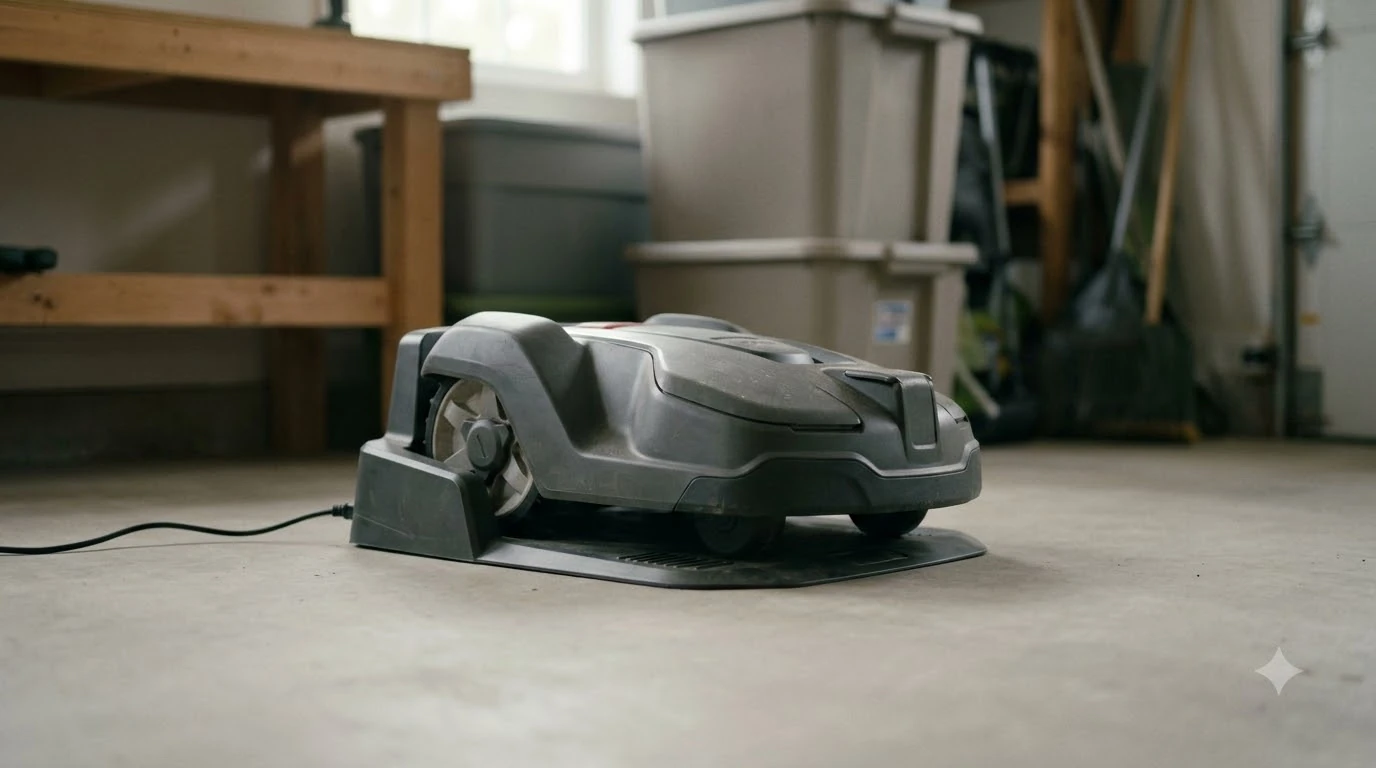

Why does my robot mower start mowing at the wrong time? The usual cause is a clock or schedule setting, or a manual command or automation that overrides the schedule without you noticing. The mower is rarely broken. Most cases come down to the clock on the mower, a park or start command still active, a weather or frost feature, or a secondary area setting. You can check each one in the app in a few minutes.
The short answer
- Check the clock first: a wrong time or date shifts every start and stop.
- Look for a park or duration command: these override the schedule until they end or are cleared.
- Turn off weather and frost features if they are holding the mower back or starting it early.
- Check automations and smart routines that may be sending the mower to the dock.
- Set the mower back to its main area if it is in secondary area mode.
Start with the clock and the date
Every schedule depends on the mower’s internal clock. If the time or date is wrong, every start and stop will be shifted by the same amount, which looks like the mower is mowing at the wrong hour. Husqvarna’s support guide lists an incorrect clock or schedule as the first cause to rule out.
In the Husqvarna app, open More, then Settings, then General, then Time and date, and confirm the time and date match your location. On the keypad, the same setting is under Settings, General, then Time and Date. If you travel, move the mower to a new time zone, or change between daylight saving and standard time, check this setting again, because a mismatch can look like a schedule that has suddenly drifted.
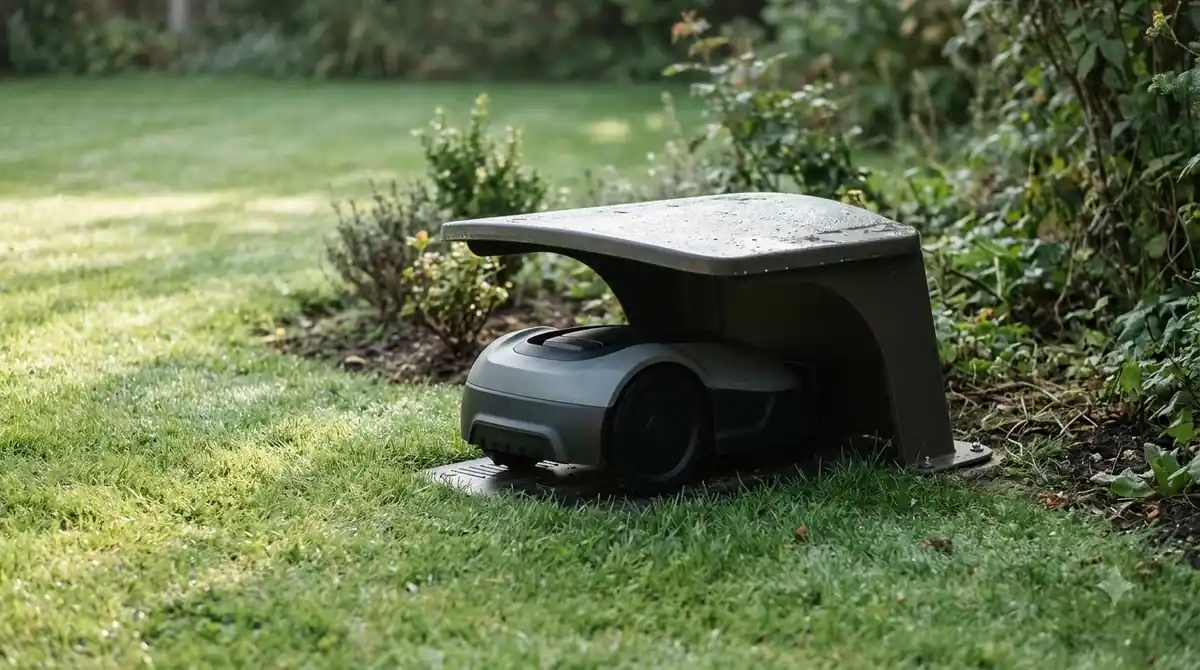
A park or start command overrides the schedule
Manual commands win over the schedule. This is the most common cause of a mower running when you did not expect it, or sitting idle when it should be cutting. Husqvarna describes two kinds of command that do this, and both are easy to forget.
- Park until further notice: the mower stays parked and ignores the schedule until you select a new operating mode.
- Park for a set duration: the mower stays parked for the chosen time, then goes back to the schedule.
- Start for a set duration: the mower runs for the chosen time, overriding the schedule for that length.
To clear any of these, press Play in the app, then choose Resume schedule. You can also pick Select work area, or wait for a timed command to finish. The fastest test is to look at the mower’s current status: if it shows parked or running with no schedule attached, a manual command is the likely cause.
Secondary area mode stops the schedule from applying
Some mowers can be set to work in a secondary area, such as a separate section of lawn. Husqvarna says the schedule only applies once the mower is back in its main area. If the mower has been left in secondary area mode, it may seem to ignore its timetable entirely.
Select Main area on the jog wheel or keypad, or choose Resume schedule in the app. After that, the schedule should take effect at the next start time. This is an easy fix, but it is a common reason a mower stays idle when it should be working.
Weather timer and frost guard change the start
Weather and temperature features can change when the mower runs. The Weather Timer adjusts the schedule based on grass growth, and when growth is low, the mower can return to its charging station instead of cutting, which overrides the timetable. Frost Guard stops the mower from starting below a set temperature, which can make a scheduled run seem to vanish on a cold morning. Frost settings explain some late starts, as frost guard delaying mowing shows.
To change this, open the Weather Timer settings under Settings, then Operation, and turn it off or lower its sensitivity. For Frost Guard, disable it under Smart Routines in the app, or in the keypad settings. We see these features as useful for some lawns and frustrating for others, so decide based on how often your grass needs cutting and how cold your mornings get.
Heads up
A message such as “today’s mowing complete” usually means the mower has reached its daily limit. It will resume at the next session. No action is needed in that case, and changing the schedule will not help.
Smart routines, automations, and IFTTT applets
If you use smart home features, check them before changing the mower itself. Some Smart Routines override the schedule, and an IFTTT applet can park the mower on a trigger you set up months ago. These are easy to forget because they run in the background, and they can make the mower behave differently from its timetable. A brand example of app trouble is Anthbot app issues and fixes.
In the Husqvarna app, review your routines under More, then Smart Home, then Smart Routines, and disable any that are not needed. For IFTTT, check your applets at the IFTTT website and turn off any that park or start the mower. Changing one automation at a time makes it easier to see which one was responsible.
How to diagnose the wrong start time
Work through the checks in order, from the most likely cause to the least: The default pattern is explained in why mowers run every day, which is a useful companion to this section. Updates sometimes change timers, as updating mower firmware explains, and it is worth reading before you change any settings.
- Check the clock and date. Confirm the time zone and the current time in the app.
- Check the status. If the mower is parked or running on a manual command, press Play, then Resume schedule.
- Check the main area. Make sure the mower is not stuck in secondary area mode.
- Check the weather and frost settings. Turn off features that may be holding back or starting the mower.
- Check the automations. Disable any smart routine or IFTTT applet that could be overriding the schedule.
- Watch one full day. Change one setting at a time and note the start and stop times, so you can see which change fixed it.
If none of these explains the problem, contact the manufacturer’s support with the model, the app version, and a description of the start times you saw.
Related reads: Other faults are covered in problems that commonly disrupt schedules, and it explains the reasoning in more depth.
Frequently asked questions
Why did my robot mower start early this morning?
The most common cause is a wrong clock, a time zone mismatch, or a start command that ran for a set duration. Check the time and date settings first, then the status of any manual command in the app.
How do I stop the mower from ignoring its schedule?
In the Husqvarna app, press Play and then choose Resume schedule. This clears a park or duration command so the mower returns to its timetable. If the mower is in secondary area mode, select Main area as well.
Can weather settings change the mowing time?
Yes. The Weather Timer can send the mower back to its charging station when grass growth is low, and Frost Guard can stop it from starting below a set temperature. Either can make the mower look as if it ignored its schedule.
Why does my mower skip days even though the schedule is set?
Check whether a daily limit has been reached, whether a weather feature is active, and whether a smart routine or automation is overriding the timetable. A message that the day’s mowing is complete is normal and needs no action.
Sources
- Automower robotic lawn mower not following scheduled cutting times (Husqvarna support): the clock, park and duration commands, secondary area mode, Weather Timer, Frost Guard, Smart Routines, and IFTTT applets.
 Up next9 min readLearnWhy Does My Robot Mower Beep Three Times on the Dock?Updated Nov 19, 2026
 6 min readLearnWhy Does My Robot Mower Leave Tire Marks on the Dock Area?Updated Nov 13, 2026
 7 min readLearnWhy Does My Robot Mower Leave Stripes in the Lawn?Updated Nov 13, 2026
 7 min readLearnWhy Does My Robot Mower Get Stuck Under Bushes?Updated Nov 13, 2026
 7 min readLearnWhy Does My Robot Mower Take So Long to Finish?Updated Nov 13, 2026
 7 min readLearnWhy Does My Robot Mower Wheels Slip on Grass?Updated Nov 13, 2026