
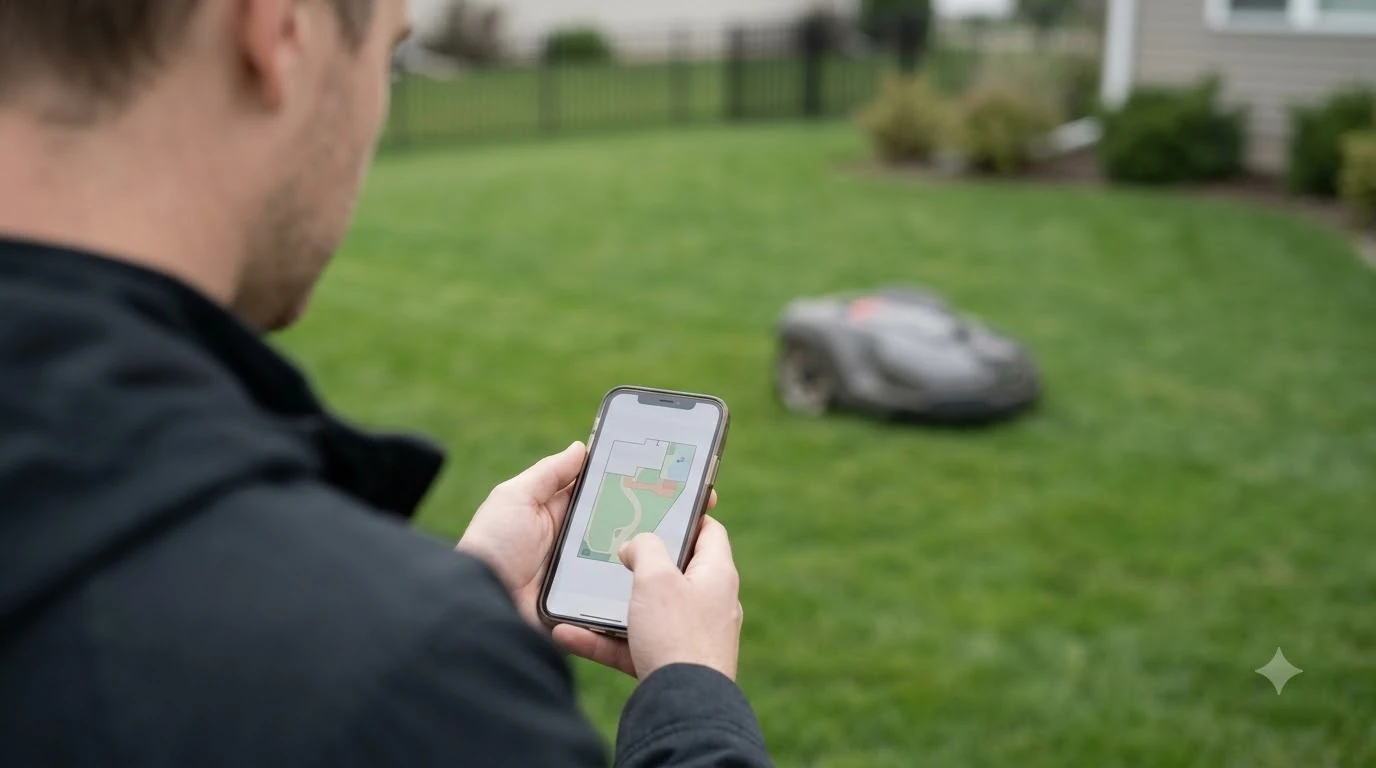

How to update robot mower firmware: use the manufacturer’s app, and let the install run while the mower is charged and parked in its charging station. Husqvarna’s Automower process, for example, downloads the update in the background, notifies you in the app, and pauses mowing for roughly 15 to 30 minutes during installation. The exact menu names differ by brand, so check your model’s support pages before you tap anything.
The short answer
- Find the version: in Husqvarna’s app, go to More, then My mowers, then Mower details, then Overview.
- Check frequency: Husqvarna’s mowers check for updates once a week; Mammotion advises checking monthly.
- Before installing: charge the mower, park it in the station, and keep Wi-Fi strong at the dock if the model is Wi-Fi only.
- During install: expect mowing to pause for about 15 to 30 minutes.
- If it fails: restart the mower, reconnect over Bluetooth, check the version, and try again.
Where to check your current firmware version
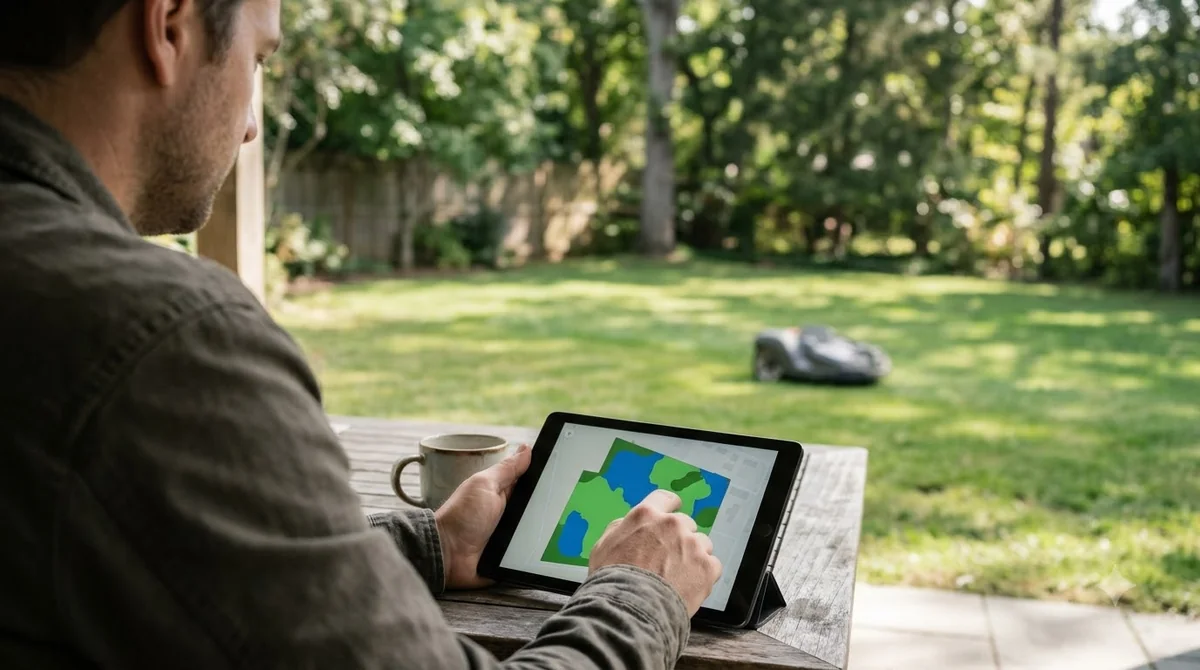
Start by reading the version the mower is already running, because that tells you whether an update is actually waiting. Husqvarna’s support article says to open the app, go to “More,” then “My mowers,” then “Mower details,” and read the firmware version on the “Overview” screen. You then compare that number with the release information for your model.
Brands do not all check the same way. Husqvarna says its mowers “automatically check for updates once a week,” and the “Check for firmware updates” setting is on by default in the Automower Connect app. Mammotion’s maintenance guidance takes a different approach and recommends that owners “check monthly for new versions” through the app or by USB. Neither page says the other’s method is wrong. Our reading is that the best routine is the one you will actually follow, and a monthly look at the version screen costs almost nothing.
| Brand guidance | How often updates are checked | Where you check |
|---|---|---|
| Husqvarna Automower | Once a week by the mower, toggle on by default | Automower Connect app, Mower details |
| Mammotion | Monthly, by the owner | App or USB connection |
What to have ready before an update
Knowing how to update robot mower firmware safely starts with the mower’s power and connection, which should both be sound before the install begins. Husqvarna’s steps ask the owner to make sure the mower is charged (see how often a robot mower needs to charge) and parked when the app sends the install notice. The install is started from that notification or from the mower details screen, and the app disconnects briefly and reconnects on its own when it is done.
Connection needs depend on the model. Husqvarna says Wi-Fi-only models need the “charging station must be within strong Wi-Fi range,” while models with both cellular and Wi-Fi do not require Wi-Fi, although Wi-Fi can speed up the download. If your yard has weak signal at the dock, that is the first thing to fix. Our reading is that a mesh node or a wall-mounted extender near the charging station is a simpler fix than moving the dock (see whether you need a Wi-Fi extender for a robot mower, or outdoor mesh Wi-Fi for a backyard robot mower), but any change should be tested by checking the download status in the app.
Mammotion’s spring advice is to apply firmware updates before the first mow of the season. That lines up with a simple habit: check the version before the grass starts growing, not in the middle of a busy week.
How to update robot mower firmware, step by step
Once the update is found, the install follows a short sequence. The steps below reflect Husqvarna’s published process for FOTA (over-the-air) updates on supported models.
- Confirm the setting. Check that “Check for firmware updates” is turned on in the app.
- Let the download finish. The download starts automatically when an update is found, and it uses Wi-Fi or the mower’s mobile connection.
- Park and charge. When the app notifies you, make sure the mower is charged and in its station.
- Start the install. Use the notification or the mower details screen, then wait for the process to end.
- Tap Done. The app disconnects briefly during installation and reconnects by itself.
Plan for the mowing schedule to pause while this runs. Husqvarna’s article says mowing “pauses temporarily (typically 15 to 30 minutes),” and the mower stays parked during the download. If you have a mowing window that runs right after the notification, it is better to start the install during a quiet period than to interrupt a session.
Why some firmware updates are urgent
Not every update is equal. Husqvarna says some updates “contain essential security fixes that protect your lawn mower.” For those, the owner has 7 days to install manually, and after that window the update installs automatically. The company recommends installing when notified so the update does not collide with the mowing schedule.
Non-security updates still matter. Mammotion says manufacturers “frequently push updates that improve slope navigation, optimize battery usage, or patch known issues.” For an owner with a steep yard or an older battery, those changes can be the difference between a clean run and a stuck mower. Our reading is that an update notice should be treated as a routine task, not an optional extra, but the release notes for your model should decide how quickly you act.
The general security principle comes from the US Cybersecurity and Infrastructure Security Agency, whose tip page on default credentials and device hardening says that “regular software updates are one of the most effective steps you can take.” The page was released on February 1, 2021, and it is written mainly for home routers and network devices, so it is a general rule rather than a mower-specific instruction.
What to do when an update fails
A failed install does not need a full reset, and anyone who knows how to update robot mower firmware can try the retry first. Husqvarna’s official steps are to restart the mower, reconnect over Bluetooth, and check the firmware version. If the new version is shown, the job is finished. If not, start the installation again. Our reading is that the second attempt should be made with the mower fully charged and parked in its station, since that is where the install runs.
If the retry also fails, contact the manufacturer’s support rather than repeating the same steps indefinitely. Keep a note of the model, the firmware version before and after, the app used, and the time of each attempt. Support teams can use those details to tell a dock or connectivity issue from a bad download.
Security habits that go beyond updates
Updates are one layer, not the whole defense. CISA’s guidance on default credentials says that default logins “are not secure” because they may be easy to find online, and it advises owners to change them. It also says owners should “disable all unnecessary services” to reduce the attack surface of a network and its devices. Those two habits apply to a robot mower’s app account and its Wi-Fi network as much as to a router.
A 2026 case shows why the update path matters for robot machines. In May 2026, Malwarebytes reported that Yarbo, a maker of outdoor robots, had responded to researchers’ findings by temporarily disabling remote diagnostic tunnels and resetting root passwords. The same article says Yarbo promised per-device credentials and credential rotation, but it does not confirm that a firmware patch had shipped at that time. Its advice to owners was to check whether the vendor will make updates available and how easy they are to install before buying, then install them when they appear.
Our reading is that knowing how to update robot mower firmware matters less than asking, before buying any connected mower, how the vendor delivers fixes, not only whether it has an app. For a view of the app side, see which robot mower brand has the best app and what to know before buying a robot mower.
Frequently asked questions
How to update robot mower firmware?
Open the manufacturer’s app, confirm the automatic update check is on, and wait for the download to finish. Start the install from the notification or the mower details screen while the mower is charged and parked. Husqvarna’s process pauses mowing for about 15 to 30 minutes.
How often should I check my robot mower’s firmware?
It depends on the brand. Husqvarna’s Automower checks for updates once a week by itself, while Mammotion advises owners to check monthly through the app or USB. Either way, look at the version screen before the start of the mowing season.
Does a robot mower need Wi-Fi to update?
Wi-Fi-only models need the charging station to be within strong Wi-Fi range. Models with both cellular and Wi-Fi do not require Wi-Fi, although Wi-Fi can make the download faster. Check your model’s specification before you buy.
What if my robot mower firmware update keeps failing?
Restart the mower, reconnect over Bluetooth, and confirm the version. If it still does not install, try again, then contact the manufacturer’s support with the model, firmware versions, and the time of each attempt.
Sources
- Husqvarna, How to update your Automower firmware (manufacturer): update steps, version check path, weekly check, 15 to 30 minute pause, Wi-Fi requirement, 7-day security update window.
- Mammotion, AWD robot lawn mower maintenance guide (manufacturer blog): monthly update check, reasons for updates, firmware before the first mow.
- CISA, Tip ST15-002 (default passwords and software updates) (US government): regular software updates, default passwords, disabling unneeded services. Page released February 1, 2021.
- Malwarebytes, Yarbo responds to robot flaws (security news, May 11, 2026): vendor response, credentials, owner advice on updates.
 Up next8 min readLearnHow to Update Husqvarna Automower 430X FirmwareUpdated Nov 11, 2026
 7 min readLearnAre Robot Mowers Safe at Night for Wildlife?Updated Nov 11, 2026
 10 min readLearnAre Robot Mowers Worth It for Seniors? 5 Simple ChecksUpdated Nov 11, 2026
 9 min readLearnRobot Mower Payback Period vs Lawn Service in 4 StepsUpdated Nov 11, 2026
 7 min readLearnHow to Set Up an RTK Robot Mower: Base Station StepsUpdated Nov 11, 2026
 7 min readLearnRobot Mower Not Charging? How to Fix It Step by StepUpdated Nov 11, 2026