
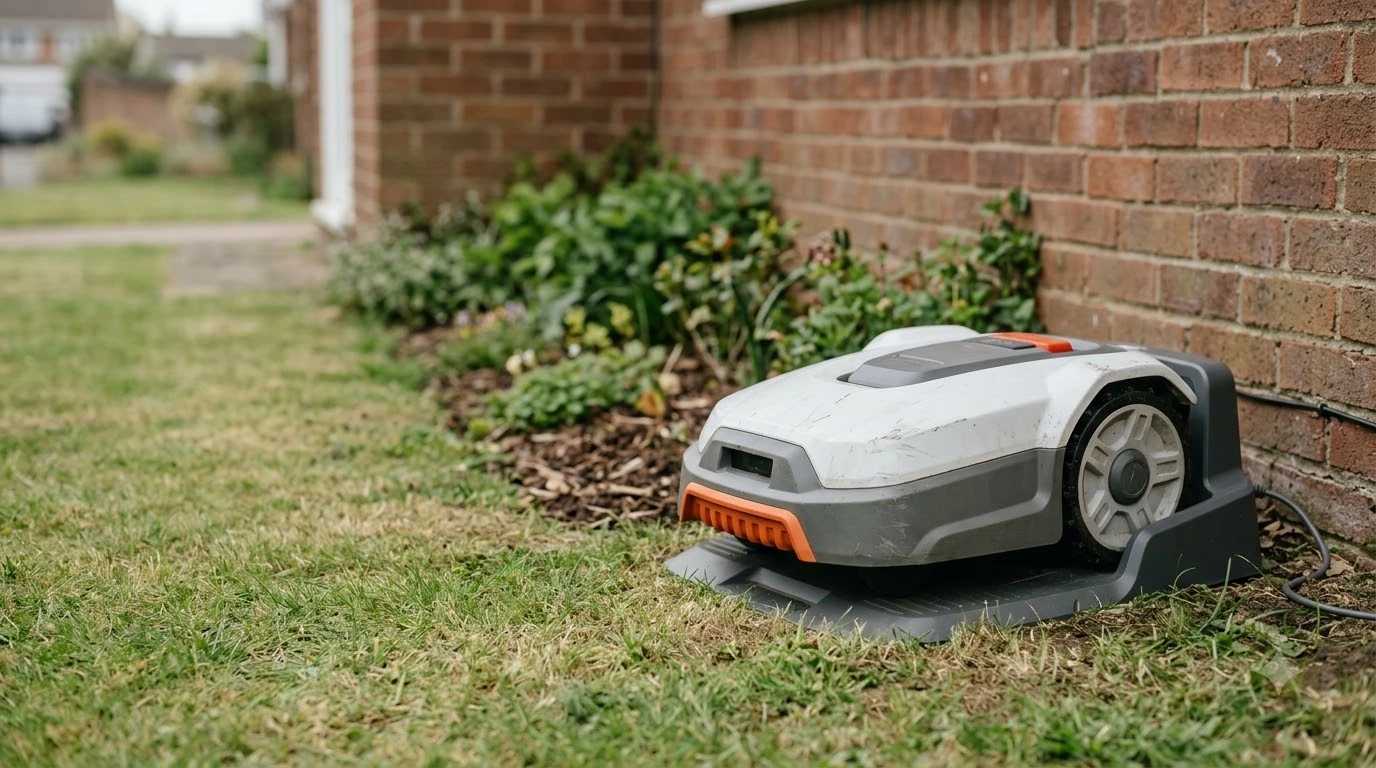

Why does my robot mower app say offline? Usually the mower has lost its Wi-Fi link to your router, not failed as a machine. In most cases the cause is a router that is off or disconnected from the internet, a network the mower does not have saved, a 5 GHz band the mower cannot use, or a weak signal at the dock. Most of these take a few minutes to check, and you can work through them in order below.
The short answer
- Check the router first: confirm other devices can reach the internet right now.
- Use 2.4 GHz: Husqvarna’s Wi-Fi mowers support only 2.4 GHz, not 5 GHz or 6 GHz.
- Confirm the network is saved in the mower’s settings inside the app.
- Move the router closer to the lawn or add a 2.4 GHz extender if the signal is weak.
- Restart the three parts: the mower, the phone, and the app, then update the app.
What “offline” means in the app
Apps word connection problems differently, so the label you see may not match a manual exactly. The usual meaning is that the app cannot reach the mower over the internet, which in practice means the mower has no working Wi-Fi connection to the router. Husqvarna’s troubleshooting guide describes the symptom as the mower showing as disconnected from Wi-Fi, and it lists the same set of causes for that symptom. Readers who want a broader overview can read our robot mower app connection troubleshooting guide first and then continue with this page.
This matters because the mower may keep working. A Wi-Fi-only mower can keep cutting on its saved schedule while it is offline. What you lose is remote control, status updates, and smart home features until the link is back. So an offline label is an inconvenience to fix, not a sign the mower has stopped mowing.
Check the router and the internet first
Start outside the mower. Open a website on your phone while it is on the same Wi-Fi network as the mower. If nothing loads, the router or the internet service is down, and no mower setting will fix that. Restart the router by unplugging it for about 30 seconds, then plug it back in and wait for the lights to settle. See our Wi-Fi dropouts on a robot mower for further detail on a connected question.
Husqvarna lists a router power failure and a Wi-Fi network that has lost its internet connection as two common reasons for disconnection. Both are easy to miss, because the router can still show a Wi-Fi name on your phone while it has no internet behind it.
Make sure the network is 2.4 GHz
This is the cause most people overlook. Many home routers broadcast one name for both bands, or run a separate 5 GHz network that the mower cannot see. According to Husqvarna’s support page, Wi-Fi-enabled Automowers support only 2.4 GHz networks and do not support the 5 GHz or 6 GHz bands. If your router sends both bands under one name, the mower may connect to the wrong one or fail to connect at all. For a closely related angle, see our step-by-step Wi-Fi setup for a robot mower as well. If this point matters for your setup, read our Mammotion Luba app connection fixes for more detail on it.
Check your router’s settings and either turn on the 2.4 GHz band or give it its own name so you can pick it on the mower. Other brands may behave differently, so read your own mower’s manual, but for a Husqvarna mower this is the first thing to confirm.
Heads up
Do not change your phone or laptop to a band they cannot use. Only the mower needs 2.4 GHz. Keep your other devices where they are and change the band only for the network the mower joins.
Confirm a Wi-Fi network is saved in the app
A mower cannot reconnect to a network that it no longer has. If the network was replaced, renamed, or reset, the mower may still be trying to join the old name. In the Husqvarna app, go to More, then Settings, then Automower Connect, then Wi-Fi. If no network appears, add one again.
The same applies after a router swap. A new router with the same name and a different password will not reconnect until the password on the mower is updated. Re-entering the details takes a minute and clears a very common cause of an offline label.
Check the signal strength at the dock
Distance and walls matter. Husqvarna advises placing the router as close as possible to the lawn, or near windows that face the work area. The mower’s signal can be checked in the same settings menu, under Automower Connect, after entering your PIN. A weak reading means the mower is at the edge of the network, even if it connects at times. You can find more background and practical detail on this point in our Navimow app disconnected fixes.
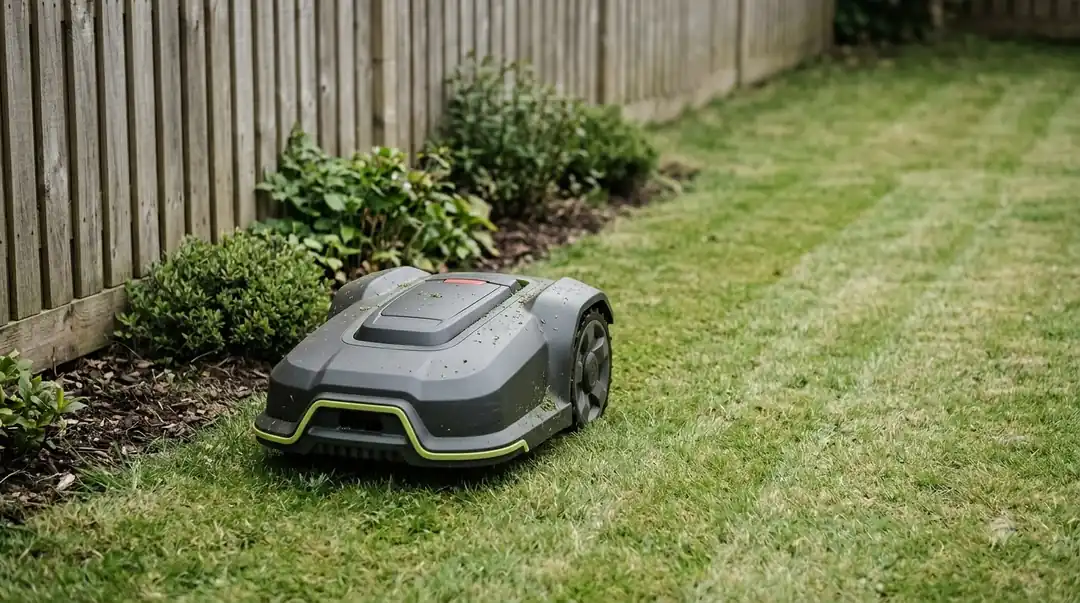
If the signal is weak, you have three practical options. You can move the router closer to the lawn, add a 2.4 GHz Wi-Fi extender, or install a mesh system with a unit placed between the house and the dock. For a yard that sits far from the house, an outdoor-rated extender near the garden side is usually the more reliable choice. We see this as the most common long-term fix, because a mower at the edge of a weak signal will drop offline again after every storm or power blip.
Restart the mower, the phone, and the app
Restarting clears many one-off faults. Restart the mower, then your phone, then the app. Before you restart, make sure the app is on its latest version, since an old app can hold a stale connection. Husqvarna’s guide recommends the same order: restart, update, then test again. See our eufy E15 app and 4G fixes for further detail on a connected question.
Bluetooth matters too. Husqvarna asks you to make sure Bluetooth is on and the phone is connected to the mower, because the app often uses Bluetooth during setup and to reach the mower nearby. If Bluetooth is off, the app may show the mower as unreachable even when Wi-Fi is fine.
When the app stays offline after all of this
If you have confirmed the router is online, the network is 2.4 GHz, the password is current, the signal is reasonable, and you have restarted everything, the next step is the manufacturer’s support line. Give them the model, the app version, and what the signal reading showed. Some faults sit inside the mower’s Wi-Fi module, and those cannot be fixed at home. A neighbouring subject worth a look for the same yard is our robot mower firmware update guide.
Keep in mind that a mower on an offline status can still cut on schedule. If the lawn is being mowed, the connection problem is a convenience issue, not an emergency. Take your time and work through the checks instead of resetting the mower repeatedly, since a reset can remove saved settings and make the next setup harder.
Frequently asked questions
Why does my robot mower app say offline when the mower is still cutting?
A Wi-Fi-only mower can run its saved schedule without a live connection. The app loses the link to the mower, so it shows offline, but the mower keeps working on its schedule. You lose remote control and status updates until the connection returns.
Can a robot mower connect to a 5 GHz Wi-Fi network?
For Husqvarna Automower models, the support guide says the mower supports only 2.4 GHz networks and does not support 5 GHz or 6 GHz. Check your own model’s manual, because other brands may differ.
How far can the Wi-Fi reach from the house to the mower?
There is no single distance that suits every yard. Walls, metal, and trees reduce the signal. Husqvarna advises placing the router close to the lawn or near windows that face the work area, and suggests an extender or mesh system when the signal is weak.
Will a factory reset fix an offline mower?
Not usually. Start with the router, the 2.4 GHz band, the saved network, and a restart. A reset can erase saved settings and force a full setup, so use it only after the simpler checks fail and the manufacturer has advised it.
Sources
- Troubleshooting Wi-Fi issues on Automower robotic lawn mowers (Husqvarna support): causes of disconnection, the 2.4 GHz requirement, router placement, signal check, and restart steps.
- Troubleshooting mobile connection issues in Automower robotic lawn mowers (Husqvarna support): the Disconnected status, restarting the connection module, and checking phone internet access.
 Up next7 min readLearnDreame A1 App: Fixing Connection and Offline ProblemsUpdated Nov 13, 2026
 7 min readLearneufy E15 App: Fixing Offline, 4G, and Lifted AlertsUpdated Nov 13, 2026
 7 min readLearnSunseeker S4 App: Fixing Offline and Pairing ProblemsUpdated Nov 13, 2026
 7 min readLearnWhy Does My Robot Mower Leave Clumps of Grass?Updated Nov 13, 2026
 7 min readLearnWhy Does My Robot Mower Wheels Slip on Grass?Updated Nov 13, 2026
 7 min readLearnWhy Does My Robot Mower Take So Long to Finish?Updated Nov 13, 2026